Elevate Your Digital Art: Exploring the Top Tools
Want to create stunning digital art but overwhelmed by the software choices? This list of the 10 best tools for digital art in 2025 simplifies your decision-making. Whether you're a beginner or professional, discover the perfect software to match your artistic style and skill level. We cover top contenders like Adobe Photoshop, Procreate, and Clip Studio Paint, along with other powerful options like Krita and Affinity Designer. Find the best tools for digital art and unlock your creative potential.
1. Adobe Photoshop
Adobe Photoshop consistently tops the list of best tools for digital art, and for good reason. It's the industry-standard raster graphics editor, a staple for digital artists, photographers, and designers worldwide. Its comprehensive toolset allows for everything from detailed painting and drawing to complex photo manipulation and compositing. Whether you're crafting a hyperrealistic portrait, designing a vibrant illustration, or retouching a photograph, Photoshop offers unparalleled control and flexibility. Its advanced features, combined with its widespread use, make it a powerful and essential tool for any serious digital artist looking to create professional-quality work. This dominance in the digital art world ensures a wealth of tutorials, online courses, and a vast community to support your learning journey. This alone solidifies its position as a leading contender amongst the best tools for digital art.
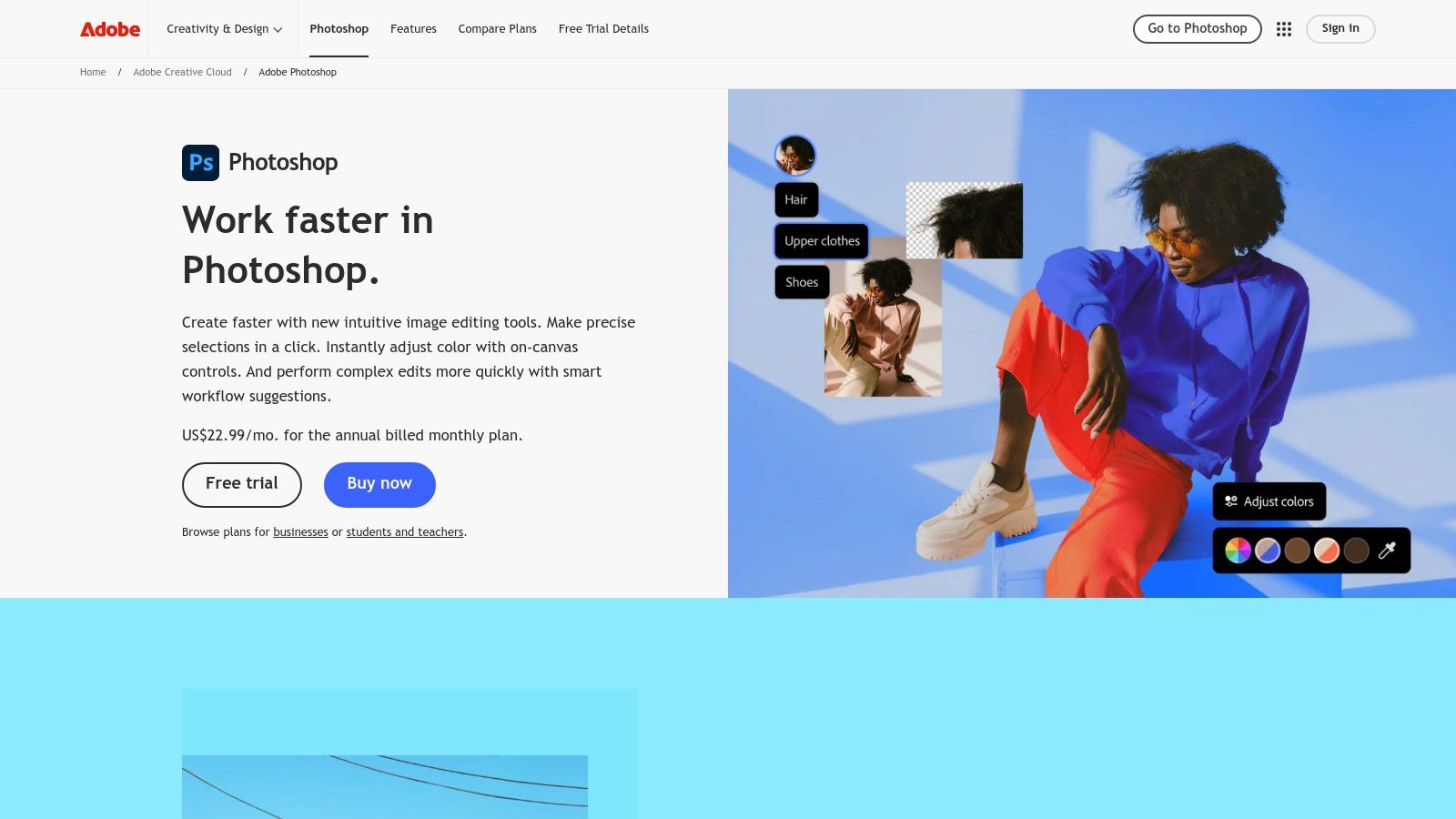
At the heart of Photoshop's power lies its advanced brush engine. With customizable brushes, you can mimic traditional media like watercolor, oil paint, and charcoal, or create unique digital brushes tailored to your specific needs. The layer-based editing system, combined with blend modes, provides granular control over your artwork, allowing for non-destructive editing and experimentation. Whether you’re layering textures, adjusting colors, or adding special effects, the robust layer system allows for complex compositions and ensures you can always revert to earlier versions. For artists working with photographs, Photoshop's built-in photo manipulation tools are second to none, offering a wide range of retouching and correction capabilities.
Photoshop's extensive selection and masking tools allow for precise editing, isolating specific areas of an image with ease. This level of control is invaluable for tasks like compositing multiple images, creating intricate selections, and applying targeted adjustments. Furthermore, Photoshop supports a wide variety of file formats and color spaces, ensuring compatibility with other software and professional printing standards. This is crucial for artists working across different platforms or collaborating with others in a professional setting.
Compared to other raster graphics editors like GIMP or Krita, Photoshop’s comprehensive feature set and polished user experience make it a top choice for professional artists. While these alternatives offer excellent free and open-source options, they often lack the advanced features and refined workflow that Photoshop provides. Specifically, Photoshop's integration with other Adobe products, such as Illustrator and InDesign, streamlines the creative process, particularly for those working on projects that span multiple disciplines.
Pros:
- Industry standard with extensive learning resources: The vast online community and abundance of tutorials make learning Photoshop more accessible.
- Powerful and comprehensive toolset: From basic drawing to complex compositing, Photoshop provides the tools you need.
- Excellent integration with other Adobe products: Seamless workflow between applications for a more efficient creative process.
- Regular updates and new features: Adobe continually updates Photoshop with new features and improvements.
Cons:
- Expensive subscription model ($22.99/month): The subscription cost can be a barrier for some artists.
- Steep learning curve for beginners: The sheer number of features can be overwhelming for new users.
- Can be resource-intensive on older hardware: Photoshop's advanced features require a reasonably powerful computer.
- Primarily raster-based editing: While Photoshop does offer some vector capabilities, it is primarily a raster-based editor.
Implementation/Setup Tips:
- Utilize online tutorials and resources to learn the basics and explore advanced techniques.
- Customize your workspace to suit your workflow and preferences.
- Experiment with different brushes and blend modes to discover new creative possibilities.
- Take advantage of Photoshop's keyboard shortcuts to speed up your workflow.
Website: https://www.adobe.com/products/photoshop.html
Despite its cost and learning curve, Adobe Photoshop remains a powerhouse in the digital art world. Its vast feature set, industry-standard status, and extensive community support make it a valuable investment for serious digital artists. If you're looking for the best tools for digital art and are willing to commit to mastering a powerful software, Photoshop is undoubtedly a top contender.
2. Procreate
Procreate has firmly established itself as a leading contender among the best tools for digital art, and for good reason. This powerful iPad app provides a comprehensive suite of artistic tools in a portable and intuitive package, making it an excellent choice for both seasoned professionals and aspiring digital artists. Its focus on a natural drawing experience, combined with a robust feature set, positions it as a compelling alternative to more complex desktop software, especially for artists who value mobility and a streamlined workflow. Whether you're sketching on the go, crafting detailed illustrations, or developing vibrant concept art, Procreate offers a user-friendly environment to bring your creative visions to life. Its popularity is a testament to its effectiveness and ease of use in the ever-evolving landscape of digital art creation.
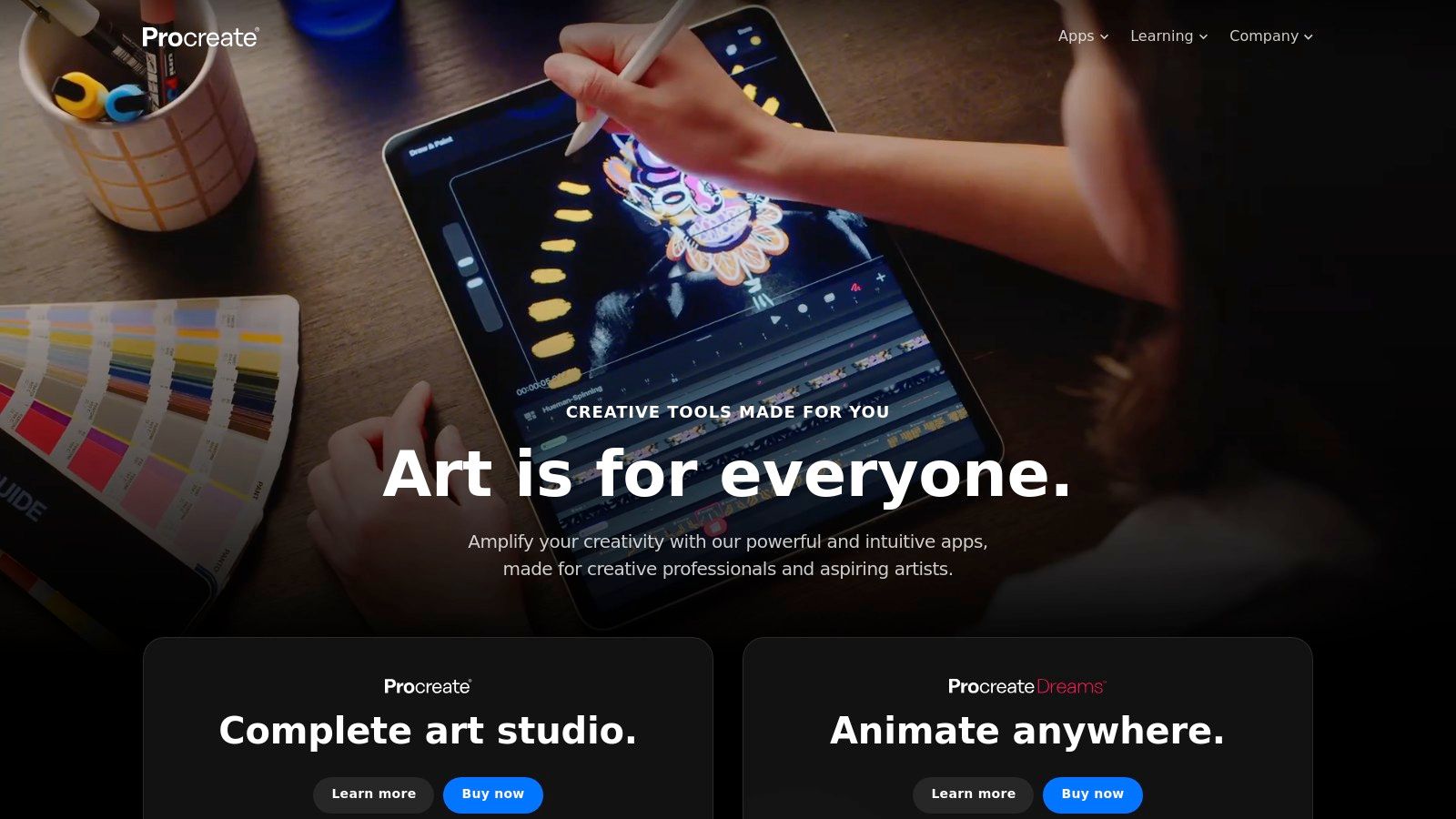
One of Procreate's most significant strengths lies in its intuitive interface. Designed specifically for touch input and optimized for the Apple Pencil, it offers a remarkably natural drawing experience. The app mimics the feel of traditional media, allowing artists to create with a level of precision and control that is often difficult to achieve with other digital tools. This natural feel is further enhanced by Procreate's powerful brush engine, boasting a vast library of customizable brushes that cater to a wide variety of artistic styles. From delicate watercolors to textured oils and precise inking pens, Procreate offers the tools to replicate almost any traditional medium digitally. Furthermore, the ability to create custom brushes allows artists to truly personalize their toolkit and develop unique stylistic approaches.
Beyond its impressive drawing capabilities, Procreate offers a robust set of features that elevate it from a simple sketching app to a comprehensive digital art studio. Support for layers and blend modes provides artists with the flexibility to build complex compositions and experiment with different visual effects. The time-lapse recording feature allows artists to document their creative process and share compelling behind-the-scenes glimpses of their artwork development. This is invaluable for portfolio building, tutorial creation, or simply reflecting on your artistic journey. With the addition of Procreate Dreams, the app has expanded its functionality into the realm of animation, opening new creative avenues for artists to explore.
Compared to desktop applications like Photoshop or Clip Studio Paint, Procreate offers a more streamlined and focused experience. While it might lack some of the advanced features found in these desktop counterparts, such as vector editing or extensive typography tools, it excels in its simplicity and portability. This makes it a perfect choice for artists on the go or those who prefer a less cluttered and more intuitive workspace. For example, while Photoshop offers robust photo editing and manipulation tools, Procreate shines in its dedication to illustration and painting. Similarly, while Clip Studio Paint boasts powerful comic creation features, Procreate’s streamlined interface makes it an ideal choice for quick sketching and concept development.
Procreate is available on the Apple App Store as a one-time purchase of $12.99. This affordable pricing model makes it accessible to a wide range of users, from hobbyists to professionals. The only technical requirement is an iPad compatible with the app and, optionally, an Apple Pencil for the optimal drawing experience.
Setting up Procreate is straightforward. After downloading the app, you can jump right into creating. Familiarizing yourself with the brush library and experimenting with different settings is a great starting point. Numerous online tutorials and resources are available to help you master the app’s features and discover new techniques. Leveraging the Procreate community forums can also be beneficial for learning tips and tricks from other artists.
While Procreate offers a wealth of advantages, it’s essential to be aware of its limitations. The most significant drawback is its exclusivity to the iPad platform. This limits accessibility for artists who prefer working on other operating systems. The lack of vector support can also be a constraint for artists who require scalable graphics. Finally, while the text tools are functional, they are not as robust as those found in dedicated design software.
Despite these limitations, Procreate remains a powerful and versatile tool for digital art creation. Its affordability, intuitive interface, and impressive feature set make it a worthy addition to any digital artist's toolkit. If you're looking for a portable and powerful digital art studio that fits in the palm of your hand, Procreate is undoubtedly a compelling option. Its place amongst the best tools for digital art is well-deserved. You can download Procreate and explore its capabilities at https://procreate.art/.
3. Adobe Illustrator
Adobe Illustrator is a cornerstone application in the world of digital art, specifically for vector graphics. It's the industry-standard software for creating crisp, scalable artwork used in everything from logos and illustrations to icons and complex typography. Its power lies in the ability to create artwork based on mathematical equations rather than pixels, allowing for infinite scaling without any loss in quality. This makes Illustrator an indispensable tool for any digital artist working on projects destined for print, web, or any application where scalability is paramount. While raster-based programs like Photoshop deal with pixel manipulation, Illustrator excels in the realm of vector graphics, offering precision and flexibility unmatched by its raster counterparts. This ensures that your designs retain their sharpness and clarity, whether they're displayed on a small business card or a massive billboard.
One of the core strengths of Illustrator lies in its comprehensive toolset for creating and manipulating vector paths. With advanced Bezier curve controls, artists can achieve an unparalleled level of precision in shaping their artwork. This makes Illustrator the perfect tool for creating intricate logos, detailed illustrations, and complex icons. Beyond basic shapes, Illustrator offers a robust set of typography tools, allowing you to create and manipulate text with artistic flair. Features like kerning, tracking, and leading provide fine-grained control over text layout, while advanced text effects empower you to transform text into unique design elements.
For those working with repeating patterns or complex designs with multiple instances of the same element, Illustrator's symbol libraries and pattern creation tools are invaluable. These features streamline the design process by allowing you to create and reuse elements effortlessly, maintaining consistency and saving valuable time. Further bolstering its professional appeal is Illustrator's seamless integration within the Adobe Creative Cloud ecosystem. This allows for easy file sharing and collaboration with other Adobe software like Photoshop and InDesign, making it a natural fit within existing creative workflows. You can even learn more about similar tools, although they might not match Illustrator's depth, and learn more about Adobe Illustrator.
While Illustrator’s powerful features justify its place among the best tools for digital art, it's crucial to acknowledge its drawbacks. The software operates on a subscription-based model, costing $22.99/month as part of the Adobe Creative Cloud suite. This ongoing expense can be a barrier to entry for some users, especially hobbyists or those just starting out in digital art. Furthermore, Illustrator's interface is notoriously complex, presenting a steep learning curve for beginners. Mastering the intricacies of Bezier curves, path manipulation, and the myriad of other tools can take considerable time and effort. While tutorials and online resources are readily available, new users should expect to dedicate time to learning the software before achieving proficiency.
Another potential downside is that Illustrator is not designed for raster-based artwork. While it can import and manipulate raster images to a certain extent, its primary focus is vector graphics. For pixel-based editing and painting, Photoshop remains the superior choice. Consequently, using Illustrator for simple tasks like cropping or resizing images might feel like overkill, given its complex interface and specialized toolset. If your primary need is raster image editing, exploring other software options might be more efficient.
In summary, Adobe Illustrator is a powerful and versatile tool for creating scalable vector graphics. Its advanced features and industry-standard status make it an essential asset for professional graphic designers and digital artists. However, its cost, complexity, and focus on vector graphics should be considered when deciding if it's the right tool for your specific needs. For those seeking a powerful and precise tool for creating scalable artwork, and who are willing to invest the time and resources into mastering its intricacies, Adobe Illustrator is an invaluable addition to any digital artist's toolkit. This is especially true for our target audience – aspiring vibe coders, experienced software developers, digital artists, creative technologists, educators, students in tech, innovative entrepreneurs, and hobbyists – who often require professional-grade tools for realizing their creative visions.
4. Clip Studio Paint
Clip Studio Paint is a powerful and versatile tool that earns its spot on the list of best tools for digital art due to its specialized features, affordability, and focus on a natural drawing experience. It's a particularly strong choice for anyone interested in comics, manga, or animation, although its comprehensive features make it suitable for a wide range of digital art projects. Whether you're a seasoned professional or just starting your digital art journey, Clip Studio Paint offers a robust platform for bringing your creative visions to life. It's a leading contender among other best tools for digital art due to its unique blend of drawing, painting, and comic/animation focused features.
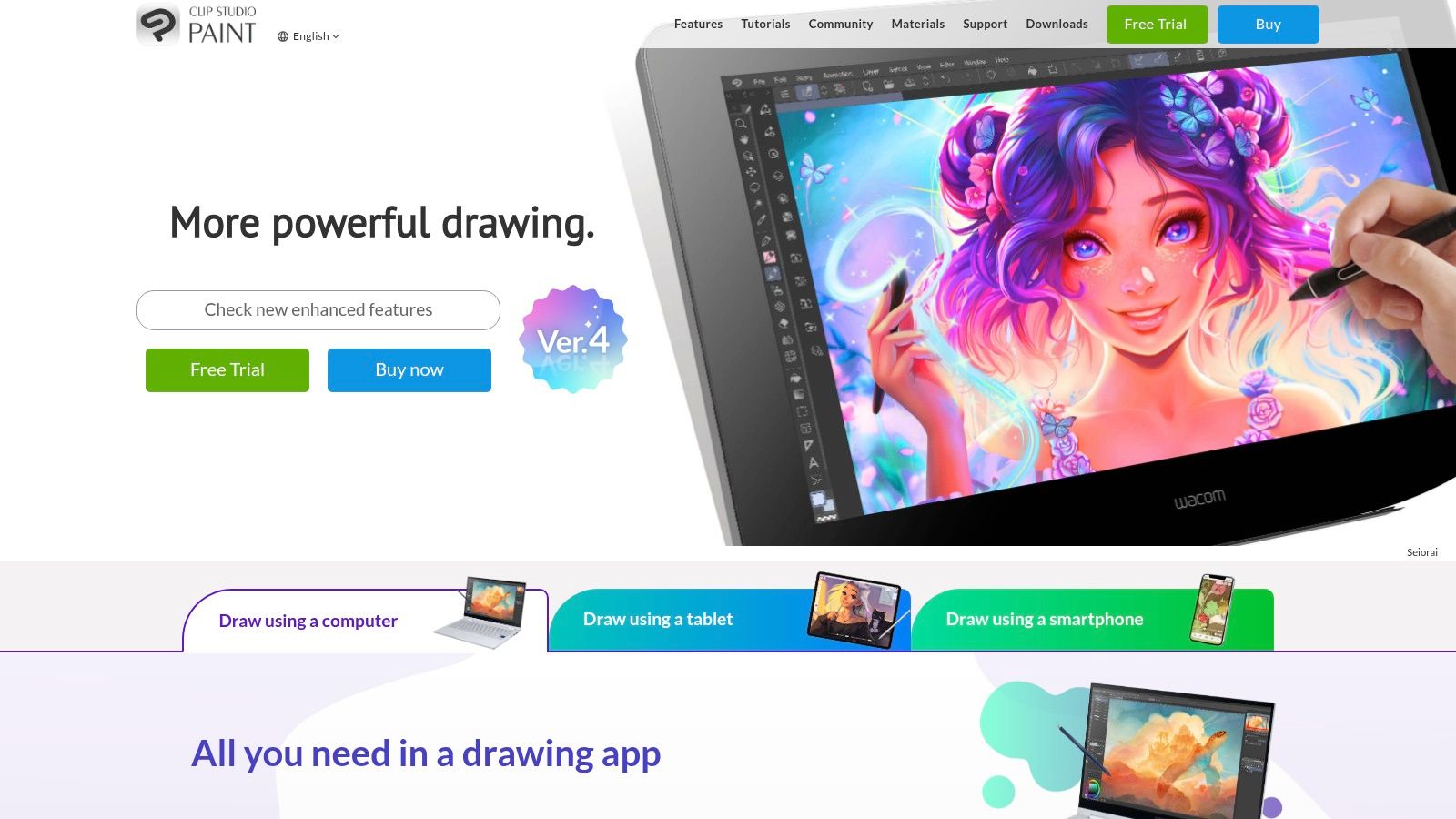
One of the key strengths of Clip Studio Paint lies in its advanced brush engine. It offers an impressive array of customizable brushes that mimic traditional media like pencils, watercolors, oils, and inks, providing a natural and intuitive drawing experience. This focus on mimicking real-world art supplies makes it a seamless transition for artists accustomed to traditional methods. You can even import your own brush textures to further personalize your toolkit and achieve specific effects. This granular control over your digital tools is a significant advantage for artists seeking precision and expressive control.
For aspiring and professional comic and manga creators, Clip Studio Paint shines with its dedicated tools. Features like panel management, speech bubble creation, and perspective rulers streamline the entire comic creation process. These specialized tools are specifically designed to address the unique workflow and challenges of comic and manga creation, making Clip Studio Paint a superior choice compared to more general-purpose digital art software in this niche. This streamlined approach significantly improves efficiency and allows creators to focus on storytelling and artwork.
Beyond static images, Clip Studio Paint offers robust frame-by-frame animation capabilities. This feature makes it a viable option for animators, especially those working on 2D animation projects. You can create complex animations with cel-shading, onion skinning, and a timeline interface, all within a familiar drawing environment. While it might not replace dedicated high-end animation software for large productions, it's an excellent tool for independent animators, students, and anyone exploring the world of 2D animation.
Clip Studio Paint also boasts a vast library of pre-made materials, including backgrounds, textures, 3D models, and poseable figures. These resources can significantly speed up your workflow and provide inspiration for your projects. The 3D models are particularly helpful for establishing complex poses and perspectives, saving artists valuable time and effort that would otherwise be spent on constructing references.
One aspect to consider is the software's interface, which can feel cluttered and overwhelming for beginners. The sheer number of tools and options can be intimidating initially. However, with dedicated practice and exploration, the interface becomes manageable and ultimately reveals a highly customizable and powerful workspace. Numerous online tutorials and resources are available to help new users navigate the software and accelerate the learning process.
In terms of pricing, Clip Studio Paint offers both a one-time purchase option and a monthly subscription model, making it one of the more affordable options among best tools for digital art. The one-time purchase is a particularly attractive option for those committed to the software, while the subscription model provides flexibility for users who want to try it out before making a long-term investment. The pricing structure makes it accessible to a wider range of users, from hobbyists to professionals.
While Clip Studio Paint excels in many areas, it's essential to be aware of its limitations. The photo editing capabilities are basic compared to dedicated photo editing software, and the 3D features may require powerful hardware to perform optimally. For those focused primarily on photo editing or requiring extensive 3D modeling, other specialized software may be more suitable.
Overall, Clip Studio Paint offers an impressive suite of features specifically designed for digital artists focusing on drawing, illustration, comics, manga, and animation. Its affordable pricing, powerful brush engine, and specialized tools make it a compelling option and justify its inclusion amongst the best tools for digital art. You can find more information and download the software at https://www.clipstudio.net/en/.
5. Corel Painter
Corel Painter distinguishes itself as a premier digital art software specializing in natural media simulation. For artists seeking the tactile and visual experience of traditional media within a digital environment, Corel Painter offers an unparalleled level of realism. This software is designed for those wanting to replicate the nuances of oil, watercolor, acrylic, and other traditional mediums on a digital canvas. Its powerful brush engine and advanced color mixing capabilities allow for a truly authentic painting experience. It's a robust tool best suited for digital artists focused on fine art, illustration, and concept art where a painterly aesthetic is desired. This makes it one of the best tools for digital art, especially for those who appreciate a traditional feel.
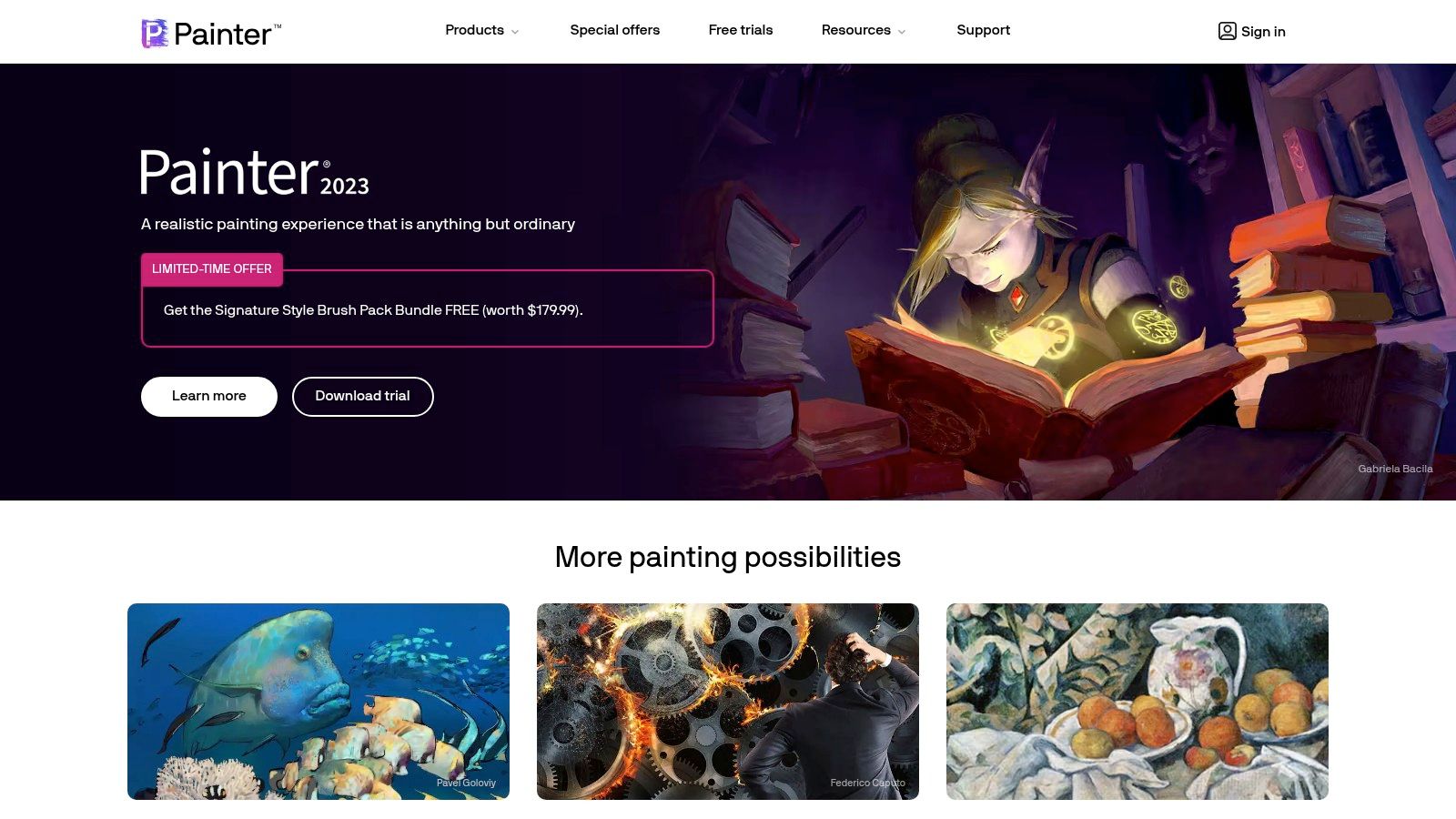
Corel Painter's strength lies in its comprehensive suite of natural media brushes. These aren't just simple digital brushes; they are meticulously designed to emulate the behavior of real-world counterparts. For instance, the oil brushes replicate the way oil paint blends and interacts with the canvas texture, allowing for realistic impasto effects and subtle color mixing. The watercolor brushes capture the delicate diffusion and granulation of watercolor pigments, while the acrylic brushes mimic the quick-drying nature and vibrant colors of acrylic paints. This level of simulation extends beyond the basic brush strokes. Corel Painter offers advanced color mixing and blending tools, allowing artists to create custom palettes, adjust color saturation and value, and experiment with various blending modes, just as they would with physical paints. You can even customize the texture of your digital canvas or paper, choosing from a variety of surfaces to further enhance the realism of your artwork. Features like particle brushes and dynamic speckles add another layer of depth and detail, allowing for the creation of unique textures and effects.
Compared to other digital art software like Photoshop or Procreate, Corel Painter focuses heavily on replicating traditional techniques. While Photoshop offers a broader range of tools for graphic design and photo manipulation, Corel Painter's strength lies in its dedicated focus on painting. Procreate, on the other hand, excels in its intuitive interface and portability for iPad users, but it doesn't offer the same level of natural media simulation as Painter. For artists coming from a traditional art background, Corel Painter offers a more familiar and comfortable workflow. Learn more about Corel Painter For digital-native artists, however, the interface might feel somewhat dated compared to more modern software, and there might be a steeper learning curve.
Corel Painter offers a perpetual license model, meaning a one-time purchase grants you permanent access to the software. The upfront cost is $429, which can be a significant investment. However, this eliminates the recurring subscription fees associated with software like Adobe Photoshop. It's worth considering the long-term value, especially if you plan on using the software extensively. Corel Painter is a resource-intensive program, requiring a relatively powerful computer with a dedicated graphics card for optimal performance. Ensure your system meets the minimum requirements before purchasing the software.
Implementing Corel Painter into your workflow might involve a transition period, especially if you’re used to other digital art programs. Begin by exploring the various brush categories and experimenting with their unique properties. Take advantage of the numerous tutorials and resources available online to learn specific techniques and workflows. Customizing your workspace and creating custom palettes tailored to your preferred painting style can significantly improve your efficiency and overall experience. The software's professional color management tools are also worth exploring for accurate color reproduction across different devices and mediums. While the initial investment and learning curve may seem daunting, the unparalleled realism and extensive customization options make Corel Painter a powerful tool for digital artists seeking to bridge the gap between traditional and digital art practices. It's a valuable addition to the arsenal of any artist focusing on best tools for digital art, specifically within the realm of realistic painting techniques.
6. Krita
Krita stands out as a powerful contender among the best tools for digital art, especially for those seeking a robust and free alternative to expensive commercial software. Developed by artists for artists, Krita focuses on features essential for concept art, texture and matte painting, illustration, and comics. This open-source software rivals paid applications with its comprehensive feature set and continuous development driven by a passionate community. Whether you're a seasoned professional or just starting your digital art journey, Krita offers a compelling platform to bring your creative visions to life. Its emphasis on painting and drawing makes it a perfect fit for those venturing into digital painting, concept art, or creating detailed illustrations.
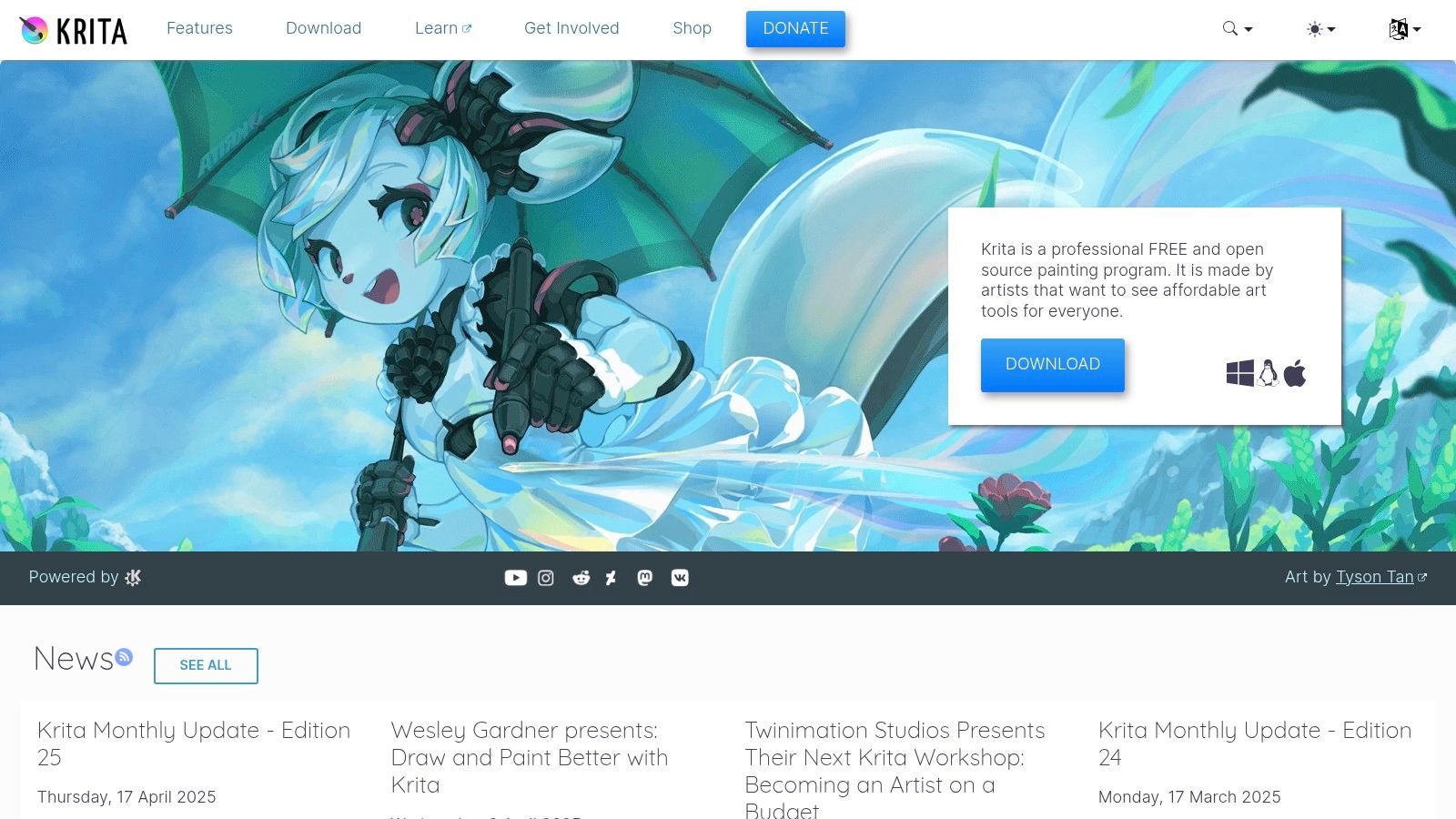
One of Krita's most compelling features is its collection of professional-grade brush engines. From mimicking traditional media like oils and watercolors to specialized brushes for concept art and comics, Krita provides an extensive toolkit for diverse artistic styles. The level of brush customization is also remarkable, allowing artists to fine-tune every aspect of their brushstrokes, from pressure sensitivity to texture and scattering. This degree of control empowers users to replicate specific effects or develop unique brushes tailored to their individual artistic needs. Learn more about Krita and explore the vast resources available to enhance your understanding of the software.
Beyond its impressive brush engines, Krita boasts support for HDR and high bit-depth color, ensuring accurate and vibrant color representation in your artwork. This is crucial for professional workflows, particularly in areas like matte painting and concept art, where precise color control is paramount. Robust layer management with blend modes provides further flexibility for compositing and creating complex artwork, mirroring features found in industry-standard software. The inclusion of vector and animation tools broadens Krita’s appeal, extending its functionality beyond static images and opening up possibilities for motion graphics and animation projects. Moreover, extensive plugin and script support allows artists to tailor the software further to their specific needs and workflow preferences. This open-source approach fosters a vibrant community that continually develops new features and enhancements, ensuring Krita remains a cutting-edge tool for digital artists.
Krita's biggest advantage is its affordability. Being completely free and open-source, it removes the financial barrier to entry often associated with professional digital art software. No subscription fees or licensing restrictions mean you have complete ownership and control over your software and artwork. This makes it particularly attractive to students, hobbyists, and independent artists who might not have the budget for costly subscriptions. The strong community support surrounding Krita is another significant benefit. Regular updates, active forums, and a wealth of online resources provide ample support and guidance for users of all levels.
However, Krita also has its limitations. While the software has made significant strides in stability, it can occasionally be less stable than commercial alternatives like Photoshop. This can be a minor inconvenience for some users, particularly those working on complex projects. Krita's ecosystem, while growing, is smaller than that of Adobe products, meaning fewer third-party plugins and integrations are available. The software also has limited photo editing capabilities compared to dedicated photo editing software, focusing primarily on painting and drawing. Finally, some users might find the interface less polished than commercial alternatives, although it remains highly functional and customizable.
Despite these minor drawbacks, Krita’s powerful features, open-source nature, and active community make it a valuable asset for any digital artist. It offers an unparalleled level of functionality for a free tool, establishing itself as a serious competitor in the world of digital art software. Whether you're creating stunning concept art, detailed illustrations, or vibrant comics, Krita provides the tools and flexibility to bring your artistic vision to life. Its consistent development and passionate community guarantee a bright future for this remarkable piece of software, cementing its place among the best tools for digital art.
7. Affinity Designer
Affinity Designer is a powerful vector graphics editor that earns its spot on the list of best tools for digital art due to its robust feature set, accessible price point, and impressive performance. It presents a compelling alternative to industry giants like Adobe Illustrator, particularly for those seeking professional-grade tools without the burden of subscription fees. Whether you're crafting intricate logos, designing crisp icons, illustrating detailed artwork, or mocking up UI designs, Affinity Designer offers the precision and control you need. It's an excellent choice for anyone looking to delve into vector graphics, from aspiring digital artists to seasoned professionals. This robust software caters to a wide range of users including vibe coders, software developers needing design assets, and digital artists seeking a comprehensive vector tool. Educators and students in tech will also appreciate its affordability and professional capabilities.
One of the most significant advantages of Affinity Designer is its one-time purchase model. Priced at $69.99, it offers a substantial cost saving compared to subscription-based software. This makes it particularly appealing to budget-conscious individuals, students, and hobbyists looking to invest in powerful tools without ongoing expenses. This accessible pricing model does not compromise on functionality; Affinity Designer boasts a comprehensive suite of professional vector design tools, allowing for the creation of highly detailed and scalable artwork. This includes advanced pen tools for precise path creation, node manipulation for fine-tuning curves, and boolean operations for combining and subtracting shapes non-destructively.
Affinity Designer’s seamless transition between vector and raster workspaces adds to its versatility. This feature allows users to incorporate raster effects and textures into their vector artwork without switching applications, streamlining the creative workflow. Imagine creating a logo with a subtle grunge texture or incorporating photorealistic elements into an illustration – all within the same program. This integrated approach empowers artists to explore mixed media techniques and achieve unique visual styles. Furthermore, the software offers advanced typography tools for precise text control, professional color management for accurate color representation, and various export options optimized for different platforms and media. This ensures that your designs remain consistent and high-quality regardless of the intended output.
While Affinity Designer presents a robust alternative to Adobe Illustrator, it’s essential to acknowledge its limitations. The community surrounding Affinity Designer is smaller than that of Illustrator, leading to fewer available learning resources and online tutorials. Furthermore, integration with other design tools within the Adobe Creative Suite is understandably limited. While Affinity Designer offers an impressive feature set, it does lack some of the more advanced features present in Illustrator, such as 3D effects and perspective grids. Lastly, major updates are less frequent compared to Illustrator, although the developers consistently release minor updates and bug fixes.
For aspiring vibe coders and creative technologists, Affinity Designer can be a valuable tool for designing visual assets for applications, websites, and interactive experiences. Its precise vector tools enable the creation of scalable graphics that adapt seamlessly to different screen sizes and resolutions. Experienced software developers can leverage Affinity Designer to produce professional-looking mockups and prototypes, enhancing the design process and improving communication with clients and stakeholders. Innovative entrepreneurs and hobbyists can use the software to create marketing materials, branding assets, and personalized designs, elevating their projects and conveying a professional image.
Implementation is straightforward. Simply download the software from the official website (https://affinity.serif.com/en-us/) and install it on your Windows or macOS device. The intuitive interface makes it easy to navigate and start creating immediately. While a comprehensive understanding of vector graphics principles is beneficial, numerous online resources and tutorials can assist beginners in learning the ropes.
In conclusion, Affinity Designer is a powerful and affordable vector graphics editor that deserves its place among the best tools for digital art. Its comprehensive features, accessible pricing, and smooth performance make it a compelling option for a wide range of users. While it may not offer every advanced feature found in industry-leading alternatives, its value proposition is undeniable, especially for those seeking a professional tool without the recurring costs of a subscription.
8. Photoshop Elements
Adobe Photoshop Elements secures its spot on the list of best tools for digital art by offering a robust yet accessible platform for both budding digital artists and photographers. It bridges the gap between simple photo editing software and the professional power of full Photoshop, making it an excellent choice for those looking to explore digital art without the steep learning curve or hefty price tag associated with more complex programs. It's an ideal stepping stone for beginners who want to experiment with digital painting, photo manipulation, and graphic design, offering a user-friendly environment to develop foundational skills. It’s also an excellent option for hobbyists and photographers who want more control and creative options than basic editing apps provide.
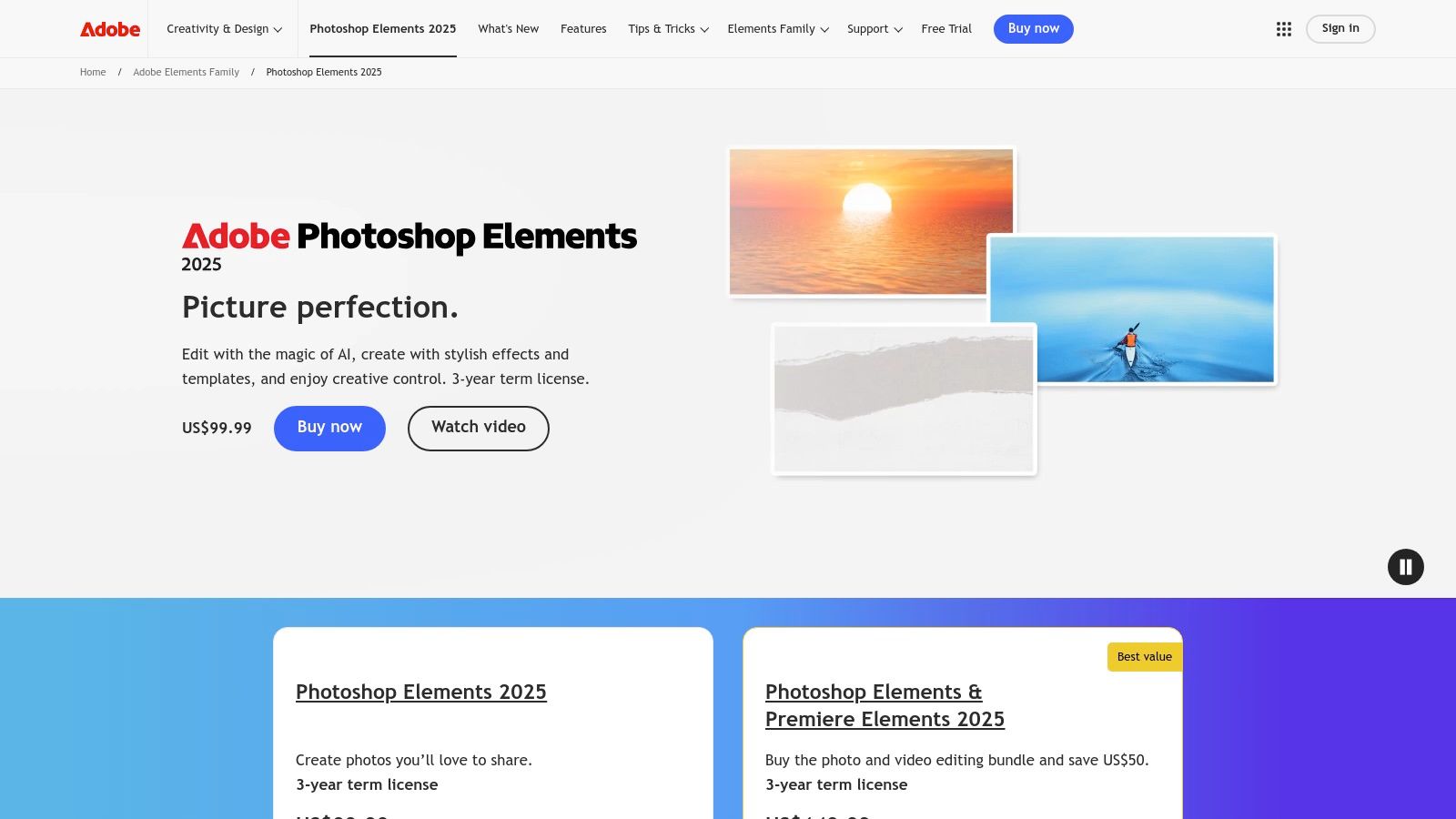
One of the key strengths of Photoshop Elements lies in its guided edits. These step-by-step tutorials walk users through various effects and techniques, from basic touch-ups to more advanced manipulations like creating double exposures or adding artistic text effects. This makes it significantly easier for beginners to grasp fundamental concepts and achieve impressive results without extensive prior knowledge. While experienced users might find some of these features limiting, they are invaluable for newcomers navigating the often intimidating world of digital image editing and art creation.
Beyond guided edits, Photoshop Elements offers a solid set of core Photoshop tools, including layers, selection tools, brushes, and various adjustment options. Layer support allows for non-destructive editing, enabling users to experiment with different effects and easily revert changes. While layer management is simplified compared to full Photoshop, it still provides sufficient control for creating complex compositions and manipulating images with precision. The selection tools allow users to isolate specific areas of an image for targeted editing, while the brush engine, although not as extensive as its professional counterpart, still provides enough versatility for basic painting and drawing tasks.
Compared to similar tools like GIMP (GNU Image Manipulation Program) or Paint.NET, Photoshop Elements strikes a balance between features and ease of use. While GIMP and Paint.NET are free and open-source, they often require a steeper learning curve and can be less intuitive for beginners. Photoshop Elements’ user-friendly interface and guided edits provide a more accessible entry point to digital art. Compared to the full version of Photoshop, Elements offers a more streamlined experience, focusing on essential tools and simplifying complex workflows. This makes it a more practical choice for casual users and hobbyists who don't need the extensive feature set of the professional software.
For aspiring digital artists and creative technologists, Photoshop Elements offers a valuable playground for experimentation. Whether you’re exploring digital painting, photo manipulation, or graphic design, the software provides a supportive environment to develop your skills. Educators and students can also benefit from the software’s intuitive interface and guided learning features, making it an effective tool for teaching and learning the fundamentals of digital image editing. Even experienced software developers can appreciate the accessibility and efficiency of Photoshop Elements for quick edits and creative projects outside their primary coding work.
Photoshop Elements is available for a one-time purchase of $99.99, making it a significantly more affordable option than the subscription-based model of full Photoshop. This makes it a particularly attractive option for hobbyists, students, and those just starting out in digital art who may not be ready to commit to a recurring subscription. System requirements are relatively modest, making it accessible to a wide range of users. Further implementation tips include exploring the extensive online resources and tutorials available for Photoshop Elements, experimenting with different brushes and blending modes, and taking advantage of the integrated cloud services for seamless file management and sharing.
In terms of drawbacks, Photoshop Elements does have limitations, particularly for professional use. Its brush engine and customization options are less robust than those of full Photoshop, and it lacks certain advanced features like Camera Raw editing and extensive plugin support. However, for its target audience of amateur photographers, casual digital artists, and beginners, Photoshop Elements offers a compelling balance of power and simplicity, making it a worthwhile investment for anyone looking to explore the exciting world of digital art. You can download Photoshop Elements from https://www.adobe.com/products/photoshop-elements.html.
9. ArtRage
ArtRage earns its spot on our list of best tools for digital art because it bridges the gap between traditional and digital art mediums. This software focuses on replicating the feel and behavior of real-world painting tools, making it an excellent choice for artists transitioning from traditional media to the digital realm, or for anyone seeking a more natural, tactile digital painting experience. While it may not offer the expansive feature set of some industry giants, its specialized approach and affordable price point make it a valuable tool for a specific niche within the digital art landscape. It offers a powerful and intuitive platform for creating realistic digital paintings without the complexities of more advanced software, making it suitable for both beginners and seasoned artists seeking a specific creative outlet. This makes ArtRage a compelling option for those seeking a more grounded and organic digital art experience.
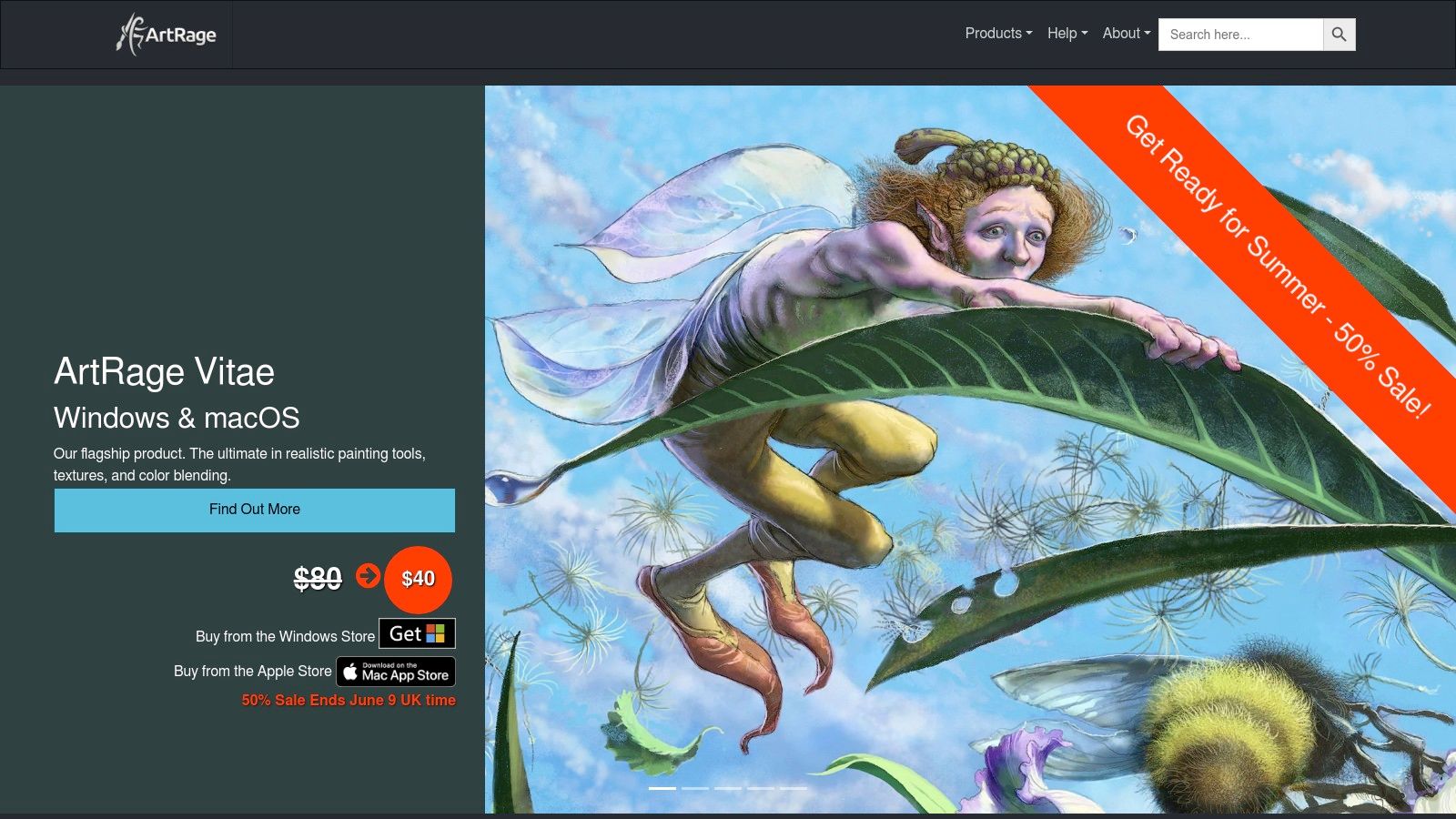
ArtRage excels in simulating traditional media. Its core strength lies in the realistic rendering of paint mixing and blending. Colors interact on the canvas just as they would with physical paints, allowing for organic color transitions and subtle nuances. You can blend oils smoothly, create washes with watercolors, and layer pastels for textural effects. The software also offers a variety of canvas textures and paper types, further enhancing the traditional feel. Whether you prefer the smooth surface of hot-pressed watercolor paper or the rough texture of canvas, ArtRage allows you to tailor your digital workspace to your artistic preferences. This attention to detail sets ArtRage apart, providing a truly immersive digital painting experience that closely mimics the tactile qualities of traditional art.
One of ArtRage's most significant advantages is its intuitive, artist-friendly interface. The tools are designed to be easily accessible and recognizable to anyone familiar with traditional art supplies. This makes the learning curve significantly less steep compared to other digital art software, especially for those making the transition from physical media. You can choose from a range of familiar tools like oil brushes, palette knives, pencils, and erasers, each behaving with realistic properties. For example, the oil brushes create thick, impasto strokes, while the watercolor brushes produce transparent washes that interact with the canvas texture.
Beyond the standard toolset, ArtRage allows for custom brush and tool creation. You can modify existing brushes or create entirely new ones from scratch, giving you a high level of control over your digital mark-making. This feature opens up endless creative possibilities, allowing you to experiment with unique textures and effects. You can even import custom textures to create highly personalized brushes, adding another layer of depth and control to your digital art.
ArtRage is surprisingly affordable, starting at $79 for the full version. This pricing makes it accessible to a wider audience, particularly students and hobbyists who may be hesitant to invest in more expensive digital art software. While the feature set might not be as extensive as some higher-priced alternatives like Corel Painter or Clip Studio Paint, the focused approach to realistic painting simulation provides excellent value for its price.
However, ArtRage does have some limitations. Its focus on traditional media simulation means it lacks some of the advanced digital art features found in other software, such as vector editing, animation tools, and robust layer management options. While the software does support layers, it doesn't offer the same level of control and complexity found in programs specifically designed for graphic design or illustration. ArtRage's smaller user community also translates to fewer online resources and tutorials compared to more mainstream digital art programs. Updates are also less frequent, which can sometimes mean a slower adoption of new technologies and features.
For those seeking a digital art tool specifically designed for realistic painting simulation, ArtRage (https://www.artrage.com/) provides an excellent entry point. Its intuitive interface, natural tool behavior, and affordable pricing make it ideal for traditional artists exploring the digital world. While not suitable for all types of digital art, its specialized approach makes it a valuable addition to the best tools for digital art, especially for those valuing a genuine and tactile painting experience. It’s particularly well-suited for creating fine art pieces that mimic traditional mediums, studies for larger works, or simply exploring the joy of digital painting without a steep learning curve.
10. Rebelle
Rebelle earns its spot on this list of best tools for digital art because it offers something truly unique: an unparalleled level of realism in digital watercolor and acrylic painting. While many digital art programs offer watercolor brushes, Rebelle goes beyond simple mimicry. It simulates the actual physics of water and pigment interacting on a canvas, resulting in authentic wet-on-wet blending, diffusion, and granulation effects that traditional watercolorists will instantly recognize. This makes it a powerful tool for artists seeking a digital experience that closely mirrors the nuances and unpredictability of traditional water media. Whether you're a seasoned watercolorist looking to explore digital mediums or a digital artist wanting to add a touch of traditional charm to your work, Rebelle offers a captivating and distinct approach to painting.
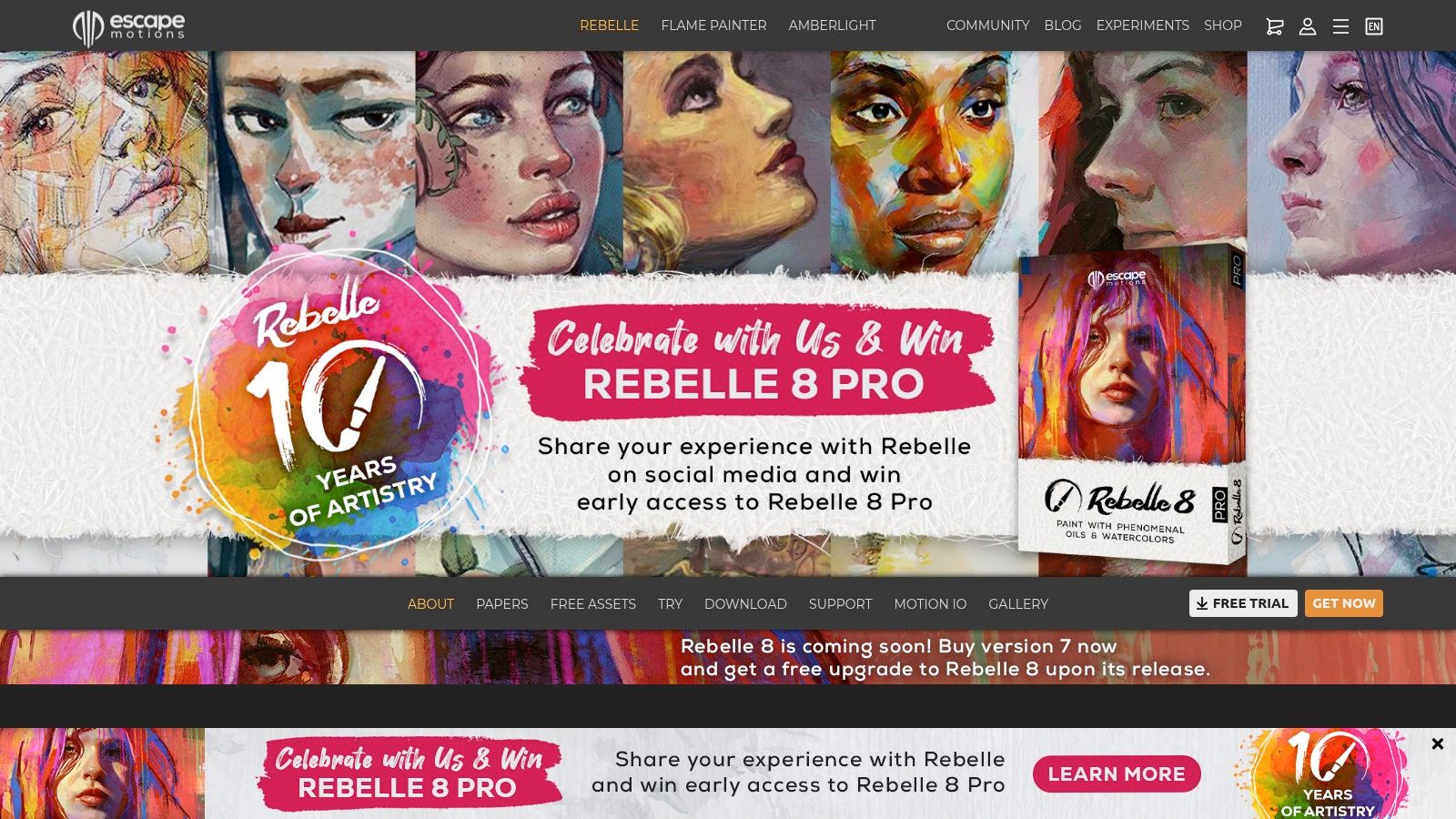
Rebelle's strength lies in its sophisticated simulation engine. It realistically models how water spreads and dries on different paper textures, influencing the pigment flow and creating organic, unpredictable patterns. This allows for techniques like blooms, backruns, and granulation – effects that are difficult to replicate convincingly in other digital painting software. The software also includes wet-on-dry and dry-on-wet blending options, further expanding the possibilities for creating realistic watercolor effects. Beyond watercolor, Rebelle also offers acrylic and oil painting modes, each with its own distinct properties and behaviors. While these modes might not be as advanced as the watercolor simulation, they still offer a unique, physics-based approach to digital painting.
For traditional watercolor artists, Rebelle provides a seamless transition into the digital realm. The familiar behaviors of water and pigment will feel intuitive, allowing them to explore digital techniques without sacrificing the essence of their preferred medium. Digital artists, on the other hand, can use Rebelle to add a touch of organic realism to their work, creating textures and effects that are difficult to achieve with standard digital brushes. Imagine creating concept art for a game with realistic watercolor backgrounds or producing illustrations with the delicate touch of traditional water media. The time-lapse recording feature is also a fantastic addition, allowing artists to capture their creative process and share it with others, be it for educational purposes, portfolio showcasing, or simply sharing the magic of their work unfolding.
Rebelle's affordability ($90) makes it an accessible tool for artists of all levels, especially when compared to more expensive, general-purpose digital art software. While its specialized focus on realistic painting might limit its applicability for certain digital art styles like vector graphics or pixel art, it offers unparalleled value for those specifically interested in watercolor, acrylic, and oil painting.
However, it's important to acknowledge Rebelle’s limitations. Its specialized focus means it lacks the extensive feature set of general-purpose digital art programs like Photoshop or Clip Studio Paint. You won’t find advanced tools for photo manipulation, graphic design, or animation within Rebelle. Its niche user base also means the community and available resources are smaller compared to more mainstream software.
Getting started with Rebelle is straightforward. The software is available for Windows and macOS and has relatively modest system requirements. The interface is clean and intuitive, focusing on the essential tools and options for painting. While the advanced physics engine might require some initial experimentation to master, there are plenty of tutorials and resources available on the Rebelle website (https://www.escapemotions.com/products/rebelle/) to help users quickly get up to speed.
Compared to similar tools like Corel Painter, which also offers realistic natural media simulation, Rebelle distinguishes itself with its focus on the physics of water and pigment interaction, particularly in watercolor. Corel Painter offers a broader range of media types and tools, making it a more versatile but potentially less specialized option. Choosing between the two depends on your specific needs and priorities. If realistic watercolor simulation is paramount, Rebelle is the clear winner. If you need a wider range of traditional media options and digital art tools, Corel Painter might be a better fit.
In conclusion, Rebelle stands out as a unique and valuable tool for digital artists seeking the authentic charm and unpredictability of traditional water media. Its realistic physics-based simulation, combined with its affordable price, makes it a compelling choice for both seasoned watercolorists and digital artists looking to expand their creative toolbox. While it's not a replacement for general-purpose digital art software, its specialized focus and powerful simulation engine earn it a well-deserved spot among the best tools for digital art.
Top 10 Digital Art Tools Comparison
| Software | Core Features ✨ | User Experience ★★★★☆ | Value Proposition 💰 | Target Audience 👥 | Unique Selling Points 🏆 |
|---|---|---|---|---|---|
| Adobe Photoshop | Advanced brush engine, layer editing, masking | Powerful but complex, steep learning | Subscription $22.99/mo 💰 | Professionals, photographers, designers 👥 | Industry standard, extensive tools, Adobe integration 🏆 |
| Procreate | Natural brush engine, animation, time-lapse | Intuitive, touch interface, iPad-only | One-time $12.99 💰 | Digital artists, illustrators 👥 | Affordable, portable, Apple Pencil support ✨ |
| Adobe Illustrator | Vector tools, bezier curves, typography | Complex, steep learning, precise control | Subscription $22.99/mo 💰 | Graphic designers, vector artists 👥 | Industry standard vector software, infinite scalability 🏆 |
| Clip Studio Paint | Manga/comic tools, 3D references, animation | Feature-rich but cluttered interface | $4.49/mo or $50 one-time 💰 | Manga artists, animators, illustrators 👥 | Best for comics/manga, natural brush feel 🏆 |
| Corel Painter | Natural media simulation, color blending | Realistic, but resource-heavy | $429 one-time 💰 | Fine artists, traditional painters 👥 | Most realistic traditional media simulation 🏆 |
| Krita | Open-source, brush engines, animation | Professional features, less polished | Free 💰 | Concept artists, illustrators 👥 | Free, strong community, professional-grade features ✨ |
| Affinity Designer | Vector + raster switching, boolean ops, typography | Smooth, modern UI, less complex | $69.99 one-time 💰 | Vector designers, UI designers 👥 | One-time purchase, no subscription, smooth performance 🏆 |
| Photoshop Elements | Guided modes, automated tools, basic painting | User-friendly, beginner-focused | $99.99 one-time 💰 | Amateurs, casual users 👥 | Simpler Photoshop, no subscription |
| ArtRage | Realistic paint mixing, canvas textures | Intuitive for traditional artists | Starting at $79 💰 | Traditional artists, beginners 👥 | Natural art tool simulation, realistic paint behavior 🏆 |
| Rebelle | Watercolor & acrylic simulation, physics-based | Specialized, niche user base | $90 one-time 💰 | Watercolor artists, traditional painters 👥 | Most realistic watercolor simulation ✨ |
Ignite Your Creativity: Choosing the Right Digital Art Tools
The world of digital art is brimming with incredible tools, each offering unique strengths and capabilities. From industry giants like Adobe Photoshop and Illustrator to specialized software like Corel Painter and Rebelle, and even free and open-source options like Krita, the best tools for digital art truly cater to every skill level and budget. This list, covering popular choices like Procreate, Clip Studio Paint, Affinity Designer, Photoshop Elements, and ArtRage, provides a solid starting point for your artistic journey.
Key takeaways when selecting the best tools for digital art include considering your specific needs. Are you focused on raster painting, vector graphics, or a blend of both? Do you need robust features for professional work, or are you looking for something more streamlined and beginner-friendly? Your budget and technical proficiency also play a crucial role. For example, while Photoshop offers unparalleled power and versatility, it comes with a subscription fee and a steeper learning curve. Alternatively, free options like Krita provide surprisingly robust features, making them excellent choices for beginners or those exploring different styles. Mobile-first apps like Procreate offer unparalleled portability and intuitive touch-based interfaces, perfect for artists on the go.
Your next steps should involve testing out a few different tools. Many offer free trials or free versions, allowing you to experiment and find the perfect fit for your workflow. Don't be afraid to explore beyond the big names. Some of the most innovative and exciting digital art is being created with lesser-known software.
As you delve deeper into digital art, remember that the tool is only part of the equation. Your creativity, vision, and passion are what truly bring your artwork to life. Embrace experimentation, learn from other artists, and continuously explore new techniques and technologies. Don't forget to check out resources like Vibecoding VIP for inspiration and to discover how digital art intersects with the exciting world of coding, opening up even more creative avenues. So, choose your tools wisely, embrace the digital art revolution, and let your creativity soar!