Unleash Your Inner Artist: A Beginner's Guide to Digital Art Software
Want to create stunning digital art but overwhelmed by software choices? This listicle presents eight excellent programs perfect for beginners. Discover the ideal platform to launch your artistic journey, whether you're interested in illustrations, comics, or painting. These tools solve the problem of finding accessible and powerful software to bring your artistic vision to life. We'll cover Procreate, Adobe Photoshop, Krita, Clip Studio Paint, Autodesk Sketchbook, MediBang Paint, FireAlpaca, and Affinity Designer.
1. Procreate
Procreate is a robust and intuitive digital illustration app exclusively designed for the iPad. It bridges the gap between beginner-friendly software and professional-grade tools, offering a streamlined interface packed with features that cater to both novice artists and seasoned illustrators. Whether you're sketching, painting, lettering, or creating complex artwork, Procreate provides a versatile platform to bring your digital art to life. Its focus on natural drawing feels, customizable brushes, and a comprehensive layer system makes it an ideal choice for a wide range of artistic projects, from quick sketches to fully rendered illustrations. For aspiring vibe coders looking to visualize their creations, experienced software developers interested in dabbling with digital art, or digital artists seeking a powerful mobile platform, Procreate presents a compelling option.
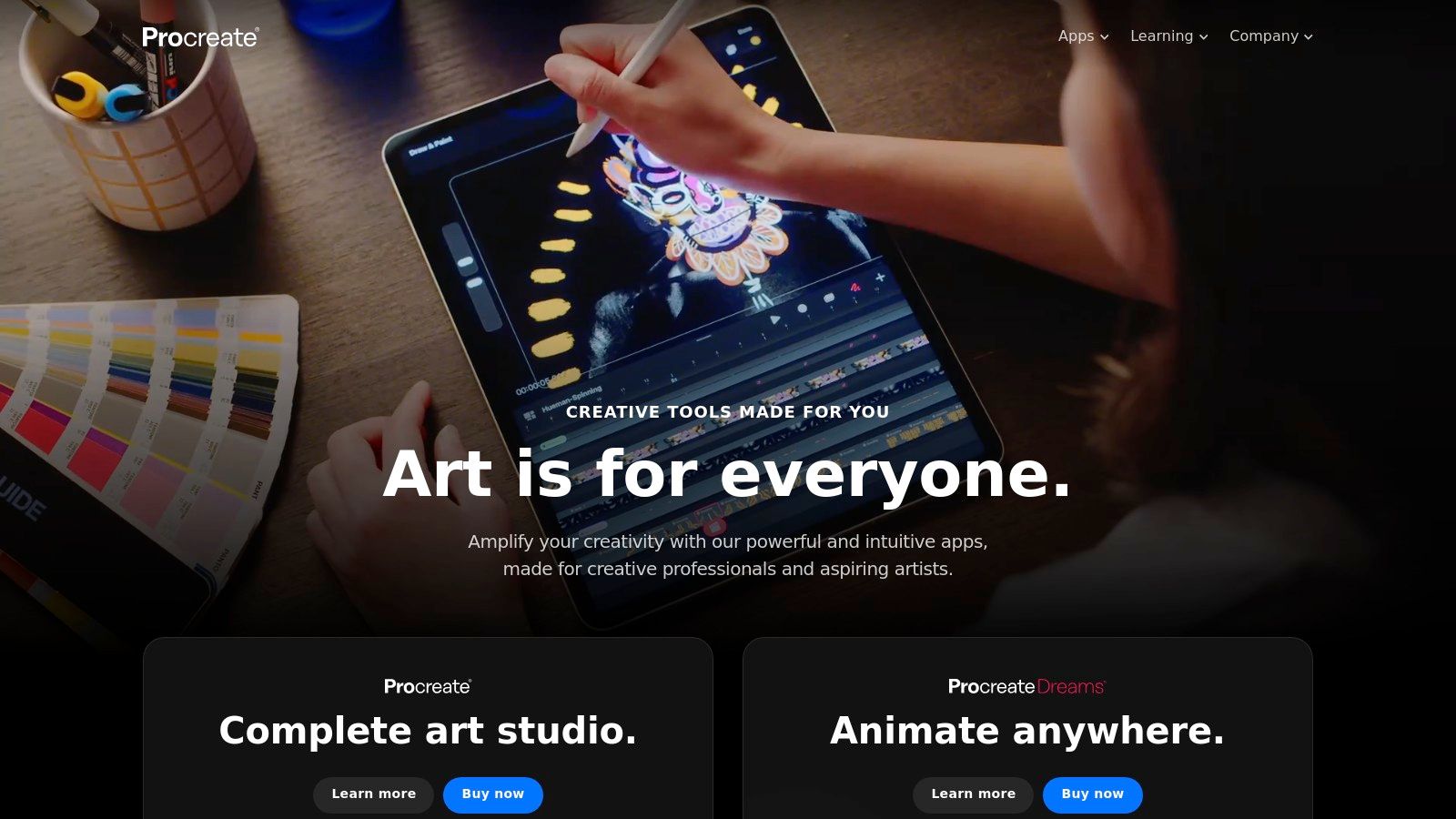
One of Procreate's standout features is its intuitive brush system. With over 200 customizable brushes included, and the ability to import or create your own, you have immense control over your artistic style. Learn more about Procreate and its extensive brush customization options. This level of control is rarely seen in beginner-friendly software, and it's a testament to Procreate's commitment to offering a professional-grade experience. Multi-touch gestures make navigating and editing your artwork incredibly fluid. Pinch to zoom, rotate the canvas with two fingers, and use three fingers to quickly undo or redo actions – these intuitive controls contribute to a seamless creative flow. The advanced layering system, complete with blend modes and masking options, provides the flexibility to create complex compositions and experiment with different artistic effects. Procreate also includes a time-lapse recording feature, which automatically captures your creative process from start to finish. This is fantastic for sharing your work, creating tutorials, or simply reflecting on your technique.
Procreate earns its place on this list due to its unique combination of powerful features, user-friendly design, and affordability. The one-time purchase price of $9.99 is significantly cheaper than many subscription-based digital art programs, making it an attractive entry point for beginners. Its intuitive design makes it easy to pick up and start creating right away, while the depth of its features allows it to grow with you as your skills develop. Compared to free apps like Autodesk Sketchbook, Procreate offers a more robust set of features and a more refined user experience, justifying the small price tag.
Pros:
- One-time purchase with no subscription fees
- User-friendly interface designed for touchscreens
- Powerful enough for professional work
- Vast online community with tutorials and resources
Cons:
- Only available for iPad
- Steeper learning curve compared to some other beginner apps (although generally still considered user-friendly)
- No native text tool (workarounds exist, but can be inconvenient)
Website: https://procreate.art/
Technical Requirements: iPad compatible with Apple Pencil.
Implementation Tip: Familiarize yourself with the multi-touch gestures early on. They are key to a smooth workflow in Procreate. Also, explore the vast online community for tutorials and resources. You’ll find a wealth of information to help you master the app and discover new techniques.
2. Adobe Photoshop
Adobe Photoshop is the undisputed king of raster-based digital art and photo editing. While its professional reputation might intimidate beginners, recent updates have introduced user-friendly features and streamlined workflows, making it a surprisingly viable option for those just starting their creative journey. From painting and drawing to photo manipulation and graphic design, Photoshop offers a comprehensive toolkit that can adapt to various artistic styles and skill levels. Its wide-ranging capabilities mean that as your skills grow, the software can grow with you, eliminating the need to switch platforms later on.
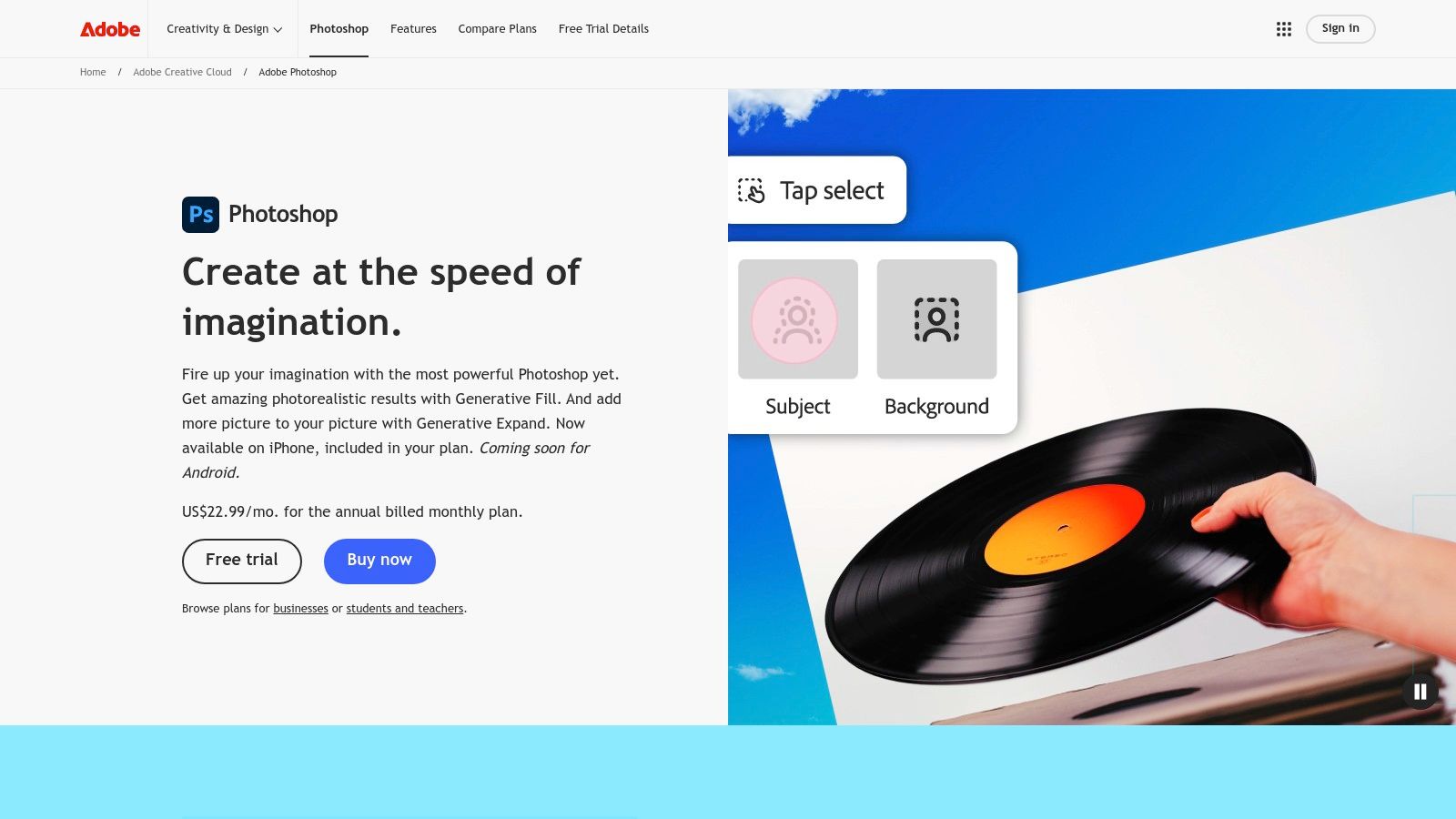
For aspiring digital painters, Photoshop’s extensive brush library, complete with customization options, provides an unparalleled level of control. You can create anything from realistic oil paintings to stylized cartoon art. Photographers will appreciate the powerful editing tools, allowing for everything from basic adjustments to complex compositing and retouching. Even graphic designers can leverage Photoshop for creating web graphics, social media visuals, and other marketing materials.
The comprehensive layer system, featuring adjustment layers and masks, allows for non-destructive editing, a crucial feature for beginners who are prone to making mistakes. Smart objects further enhance this non-destructive workflow by allowing you to modify embedded graphics without losing quality. Integration with other Adobe software, like Illustrator and InDesign, creates a seamless workflow for cross-platform projects. Adobe also constantly updates Photoshop with new features and improvements, ensuring you always have access to cutting-edge tools.
For beginners, Adobe's Creative Cloud subscription also grants access to a wealth of tutorials, templates, and stock images, providing a valuable starting point. These resources, combined with the vast online community and readily available tutorials on YouTube and other platforms, make learning Photoshop more manageable than ever.
Features:
- Extensive brush library with customization options
- Comprehensive layer system with adjustment layers and masks
- Smart objects and non-destructive editing
- Integration with other Adobe software
- Regular updates with new tools and features
Pros:
- Industry standard with transferable skills – knowing Photoshop opens doors professionally.
- Extensive learning resources available.
- Highly versatile for multiple creative purposes.
- Regular updates and improvements.
Cons:
- Monthly subscription cost ($20.99/month for just Photoshop or $52.99/month for all Creative Cloud apps). This can be a barrier to entry for some.
- Steeper learning curve for beginners compared to simpler software. While more accessible than in the past, it still requires dedication to master.
- Resource-intensive software requiring a decent computer with adequate RAM and processing power.
Implementation/Setup Tips:
- Start with the basic tutorials provided by Adobe. Focus on understanding fundamental concepts like layers, masks, and selection tools.
- Explore the extensive brush library and experiment with different brush settings.
- Practice regularly and don't be afraid to make mistakes. The non-destructive workflow allows for easy corrections.
- Join online communities and forums to ask questions and learn from experienced users.
Comparison: While GIMP is a free and open-source alternative offering similar functionalities, Photoshop's industry-standard status, integration with other Adobe products, and advanced features justify the subscription cost for serious creatives. Affinity Photo is another paid alternative with a one-time purchase option, but it lacks the extensive plugin ecosystem and industry recognition of Photoshop.
Website: https://www.adobe.com/products/photoshop.html
Photoshop deserves its place on this list due to its powerful feature set, industry relevance, and evolving accessibility. While the subscription cost and learning curve might seem daunting, the investment pays off in the long run, particularly for those who are serious about pursuing a career in digital art or related fields. The wealth of available learning resources and the thriving community ensure that even beginners can find the support they need to master this powerful software.
3. Krita
Krita stands out as a powerful and completely free alternative to paid digital art software. Designed by artists, for artists, its intuitive interface prioritizes the creative process over complex photo editing, making it ideal for beginners venturing into digital painting, illustration, and even comic book creation. Unlike software focused on photo manipulation, Krita emphasizes drawing and painting, offering a streamlined experience specifically tailored for digital art workflows. This makes it a fantastic entry point for aspiring vibe coders, digital artists, and creative technologists looking to explore visual mediums without a hefty price tag. Experienced software developers interested in contributing to open-source projects will also appreciate Krita's community-driven development model.
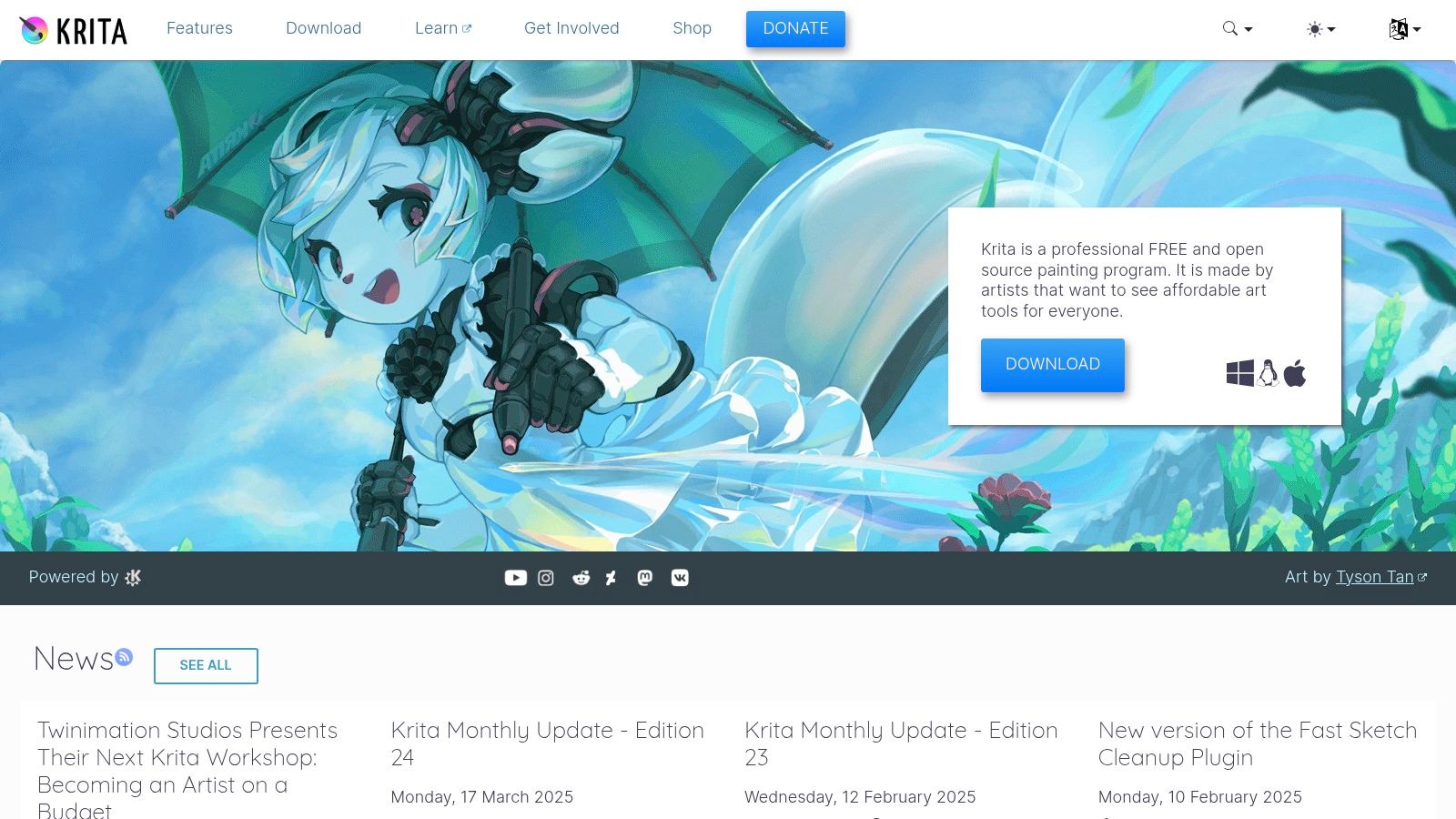
One of Krita's strengths lies in its highly customizable brush engines. With over 100 pre-configured brushes and the ability to create your own, you can achieve a diverse range of artistic styles. Whether you're aiming for a painterly feel, crisp lines for comics, or textured brushes for concept art, Krita provides the flexibility to experiment and find what works best for your creative vision. The pop-up palette allows quick access to your chosen colors and brushes, streamlining your workflow and keeping you in the creative flow. Features like the wrap-around mode are particularly useful for creating seamless patterns and textures, a valuable asset for game developers, digital artists, and anyone working with repeating elements. Built-in stabilizers ensure smooth lines even if your hand isn't perfectly steady, which is a boon for beginners and those using drawing tablets. Krita even includes animation tools for frame-by-frame animation, expanding its potential for aspiring animators and those interested in motion graphics. Educators and students in tech will find Krita to be an invaluable resource due to its free availability and robust feature set.
For those new to digital art or transitioning from traditional media, Krita's focused interface is far less daunting than the complexity of programs like Photoshop. While Photoshop excels at photo manipulation and raster editing, Krita's strength lies in its painting and drawing tools. If you're primarily interested in creating original digital art, Krita provides a more tailored and intuitive environment. Krita is available for Windows, macOS, and Linux, ensuring accessibility for users regardless of their operating system. It's completely free and open-source, removing any financial barriers to entry for budding artists. The active Krita community also provides a wealth of tutorials and resources, making it easier to learn the software and discover new techniques. Learn more about Krita and its vibrant community to see how it can benefit your artistic journey.
While Krita is a powerful tool, it does have some drawbacks. Its photo editing capabilities are less extensive than Photoshop's, making it less suitable for projects heavily reliant on photo manipulation. It can also be resource-intensive on older computers, so ensure your system meets the minimum requirements. Finally, while the basic features are easy to grasp, some advanced features have a steeper learning curve.
Pros:
- Completely free and open-source
- Focused interface designed specifically for digital artists
- Active community with many tutorials available
- Regular updates with new features
- Cross-platform compatibility (Windows, macOS, Linux)
Cons:
- Less powerful photo editing capabilities compared to Photoshop
- Can be resource-intensive on older computers
- Some advanced features have a steeper learning curve
Website: https://krita.org/
4. Clip Studio Paint
Clip Studio Paint, formerly known as Manga Studio, stands out as a powerful and affordable option specifically tailored for aspiring comic artists, illustrators, and even animators. While its roots are firmly planted in the world of sequential art, its versatile features and accessible interface make it an excellent choice for beginners exploring any facet of digital art. Whether you're dreaming of creating your own webcomic, designing vibrant character illustrations, or even dabbling in 2D animation, Clip Studio Paint offers a comprehensive suite of tools to bring your visions to life. Its focus on natural media emulation also makes it a comfortable transition for artists accustomed to traditional mediums.
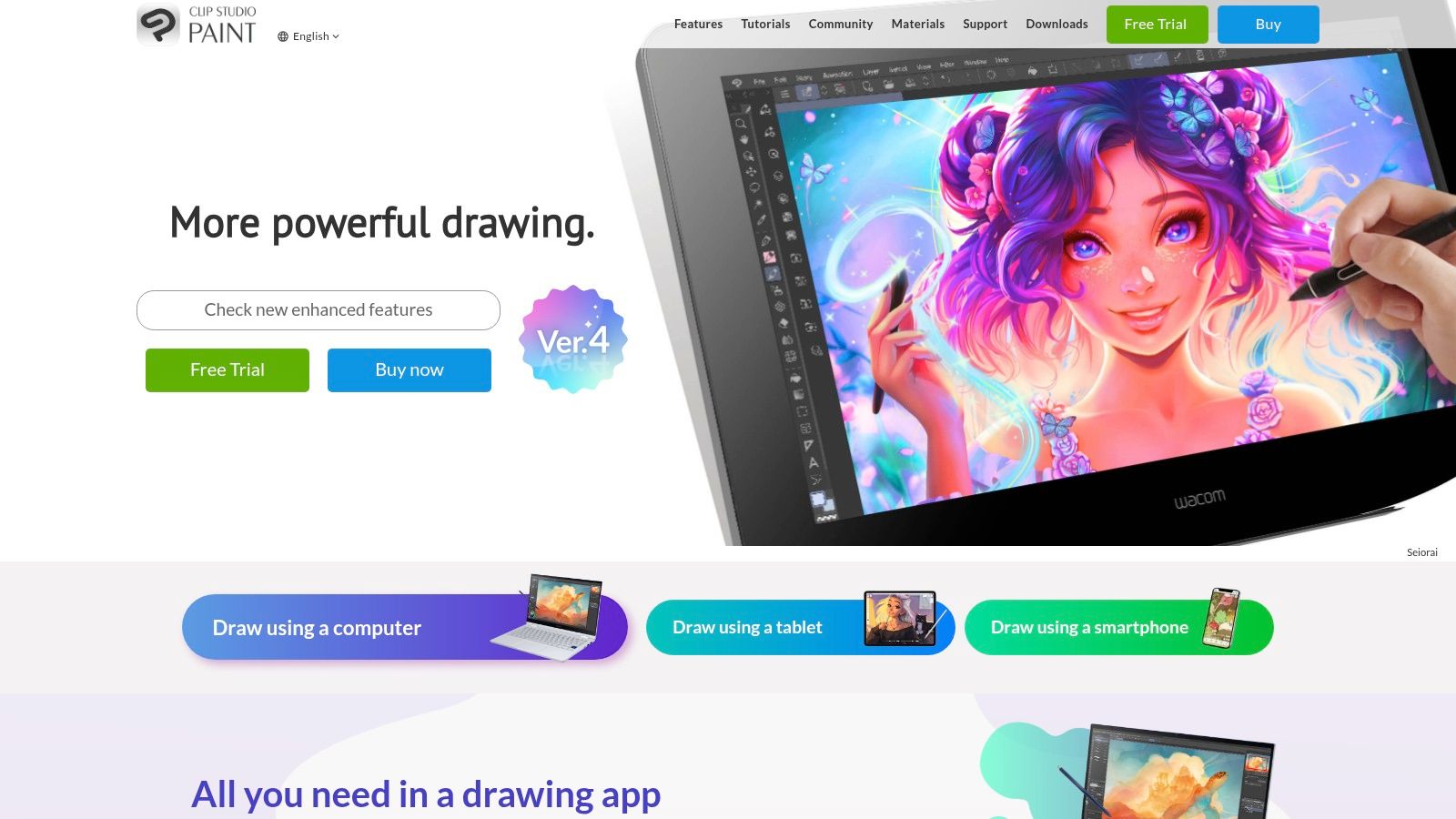
One of Clip Studio Paint's most significant advantages is its flexible pricing model. While a more feature-rich EX version exists, the PRO version offers incredible value for beginners. A one-time purchase of $49.99 grants you permanent access, making it a compelling alternative to subscription-based software. A monthly subscription option of $4.49 is also available for those who prefer a pay-as-you-go approach. This affordability, combined with its specialized toolset, makes Clip Studio Paint an attractive option for budget-conscious creatives.
Key features that make Clip Studio Paint shine include its impressive collection of natural media brushes, which closely mimic the feel of traditional pencils, pens, and brushes. This allows artists to maintain a familiar workflow while exploring the digital realm. Dedicated comic and manga creation tools, like panel layouts, speech bubbles, and perspective rulers, streamline the process of crafting sequential art. Furthermore, integrated 3D models and poses offer valuable references for character design and dynamic compositions. While not its primary focus, Clip Studio Paint also offers frame-by-frame animation capabilities, opening up possibilities for simple animated sequences.
Pros:
- Affordable: One-time purchase option or a low monthly subscription.
- Specialized Tools: Streamlines comic and manga creation.
- Intuitive Interface: Easier to learn than some professional-grade competitors like Photoshop.
- Regular Updates: Ensures the software stays current with evolving needs.
Cons:
- Feature Limitations: Some advanced features are exclusive to the EX version.
- Limited Photo Editing: Not ideal for complex photo manipulation or retouching.
- Documentation: While improving, English documentation can sometimes lag behind Japanese resources.
Implementation Tips:
- Explore the Brush Library: Clip Studio Paint boasts a vast library of pre-made brushes. Experiment to find the ones that best suit your style.
- Customize Your Workspace: Tailor the interface to your preferences by arranging panels and toolbars for optimal workflow.
- Utilize the 3D Models: Experiment with different poses and angles to understand anatomy and perspective.
- Join the Community: The Clip Studio Paint community is active and supportive, offering valuable resources and tutorials.
Comparison: While Photoshop offers broader functionality, its complexity and subscription-based pricing can be daunting for beginners. Clip Studio Paint offers a more focused and affordable entry point for aspiring comic artists and illustrators, while still providing powerful drawing and painting tools. Krita is another free and open-source alternative, but it lacks the specialized comic and manga features that Clip Studio Paint excels in.
Website: https://www.clipstudio.net/en/
Clip Studio Paint's unique blend of affordability, specialized tools, and user-friendly interface makes it a deserving addition to this list. It provides an ideal environment for beginners to explore digital art, particularly within the realms of comics, illustration, and animation, without the steep learning curve or high cost associated with other professional-grade software.
5. Autodesk Sketchbook
Autodesk Sketchbook is a fantastic entry point into the world of digital art, especially for beginners. It offers a streamlined and intuitive drawing experience without the complexity and cost often associated with professional digital art software. This makes it ideal for anyone wanting to explore digital sketching, drawing, and painting without a steep learning curve or financial investment. Whether you're a hobbyist looking to doodle, a student practicing your skills, or a professional needing a quick sketching tool, Sketchbook has something to offer. Its focus on natural drawing feel and ease of use makes it perfect for quickly capturing ideas, creating concept art, or even producing finished illustrations.
One of Sketchbook's standout features is its minimalist interface. The clean, uncluttered workspace keeps you focused on your art, hiding away tools until you need them. This is a boon for beginners who can often feel overwhelmed by the sheer number of options in more advanced programs like Photoshop. The software boasts a "Predictive Stroke" feature that smooths out your lines, making it easier to achieve clean, professional-looking results. Symmetry tools further enhance the creative process, allowing you to create perfectly balanced designs with ease. A wide array of customizable brushes and textures provides flexibility for various artistic styles.
Sketchbook's cross-platform compatibility is another significant advantage. It's available on desktop (Windows, macOS) and mobile devices (iOS, Android), offering seamless workflow integration. You can start a sketch on your tablet during your commute and finish it later on your desktop. This flexibility makes it an excellent choice for artists on the go. And the best part? Sketchbook is entirely free to use. Previously a paid application, Autodesk made it completely free in 2021, removing a significant barrier to entry for aspiring digital artists.
Implementation/Setup Tips:
- Customize your workspace: While the default setup is beginner-friendly, take some time to personalize the toolbar with your most frequently used brushes and tools.
- Experiment with brushes and textures: Sketchbook offers a wide variety, so explore them to find the ones that best suit your style.
- Utilize the Predictive Stroke: This feature can significantly improve the quality of your lines, especially if you're using a stylus on a tablet.
- Explore the symmetry tools: These tools are particularly useful for creating intricate patterns, mandalas, and symmetrical character designs.
- Take advantage of the layering system (with caveats): While Sketchbook's layering capabilities are not as extensive as Photoshop's, they still provide enough control for basic compositing and adjustments.
Comparison with Similar Tools:
While Sketchbook excels in simplicity and accessibility, it's worth noting that it lacks some advanced features found in premium software like Clip Studio Paint or Krita. For instance, its layer management is less robust, and it offers fewer specialized brushes. However, for beginners, these limitations are often negligible, and Sketchbook's ease of use makes it a superior choice for getting started.
Pros:
- Completely free
- Simple, uncluttered interface
- Natural drawing experience
- Cross-platform compatibility (desktop and mobile)
Cons:
- Fewer advanced features compared to premium software
- Limited layer functionality compared to Photoshop
- Less frequent updates since becoming free
Website: https://www.sketchbook.com/
Sketchbook deserves its place on this list because it provides a truly accessible and enjoyable introduction to digital art. Its free availability, intuitive interface, and focus on natural drawing make it an ideal starting point for beginners. While it may not have the extensive feature set of professional software, it offers the essential tools to explore the world of digital art without feeling overwhelmed.
6. MediBang Paint
MediBang Paint is a compelling option for beginners venturing into digital art and a surprisingly robust tool for even more experienced artists looking for a free and accessible platform. It offers a comprehensive suite of features typically found in paid software, making it an excellent value proposition for budget-conscious creators or those just starting out. Its particular strength lies in its cross-platform compatibility and cloud integration, allowing seamless transitions between devices – start a sketch on your phone during your commute and finish it on your desktop at home. This flexibility makes it a fantastic choice for aspiring vibe coders, digital artists, and anyone seeking a portable and powerful creative tool. It's also a practical choice for educators and students in tech fields, offering a free and feature-rich platform for learning digital illustration and graphic design.
For those interested in comic creation, MediBang Paint shines with dedicated features such as panel layouts, speech bubbles, and a built-in material library packed with tones, backgrounds, and textures, streamlining the process considerably. The vast selection of brushes and fonts further expands the creative possibilities, catering to diverse artistic styles. Its multi-language support makes it accessible to a global community of users. Innovative entrepreneurs and hobbyists can also leverage MediBang Paint to quickly visualize ideas, create marketing materials, or simply explore their artistic side without financial investment. You can learn more about MediBang Paint and explore its diverse capabilities.
MediBang Paint is completely free to use, though the free version does contain some ads. The lightweight nature of the application ensures smooth performance even on older or less powerful hardware, a significant advantage for users working with limited resources. While it may not offer the advanced features and raw power of premium alternatives like Photoshop or Clip Studio Paint, it provides a robust foundation for beginners and is surprisingly capable for a free tool. This is what earns it a place on this list: it's a fantastic entry point for anyone curious about digital art without the commitment of a paid subscription.
Features:
- Cloud storage for accessing projects across devices
- Built-in material library with tones, backgrounds, and textures
- Comic creation tools including panels and speech bubbles
- Large selection of brushes and fonts
- Multi-language support
Pros:
- Completely free with no hidden costs
- Lightweight application runs well on older hardware
- Cross-platform with cloud synchronization
- Good comic-specific tools
Cons:
- Some ads in the free version
- Less powerful than premium alternatives
- Limited advanced features for professional work
Website: https://medibangpaint.com/en/
Implementation Tips:
- Start by exploring the interface and familiarizing yourself with the various tools and panels.
- Experiment with the different brushes and settings to find what works best for your style.
- Utilize the cloud storage feature to seamlessly switch between devices.
- Explore the material library for pre-made assets to enhance your projects.
- For comic creation, take advantage of the specialized panel and speech bubble tools.
While professional artists working on complex projects might find MediBang Paint limiting, it's a powerful and free tool perfect for beginners, hobbyists, and anyone looking for a versatile and accessible digital art platform. Its cross-platform functionality and cloud integration make it a particularly convenient option for those constantly on the move.
7. FireAlpaca
FireAlpaca stands out as a fantastic entry point into the world of digital art, especially for beginners. Its user-friendly interface eliminates the steep learning curve often associated with more complex software, making it ideal for first-time users. Whether you're a budding artist experimenting with digital mediums, a hobbyist looking for a creative outlet, or even an experienced developer exploring visual design, FireAlpaca provides a straightforward and accessible platform. Its focus on simplicity doesn't mean it lacks functionality; it offers a solid foundation for learning core digital art concepts. This includes essential tools like layers, various brush options, and selection tools, empowering you to create impressive artwork without feeling overwhelmed.
One of FireAlpaca's biggest advantages is its lightweight nature. It runs smoothly even on older computers with limited hardware capabilities, making digital art accessible to a wider audience. This is particularly beneficial for students or those working with a tight budget. Think of it as a digital sketchbook readily available without the hefty price tag of professional software. For educators, FireAlpaca offers a simple yet effective tool to introduce digital art concepts in the classroom without demanding high-end systems.
Key features that make FireAlpaca an excellent choice for beginners include its simple layer support with blending modes, allowing experimentation with different effects and compositions. The symmetry tools are particularly useful for creating balanced designs, from intricate mandalas to symmetrical character sketches. Furthermore, the inclusion of comic panel creation tools opens up possibilities for aspiring comic book artists to layout and design their stories. The lightweight nature of the program ensures minimal system requirements, and the software benefits from regular updates that address bugs and improve performance.
Comparison with Similar Tools: While FireAlpaca excels in simplicity, it's important to acknowledge its limitations compared to more advanced programs like Krita or Clip Studio Paint. These alternatives offer more comprehensive brush customization, sophisticated layer management, and a broader range of advanced features. However, this increased complexity can be daunting for beginners. FireAlpaca's strength lies in its ease of use, providing a solid foundation before potentially transitioning to more complex software.
Implementation and Setup Tips: Downloading and installing FireAlpaca is incredibly straightforward. Simply visit the official website (https://firealpaca.com/) and download the appropriate version for your operating system (Windows or macOS). The installation process is quick and easy, and the intuitive interface allows you to start creating almost immediately. For beginners, exploring the various brush options and experimenting with layer blending modes is a great starting point. The symmetry tool is also a fun and easy way to create visually appealing designs.
Pros:
- Completely free with no limitations
- Very light on system resources
- Simple interface that's easy to learn
- Regular updates with bug fixes
Cons:
- Fewer features than premium alternatives
- Limited brush customization options
- Basic layer functionality compared to other programs
FireAlpaca deserves its place on this list because it democratizes access to digital art. By providing a free, easy-to-use, and resource-light platform, it empowers anyone regardless of skill level or budget to explore their creative potential in the digital realm. It serves as an excellent stepping stone for beginners, introducing core concepts without overwhelming them, while also offering a valuable tool for experienced artists seeking a simple and efficient sketching or comic paneling solution.
8. Affinity Designer
Affinity Designer stands out as a powerful, affordable, and professional-grade vector graphics editor, making it an excellent choice for beginners interested in delving into vector art, logo design, illustration, and even some raster-based work. Unlike subscription-based behemoths like Adobe Illustrator, Affinity Designer offers a refreshing one-time purchase price of $69.99 (and it's frequently on sale for even less), making it a significantly more budget-friendly option. While it packs professional-level tools, the interface remains clean and the workflow logical, minimizing the initial intimidation factor for newcomers. A unique advantage of Affinity Designer is its ability to seamlessly blend vector and raster workspaces within the same application. This empowers beginners to experiment with both art forms without the hassle of switching between different programs, fostering a more fluid and exploratory creative process.
For aspiring digital artists and creative technologists, Affinity Designer offers a robust toolkit for crafting high-quality vector graphics for web and print projects, logos, icons, and complex illustrations. Experienced software developers can leverage its precise vector editing capabilities for UI/UX design, creating assets for apps and websites. Educators and students will appreciate the affordable price point and professional features, making it an accessible learning tool for graphic design courses. Even innovative entrepreneurs and hobbyists can benefit from Affinity Designer's versatility for creating marketing materials, personalized designs, and exploring their creative potential.
Features & Benefits:
- Seamless Vector and Pixel Workspaces: Toggle effortlessly between vector and raster environments within the same document, offering flexibility and expanding creative possibilities.
- Unlimited Artboards: Manage multiple designs within a single file, streamlining your workflow for various projects and iterations.
- Advanced Pen and Node Tools: Achieve precise vector creation and manipulation with powerful tools that rival industry-standard software.
- Non-Destructive Effects and Adjustments: Experiment freely with effects and adjustments knowing you can revert to previous states without compromising your original artwork.
- Comprehensive Export Options: Export your work in a wide range of file formats, ensuring compatibility with various platforms and applications.
Pros:
- One-time Purchase: Avoid recurring subscription fees and own the software outright.
- Professional-Grade Tools at an Affordable Price: Access industry-standard features without the hefty price tag.
- Excellent Performance: Experience smooth and lag-free performance even with complex designs.
- Comprehensive Documentation and Tutorials: Learn the ropes quickly with extensive resources and tutorials available online.
Cons:
- Steeper Learning Curve: While user-friendly, mastering all the features can take time, especially for complete beginners unfamiliar with vector graphics software.
- Smaller Community Compared to Adobe Products: Finding solutions to specific issues might be slightly more challenging due to a smaller user base compared to established industry giants.
- Some Industry-Specific Features May Be Missing Compared to Illustrator: While highly capable, Affinity Designer may lack some niche features found in Adobe Illustrator, which could be a consideration for highly specialized workflows.
Implementation Tips:
- Start with the tutorials: Affinity Designer offers excellent video tutorials and written documentation. Taking the time to go through these resources will significantly accelerate your learning process.
- Experiment with the persona switching: Don't be afraid to switch between the vector and pixel personas to explore different creative approaches. This unique feature is a significant advantage of Affinity Designer.
- Utilize the Assets panel: Create reusable elements and store them in the Assets panel for quick access and consistent branding across your projects.
Website: https://affinity.serif.com/en-us/designer/
Affinity Designer's powerful features, combined with its affordable price and intuitive interface, secure its place as a top recommendation for beginners seeking a robust and accessible entry point into the world of professional vector graphics editing.
Head-to-Head: 8 Digital Art Software for Beginners
| Software | Core Features ★ | Target Audience 👥 | Unique Features ✨ | Price & Value 💰 |
|---|---|---|---|---|
| Procreate | 200+ customizable brushes, advanced layering, time-lapse | iPad artists & beginners evolving to pro | One-time purchase; intuitive touchscreen UX | $9.99 one-time |
| Adobe Photoshop | Extensive brush library, layers with masks, smart objects | Professionals & ambitious beginners | Industry standard; seamless Creative Cloud integration | Starts at $20.99/month (Photoshop) |
| Krita | Customizable brush engines, pop-up palette, animation tools | Digital painters & illustrators | Free & open-source; art-focused interface | Free |
| Clip Studio Paint | Natural media brushes, comic/manga tools, animation frames | Comic artists, illustrators, animators | Specialized comic creation; dual pricing options (PRO/EX) | $49.99 one-time (PRO) or $4.49/month |
| Autodesk Sketchbook | Minimalist interface, predictive stroke, symmetry tools | Beginners & multi-platform users | Free; natural drawing experience with cross-device compatibility | Free |
| MediBang Paint | Cloud storage, material library, comic creation tools | Comic creators & casual digital artists | Lightweight and accessible; cross-platform with cloud sync | Free |
| FireAlpaca | Simple interface, basic layers, comic panel tools | Beginners; users with older computers | Extremely lightweight; easy to learn | Free |
| Affinity Designer | Seamless vector & raster, unlimited artboards, advanced tools | Professional designers & aspiring vector artists | One-time purchase alternative to Illustrator; high performance design | $69.99 one-time |
Level Up Your Art: Choosing the Right Digital Art Software
From the intuitive touch-based interface of Procreate to the industry-standard power of Adobe Photoshop, the world of digital art software offers a diverse range of tools for beginners and experienced artists alike. This article explored eight popular options, each with its own strengths and weaknesses. We've seen how Krita and Autodesk Sketchbook excel for sketching and painting, while Clip Studio Paint and MediBang Paint offer robust features specifically for comic creation. For budget-conscious artists, free options like FireAlpaca and MediBang Paint provide a fantastic entry point. Meanwhile, Affinity Designer caters to those focused on vector graphics.
The key takeaway is that the "best" software truly depends on your individual needs and creative goals. Are you looking to create detailed illustrations, expressive paintings, or captivating comics? Do you prefer a streamlined mobile experience or the extensive functionality of desktop software? Your budget also plays a crucial role.
Choosing the right digital art software involves considering various factors to find the perfect fit for your needs and skill level. To help you make an informed decision, it's beneficial to understand some key software evaluation criteria outlined in Pickalternative's 2025 Guide. These criteria can help you systematically compare different software options and make a choice that aligns with your specific requirements.
As you embark on your digital art journey, remember to experiment and explore. Don't be afraid to try out different software options to discover what resonates with your creative process. Consider starting with a free or trial version to get a feel for the interface and features before committing to a purchase. Factors like pressure sensitivity, customizable brushes, layer management, and file compatibility are all important considerations when implementing these tools into your workflow.
The digital art world is constantly evolving, so embrace the learning process and continue to refine your skills. With the right tools and a passion for creation, you have the power to bring your artistic vision to life.