Level Up Your Digital Art Game
Choosing the right software is crucial for any digital artist. This list presents the top 10 digital art programs for 2025, ranging from professional tools like Adobe Photoshop to free options like GIMP and Krita. Discover which program best suits your needs, whether you're a seasoned professional or just starting your creative journey. This list helps you overcome the hurdle of picking the perfect software to bring your digital art to life. From photo editing and illustration to painting and sketching, we've got you covered.
1. Adobe Photoshop
Adobe Photoshop is the undisputed king of raster-based digital art and image editing. It's the industry standard for a reason, offering a robust and comprehensive toolset that caters to almost any creative need, from photo retouching and manipulation to digital painting, illustration, and even 3D artwork. Its power lies in its versatility and depth, making it a vital tool for professionals and aspiring artists alike. Whether you're creating stunning concept art, designing web graphics, or simply enhancing your photographs, Photoshop has the tools to bring your vision to life.
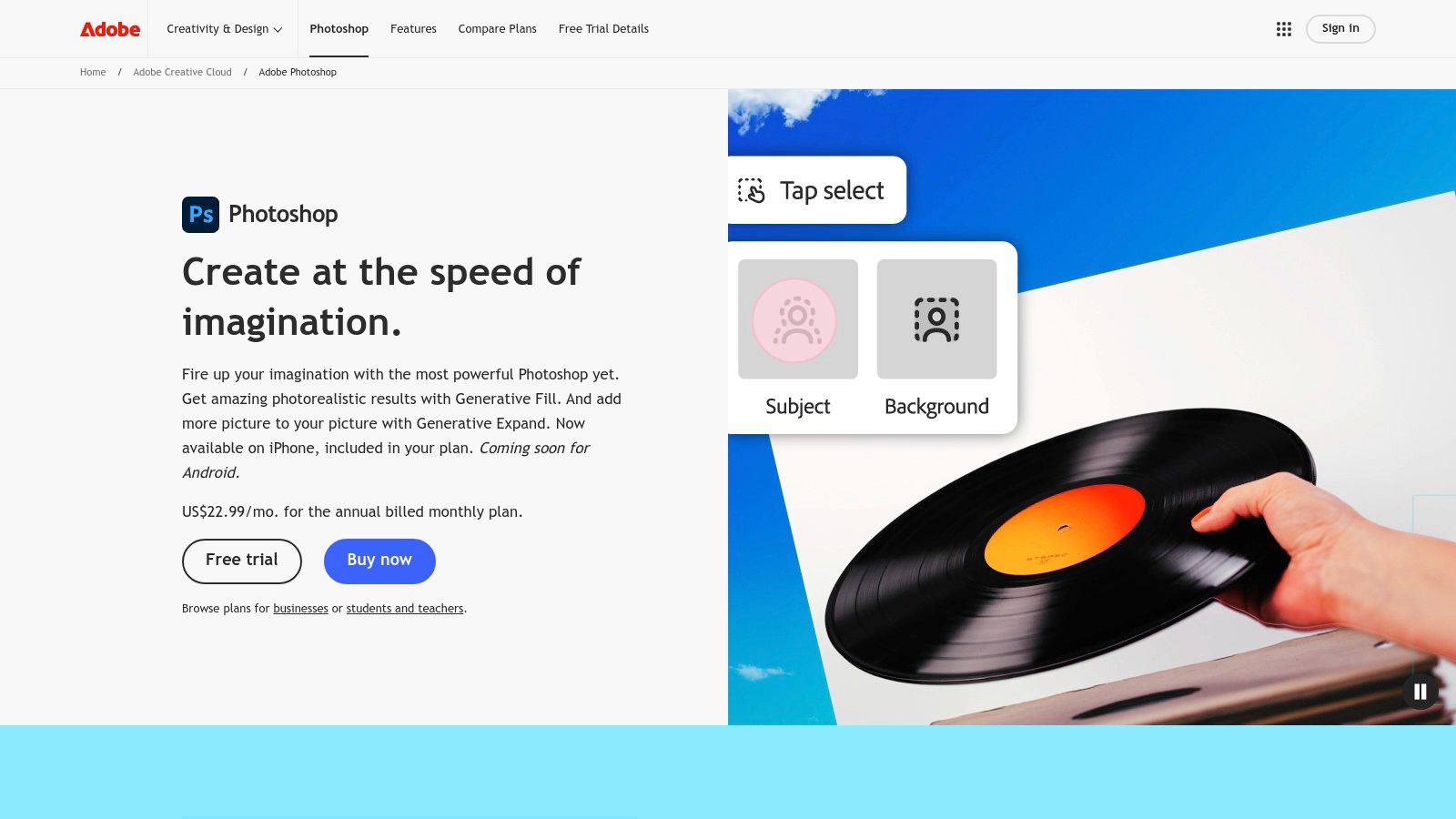
Photoshop's layer-based editing system is its core strength. This non-destructive workflow allows you to build up complex artwork piece by piece, making experimentation and revisions effortless. Adjustment layers provide further control, allowing you to modify colors, tones, and other image attributes without permanently altering the underlying pixels. Combined with layer styles, you can create stunning effects and textures with just a few clicks.
For digital artists, Photoshop's brush engine is second to none. It offers a vast library of customizable brushes, allowing you to mimic traditional media like watercolor, oil paint, and charcoal, or create unique digital brushes tailored to your specific style. Pressure sensitivity support for compatible drawing tablets provides a natural and intuitive drawing experience. Advanced selection and masking tools allow for precise isolation of elements, crucial for compositing and photo manipulation. Powerful transformation and perspective tools enable complex warping and reshaping of images and artwork.
While Photoshop is undoubtedly powerful, it's important to acknowledge its drawbacks. The sheer breadth of its features can lead to a steep learning curve for beginners. While numerous tutorials and online resources are available, mastering Photoshop takes time and dedication. Additionally, its subscription-based pricing model (approximately $20.99/month as part of the Adobe Creative Cloud suite) can be a barrier for some. Furthermore, Photoshop is a resource-intensive application, requiring a relatively powerful computer with ample RAM and processing power for smooth performance, especially when working with large files or complex projects.
Key Features and Benefits:
- Non-destructive Layer-based Editing: Experiment and revise with ease.
- Extensive Brush Engine: Mimic traditional media or create unique digital brushes.
- Advanced Selection and Masking: Precisely isolate elements for compositing.
- Powerful Transformation Tools: Warp and reshape images and artwork.
- Integration with Adobe Creative Cloud: Seamless workflow with other Adobe applications like Illustrator and InDesign.
Pros:
- Industry Standard: Widely recognized and used by professionals.
- Extensive Plugin Support and Community Resources: Expand functionality and learn from a vast community.
- Regular Updates: Continuously evolving with new features and improvements.
Cons:
- Steep Learning Curve: Can be overwhelming for beginners.
- Subscription-based Pricing: Ongoing cost commitment.
- Resource Intensive: Requires powerful hardware.
Implementation/Setup Tips:
- Start with the basics: Focus on mastering fundamental tools and concepts before diving into advanced features.
- Utilize online resources: Numerous tutorials, forums, and communities are available to help you learn.
- Customize your workspace: Tailor Photoshop's interface to your specific needs and workflow.
Website: https://www.adobe.com/products/photoshop.html
Photoshop deserves its place at the top of this list because it remains the most comprehensive and powerful raster-based digital art software available. Despite its complexity and cost, its versatility, extensive features, and industry-standard status make it an invaluable tool for any serious digital artist, designer, or photographer.
2. Procreate
Procreate is a robust iPad-exclusive digital illustration app lauded for its intuitive interface and professional-grade features. Its responsive brushes, optimized for Apple Pencil, provide a natural drawing experience with pressure sensitivity, tilt recognition, and minimal latency, mimicking the feel of traditional art mediums. This, combined with support for high-resolution canvases, hundreds of brush options, and a powerful layer system, makes Procreate a versatile tool suitable for everyone from sketching enthusiasts to professional illustrators. It's particularly popular for creating artwork, illustrations, comics, lettering, and even animating simple sketches.
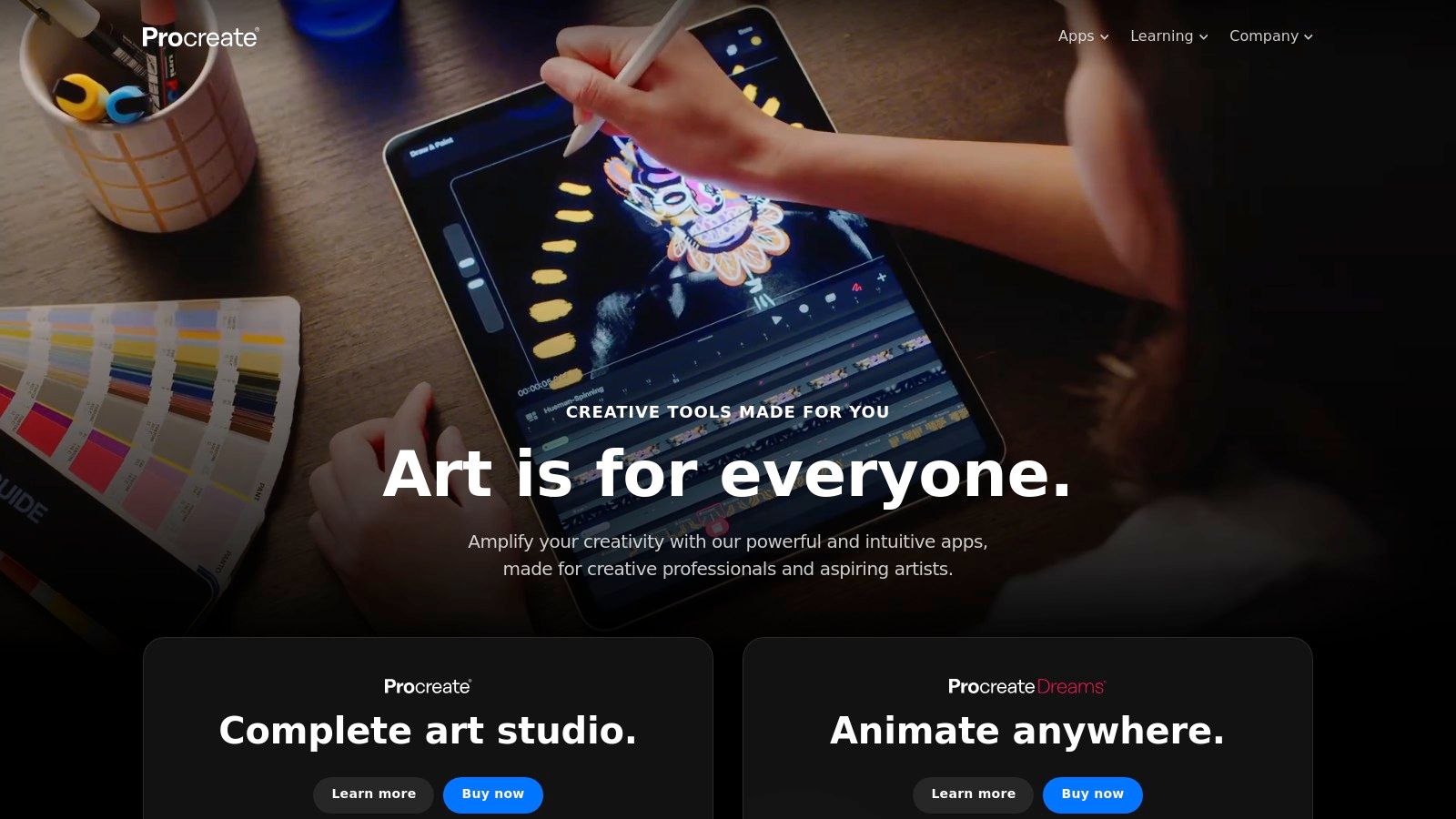
Procreate earns its spot on this list due to its unique blend of power and accessibility. While offering a user-friendly experience for beginners, it packs advanced features that appeal to seasoned artists. Let's delve into some of its key features:
- Customizable Brushes: Procreate offers over 200 customizable brushes, covering a vast range of styles from pencils and inks to charcoals and paints. Furthermore, you can create your own brushes from scratch or import existing ones, granting unparalleled control over your artistic tools.
- Advanced Layering System: The app’s robust layering system, complete with blend modes and clipping masks, allows for complex compositions and non-destructive editing. This is crucial for creating depth, experimenting with different effects, and maintaining a clean workflow.
- Time-lapse Recording: Procreate automatically records your creative process, allowing you to share mesmerizing time-lapse videos of your artwork coming to life. This feature is invaluable for showcasing your skills, creating tutorials, or simply reflecting on your creative journey.
- Powerful Color Tools: Features like ColorDrop, a tool for quick and precise color filling, and Harmony, which helps create harmonious color palettes, enhance your workflow and color selection process. You can also create and save your own custom palettes.
- Gesture Controls: Procreate leverages intuitive gesture controls for common actions like undo, redo, and canvas manipulation. These shortcuts streamline your workflow and allow you to focus on the creative process.
Pros:
- One-Time Purchase: For a one-time fee of $9.99, you get access to the full power of Procreate without any subscription fees, making it a cost-effective choice.
- Exceptional Performance: Optimized for iPad and Apple Pencil, Procreate delivers exceptional performance with minimal latency, providing a smooth and responsive drawing experience.
- Intuitive Interface: The interface is specifically designed for touchscreen use, making it easy to navigate and use, even for beginners.
- Regular Updates: Procreate receives regular updates with new features and improvements, demonstrating the developers' commitment to the app's evolution.
Cons:
- iPad Exclusivity: Procreate is only available for iPad, limiting its accessibility for users on other platforms like Android or desktop computers.
- Limited Text Editing: While Procreate supports text input, its text editing capabilities are less robust compared to desktop alternatives like Photoshop.
- Complex Project Limitations: For highly complex projects requiring advanced editing features like photo manipulation or vector graphics, Procreate might feel restrictive.
Technical Requirements: iPad compatible with Apple Pencil.
Comparison: While Procreate shines in the mobile digital art space, desktop software like Adobe Photoshop and Clip Studio Paint offer more advanced features, particularly for complex projects. However, for artists prioritizing a streamlined, intuitive experience on the go, Procreate remains unmatched.
Implementation Tips: Invest time in exploring the brush library and customization options. Mastering the layer system is key to maximizing Procreate’s potential. Experiment with the gesture controls to speed up your workflow. Numerous online tutorials and resources are available to help you master Procreate’s features.
Website: https://procreate.art/
Procreate is an exceptional tool for digital artists seeking a powerful yet intuitive platform for creating stunning artwork on the iPad. Its blend of professional features, accessible interface, and affordable pricing makes it a compelling choice for both beginners and seasoned artists.
3. Clip Studio Paint
Clip Studio Paint, formerly known as Manga Studio, stands out as a powerful and specialized digital art software tailored for comic artists, manga creators, and illustrators. Its comprehensive suite of tools mimics traditional media with impressive accuracy, making it a top choice for those seeking a digital environment that feels both familiar and innovative. Whether you're crafting a full-length graphic novel, a short webcomic, or detailed character illustrations, Clip Studio Paint offers the features and flexibility to bring your vision to life. It's particularly appealing to those who appreciate the tactile experience of traditional art but want the convenience and control of digital tools.
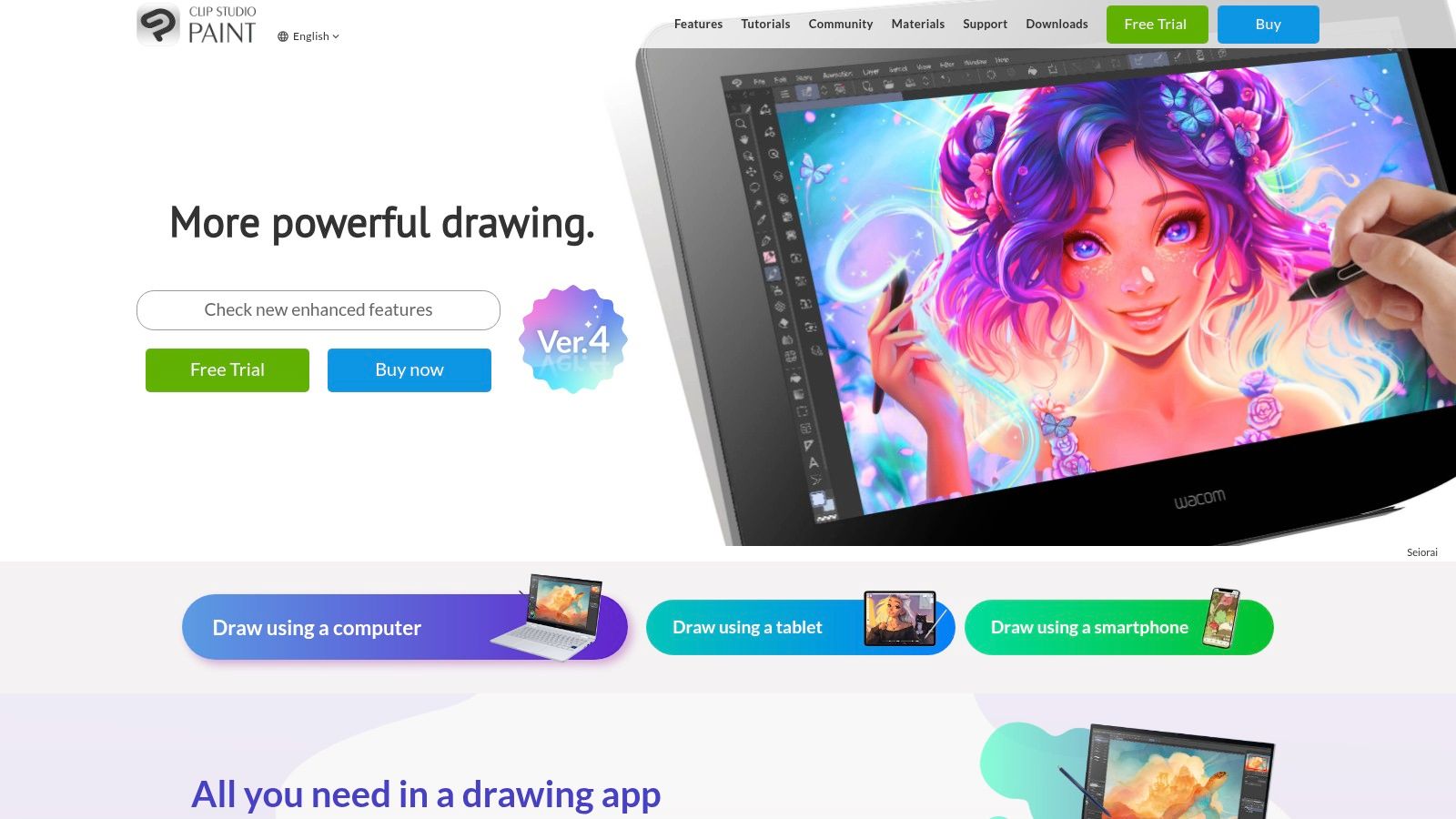
Clip Studio Paint’s strength lies in its specialized features. Tools for creating comic panels, speech bubbles, and perspective rulers streamline the comic creation process. Its natural media brushes realistically emulate pencils, pens, inks, and watercolors, allowing artists to achieve a wide range of textures and effects. The extensive library of 3D models, brushes, and textures provides further creative resources, especially helpful for backgrounds and complex scenes. The EX version extends the software's functionality with advanced animation capabilities, enabling frame-by-frame animation for bringing your stories and characters to life. Vector layer support ensures scalable linework without quality loss, crucial for professional printing and diverse publishing formats.
Compared to general-purpose drawing software like Photoshop, Clip Studio Paint’s focus on comic and illustration workflows makes it a more efficient choice for specific projects. While Photoshop offers greater image manipulation power, Clip Studio Paint prioritizes the tools and features directly relevant to comic and manga creation. For example, creating and managing multiple pages, panels, and speech bubbles is significantly more streamlined in Clip Studio Paint. Krita, another popular digital painting software, offers a strong free and open-source alternative, but lacks the specialized comic and animation tools found in Clip Studio Paint.
Pricing and Availability: Clip Studio Paint offers both one-time purchase and subscription options. The PRO version, suitable for illustration and comic creation, is available for a one-time purchase of $49.99. The EX version, with added animation features and expanded comic creation tools, is priced at a one-time purchase of $219. Subscription options provide greater flexibility and access to updates. The software is available for Windows, macOS, iPad, iPhone, Android, and Chromebook, catering to a wide range of users and devices.
Implementation Tips:
- Start with the Basics: The interface can be initially overwhelming. Begin by familiarizing yourself with the essential drawing tools and panel management features.
- Explore the Asset Store: Clip Studio Assets provides a vast library of user-created brushes, 3D models, and other resources that can significantly enhance your workflow.
- Utilize Tutorials: Numerous online tutorials and community forums offer valuable guidance on mastering the software's features and techniques.
Pros:
- One-time purchase options with occasional sales, making it an affordable long-term investment.
- Specifically optimized for comic and illustration workflows.
- Active community with extensive resources and assets.
Cons:
- The interface can be overwhelming for new users due to the numerous tools and options.
- Advanced features, like animation, have a steeper learning curve.
- Some users report occasional stability issues with larger files.
Website: https://www.clipstudio.net/en/
Clip Studio Paint earns its place in this list because it provides a comprehensive and dedicated environment for creating comics, manga, and illustrations. While its specialized focus may not suit all digital artists, those working within these specific genres will find its powerful tools and optimized workflow an invaluable asset.
4. Corel Painter
Corel Painter distinguishes itself as a premier digital art studio focused on replicating the nuanced experience of traditional media. It's designed for artists who crave the tactile feel and organic results of working with physical paints, charcoals, and pastels, but within a digital environment. Whether you're a fine artist transitioning to digital, a concept artist crafting evocative illustrations, or an illustrator seeking authentic textures, Painter offers an unparalleled level of realism in its digital brushwork and canvas interactions. Its powerful simulation engine translates pressure, tilt, and even the texture of the digital canvas into visual results that mirror their real-world counterparts.
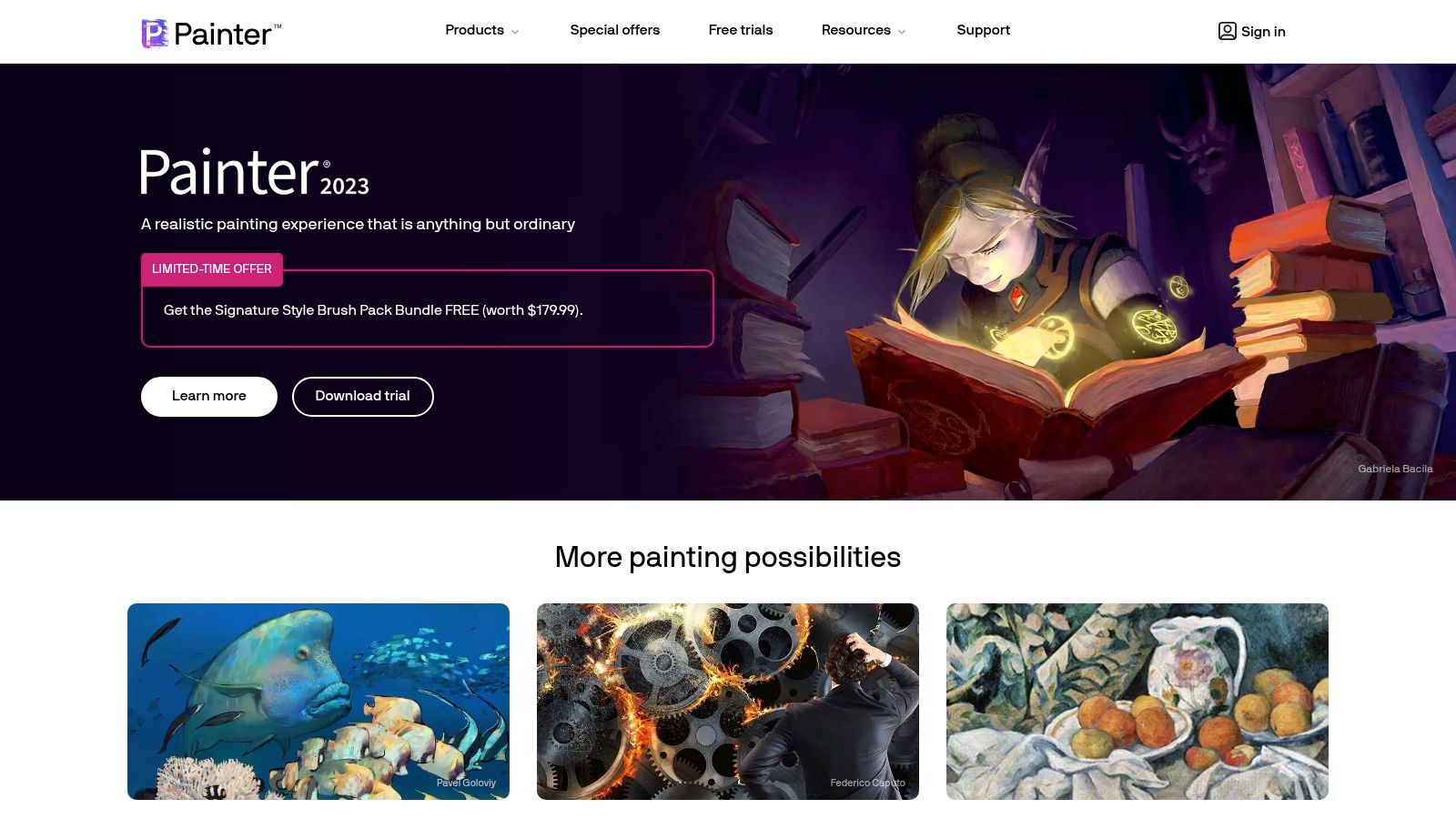
Painter’s vast library of over 900 brushes is its core strength. These aren't just static digital stamps; they are dynamic tools that interact with the canvas in complex ways. The software meticulously emulates the behavior of oils, watercolors, acrylics, pastels, pencils, and a multitude of other media, each with customizable settings to fine-tune your artistic expression. Its unique brush technologies, such as the RealBristle™ system, dynamically respond to your stylus inputs, replicating the way bristles splay, blend, and deposit pigment on a real canvas. This makes it possible to achieve effects like impasto, dry brush, and glazing with remarkable fidelity. Beyond brushes, Painter offers a range of canvas textures that realistically interact with your chosen media, furthering the illusion of working on a physical surface.
Compared to more general-purpose digital painting software like Photoshop or Procreate, Painter's focus is decidedly on mimicking traditional methods. While Photoshop offers some natural media emulation, it doesn’t reach the depth and specificity of Painter's dedicated toolset. Procreate, while excellent for illustration and sketching, leans towards a more streamlined, less simulation-heavy approach. This specialization makes Painter a top choice for artists seeking a truly authentic traditional feel in their digital artwork.
Features and Benefits:
- Extensive Brush Library: Over 900 brushes covering a wide range of traditional media.
- Dynamic Brush Technologies: RealBristle™ and other technologies create realistic brush behavior.
- Realistic Canvas Textures: Interact with brushes for authentic results.
- Color Management Tools: Mixers, color sets, and harmonies aid in color selection and control.
- GPU Acceleration: Enhanced performance for smoother workflow.
- Custom Brush Creator: Design and save your own personalized brushes.
Pricing and Technical Requirements:
Corel Painter is available as a one-time purchase with a perpetual license for around $429, with discounted upgrade pricing available for existing users. This is a higher initial investment than subscription-based alternatives, but it offers long-term cost savings. As a resource-intensive program, Painter requires a reasonably powerful computer with a dedicated graphics card for optimal performance. Check the official website for detailed system requirements.
Pros:
- Most realistic traditional media emulation available.
- Custom brush creation for personalized tools.
- Perpetual license offers long-term value.
- Comprehensive learning resources and tutorials.
Cons:
- Steeper learning curve compared to some alternatives.
- Higher initial price point.
- Requires powerful hardware for optimal performance.
Implementation/Setup Tips:
- Familiarize yourself with the extensive brush library and experiment with different media types.
- Explore the custom brush creator to tailor tools to your specific needs.
- Take advantage of the available tutorials and learning resources to master the software’s features.
- Ensure your computer meets the recommended system requirements for a smooth workflow.
Website: https://www.painterartist.com/en/
Corel Painter earns its place on this list due to its unmatched dedication to replicating the nuances of traditional art in a digital space. While it caters to a specific niche, its powerful features and realistic emulation make it an invaluable tool for artists seeking a truly authentic digital painting experience.
5. Affinity Designer
Affinity Designer is a compelling vector graphics editor vying for a spot in the arsenals of digital artists, graphic designers, and even web developers. It provides a robust suite of tools for creating crisp, scalable artwork, from logos and icons to complex illustrations and UI designs. It shines through by offering professional-grade features at a significantly lower cost compared to industry giants like Adobe Illustrator. Its focus on precise vector drawing, combined with the ability to seamlessly switch between vector and raster workspaces, makes it a versatile tool for various creative projects. Think of it as a powerful, yet affordable, Swiss Army knife for your digital design needs.
For aspiring vibe coders looking to create unique visual assets for their projects, Affinity Designer offers an attractive entry point. Its one-time purchase price of $69.99 for desktop (and even less, $21.99 for iPad) eliminates the burden of recurring subscription fees, making it a budget-friendly choice for students and hobbyists. Experienced software developers can also leverage Affinity Designer to create high-quality mockups and UI elements, while educators and students in tech fields can benefit from its intuitive interface and powerful features. Innovative entrepreneurs, on the other hand, can utilize the software to develop branding materials and marketing visuals without breaking the bank. Learn more about Affinity Designer to understand its potential. While the link points to Figma, it's meant to point to a resource about Affinity Designer on the vibecoding.vip domain. This highlights a potential need for vibecoding.vip to expand its content related to Affinity Designer for its audience.
Key features include comprehensive vector tools with an astounding zoom capability of up to 1,000,000%, allowing for incredibly detailed work. Non-destructive effects and adjustments preserve the original artwork while allowing for experimentation. Advanced typography controls and artistic text features cater to sophisticated design needs. Furthermore, its robust export capabilities in various formats streamline the workflow for both print and digital media. This makes it particularly useful for preparing assets for different platforms, a crucial aspect for vibe coders and creative technologists.
Pros:
- Affordability: One-time purchase ($69.99 desktop/$21.99 iPad) eliminates subscription fatigue.
- Regular Updates: Enjoy continuous improvements and new features without extra costs.
- Performance: Experience smooth and fast performance even with complex illustrations.
- Compatibility: Works seamlessly with standard file formats, including AI and PSD, facilitating collaboration.
Cons:
- Smaller Community: Fewer third-party resources and plugins compared to Adobe Illustrator.
- Feature Gap: Lacks some advanced features found in Illustrator.
- Learning Curve: Users accustomed to Adobe products might experience a steeper learning curve.
Implementation Tip: When transitioning from Adobe Illustrator, take advantage of Affinity Designer's extensive tutorials and documentation to quickly adapt to the interface and workflow. Focus on mastering the core tools and gradually explore the advanced features.
Technical Requirements: Affinity Designer is available for Windows, macOS, and iPad. Specific system requirements can be found on the official website.
Website: https://affinity.serif.com/en-us/designer/
Affinity Designer's blend of professional-grade features, affordability, and cross-platform compatibility secures its place on this list. It provides a viable alternative to more expensive software, empowering a wider range of creatives to produce high-quality vector graphics.
6. Krita
Krita stands out as a powerful and versatile free and open-source digital painting software specifically designed by artists for artists. This focus shines through in its intuitive interface and comprehensive toolset tailored for painting, illustration, concept art, and even texture creation. Whether you're a seasoned professional or just starting your digital art journey, Krita offers a robust platform to bring your creative visions to life. It's an excellent choice for anyone looking for a cost-effective alternative to commercial software without compromising on advanced features. Aspiring vibe coders can leverage Krita to design unique visuals for their projects, while experienced software developers can explore its open-source nature for integration possibilities. Digital artists and creative technologists will appreciate its specialized tools, while educators and students benefit from its free access.
One of Krita's key strengths is its vast array of brushes. With over 100 professionally designed brushes and customizable brush engines, you can achieve a wide range of effects, from mimicking traditional mediums to creating unique digital textures. Advanced color management with HDR painting support allows for vibrant and nuanced color work. Krita’s comprehensive layer system, featuring group, vector, and filter layers, provides the flexibility and control needed for complex compositions. Moreover, its built-in frame-by-frame animation tools open up possibilities for creating animated sequences and motion graphics. For seamless texture creation, Krita offers wrap-around mode and multiple mirror tools. If you want to dive deeper into the functionalities of Krita, you can learn more about Krita.
Krita's free and open-source nature makes it accessible across Windows, macOS, and Linux, broadening its reach to a diverse user base. The active development community ensures regular updates, bug fixes, and the addition of new features based on user feedback. This collaborative approach makes Krita a constantly evolving platform tailored to the needs of its users.
While Krita offers an impressive feature set comparable to paid software, some trade-offs come with its open-source nature. Stability can sometimes be an issue on certain systems, and the documentation and learning resources, while improving, are not as extensive as those provided by commercial alternatives. The text and vector tools, while functional, are more limited than those found in dedicated vector graphics programs. However, for primarily raster-based digital painting and illustration, Krita provides exceptional value.
Pricing: Free and Open-Source
Website: https://krita.org/
7. Adobe Illustrator
Adobe Illustrator is the undisputed king of vector graphics editing. This industry-standard software is the go-to choice for professionals creating scalable artwork for a wide range of applications. Whether you're designing a crisp logo for a startup, crafting intricate illustrations for a children's book, or laying out detailed diagrams for an architectural project, Illustrator's powerful toolset empowers you to achieve pixel-perfect precision. Its focus on vector graphics means your artwork remains sharp and clear at any size, from a small website icon to a massive billboard. This makes it fundamentally different from raster-based programs like Photoshop, which deal with pixels and can lose quality when scaled. For aspiring vibe coders, experienced software developers, and digital artists alike, understanding Illustrator is crucial for bringing visual designs to life.
Illustrator’s extensive feature set caters to a diverse range of creative needs. Advanced path editing tools allow for meticulous manipulation of vector shapes, giving you complete control over every curve and anchor point. Comprehensive typography controls, including variable font support, provide unparalleled flexibility for typographic design. Live trace functionality streamlines the process of converting raster images into editable vector graphics, while powerful pattern creation and editing capabilities open up a world of possibilities for surface designs and textures. Furthermore, 3D effects and perspective drawing tools add depth and dimension to your artwork. For those interested in expanding their Illustrator knowledge, you might want to Learn more about Adobe Illustrator.
As part of the Adobe Creative Cloud suite, Illustrator seamlessly integrates with other Adobe applications like Photoshop and InDesign, facilitating a smooth and efficient workflow for complex projects. This integration is invaluable for professionals working across multiple design disciplines. Regular updates through Creative Cloud ensure access to the latest features and performance enhancements, keeping you at the forefront of digital art technology. A vast library of learning resources and a vibrant online community provide ample support for both beginners and seasoned professionals.
While Illustrator's capabilities are impressive, it's important to consider its drawbacks. The subscription-based pricing model (around $20.99/month as part of Creative Cloud) can be a barrier for some users. Additionally, the software has a steep learning curve for beginners, requiring dedicated time and effort to master its complex toolset. Finally, Illustrator can be resource-intensive and may not perform optimally on older hardware.
Pros:
- Industry standard with widespread use in professional environments
- Regular updates with new features through Creative Cloud
- Seamless integration with other Adobe applications
- Extensive learning resources and community support
Cons:
- Subscription-based pricing model (around $20.99/month)
- Steep learning curve for beginners
- Resource-intensive on older hardware
Website: https://www.adobe.com/products/illustrator.html
Illustrator earns its place on this list because of its unparalleled power and precision in vector graphics editing. Its comprehensive features, industry-standard status, and seamless integration with other Adobe applications make it an essential tool for any serious digital artist, designer, or creative technologist. While the learning curve and subscription price may be deterrents for some, the investment is worthwhile for those seeking to create professional-quality vector artwork.
8. Autodesk Sketchbook
Autodesk Sketchbook distinguishes itself through its commitment to a distraction-free drawing experience. It prioritizes the creative flow by presenting a clean, customizable interface that fades into the background, letting the artist focus solely on their work. This makes it an excellent choice for both quick ideation sketches and detailed illustrations. Whether you're storyboarding a film, designing a character, or simply sketching for pleasure, Sketchbook provides the tools and the environment to bring your vision to life. Its intuitive nature makes it particularly appealing to beginners, while the professional-grade tools, such as perspective guides and customizable brushes, offer enough depth to satisfy experienced artists.
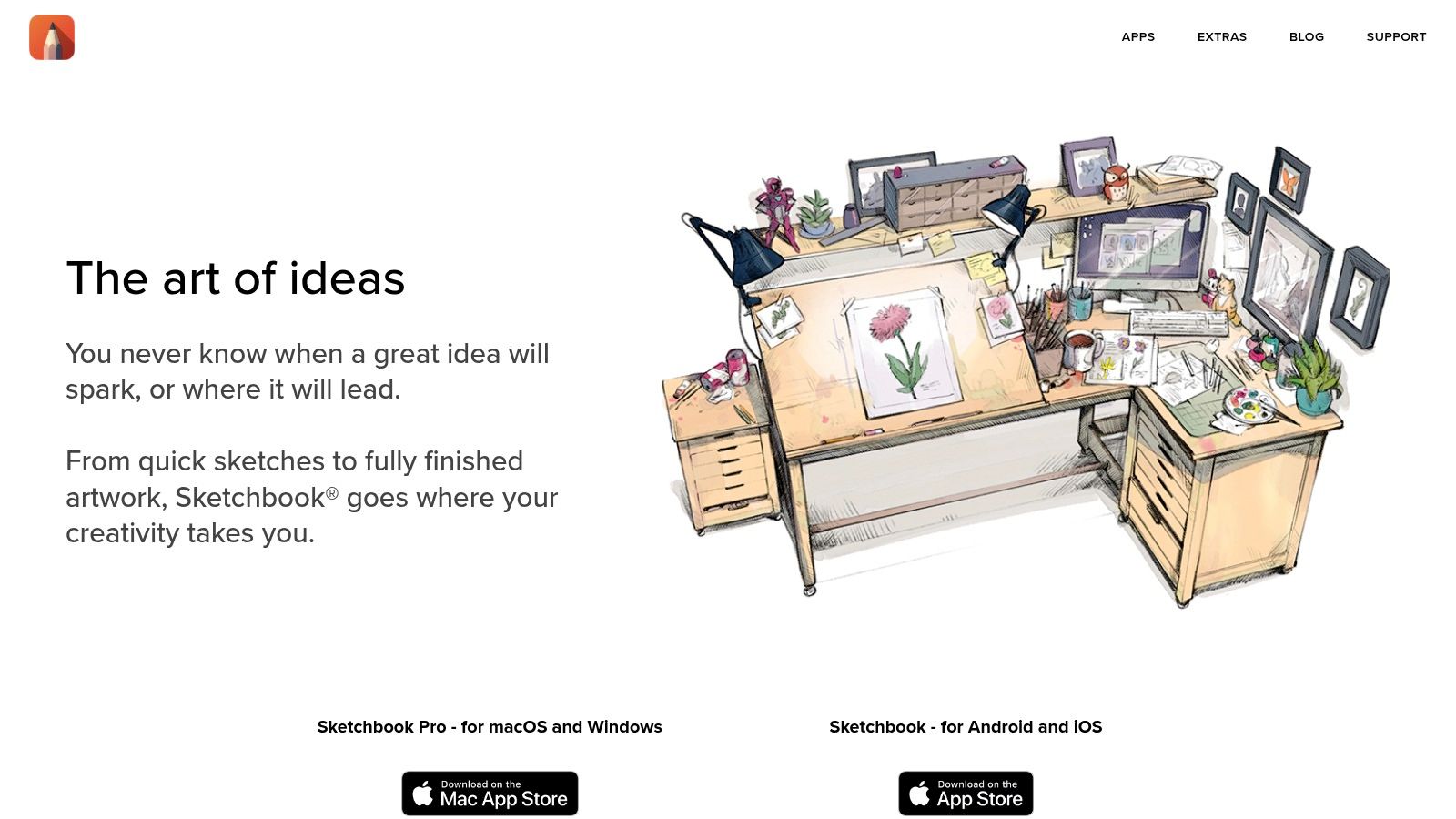
One of Sketchbook's strengths lies in its brush engine. The customizable brushes offer a natural drawing feel, enhanced by predictive stroke technology which smooths lines and makes for a more polished final product. This is especially beneficial when working with stylus input on tablets, mimicking the experience of traditional drawing. The symmetry tools, including radial, mandala, and horizontal/vertical mirroring, open up creative possibilities for designing intricate patterns and illustrations. For technical drawings, the perspective guides and rulers provide the necessary precision. Think architectural sketches, product design concepts, or even comic book panel layouts – Sketchbook can handle it.
Compared to feature-rich alternatives like Clip Studio Paint or Procreate, Sketchbook adopts a more streamlined approach. While it may lack some of the advanced features of these programs (like animation or complex text manipulation), this minimalist philosophy contributes to its ease of use and accessibility, making it a perfect entry point for aspiring digital artists. For seasoned professionals, Sketchbook can serve as a valuable tool for rapid sketching and conceptualization, complementing their primary software.
Sketchbook is available across multiple platforms (Windows, macOS, iOS, and Android), making it accessible on virtually any device. The basic version is free, providing a fantastic opportunity to explore the software's capabilities. For those seeking additional features, the Pro version is available for a reasonable $19.99 per year.
Implementation Tips:
- Customize your workspace: Tailor the interface to your specific needs by adjusting the toolbar and brush settings.
- Explore the brush library: Experiment with different brushes and create custom ones to suit your style.
- Utilize the symmetry tools: These tools are invaluable for creating intricate patterns and symmetrical designs.
- Leverage the perspective guides: For technical drawings, the perspective guides ensure accuracy and consistency.
Pros:
- Free for basic version, Pro version available for $19.99/year
- Intuitive interface accessible to beginners
- Available across multiple platforms (Windows, macOS, iOS, Android)
- Excellent pen and stylus support with predictive stroke technology
Cons:
- Fewer advanced features compared to professional alternatives like Clip Studio Paint or Procreate
- Limited brush customization options compared to some competitors
- Less frequent updates since transitioning from Autodesk
Website: https://www.sketchbook.com/
Sketchbook earns its place on this list by offering a balanced combination of powerful features and an intuitive user experience. Its focus on simplicity and accessibility makes it an ideal choice for artists of all skill levels, particularly those seeking a distraction-free drawing environment. Whether you're a seasoned professional or just starting your digital art journey, Sketchbook is definitely worth exploring.
9. Affinity Photo
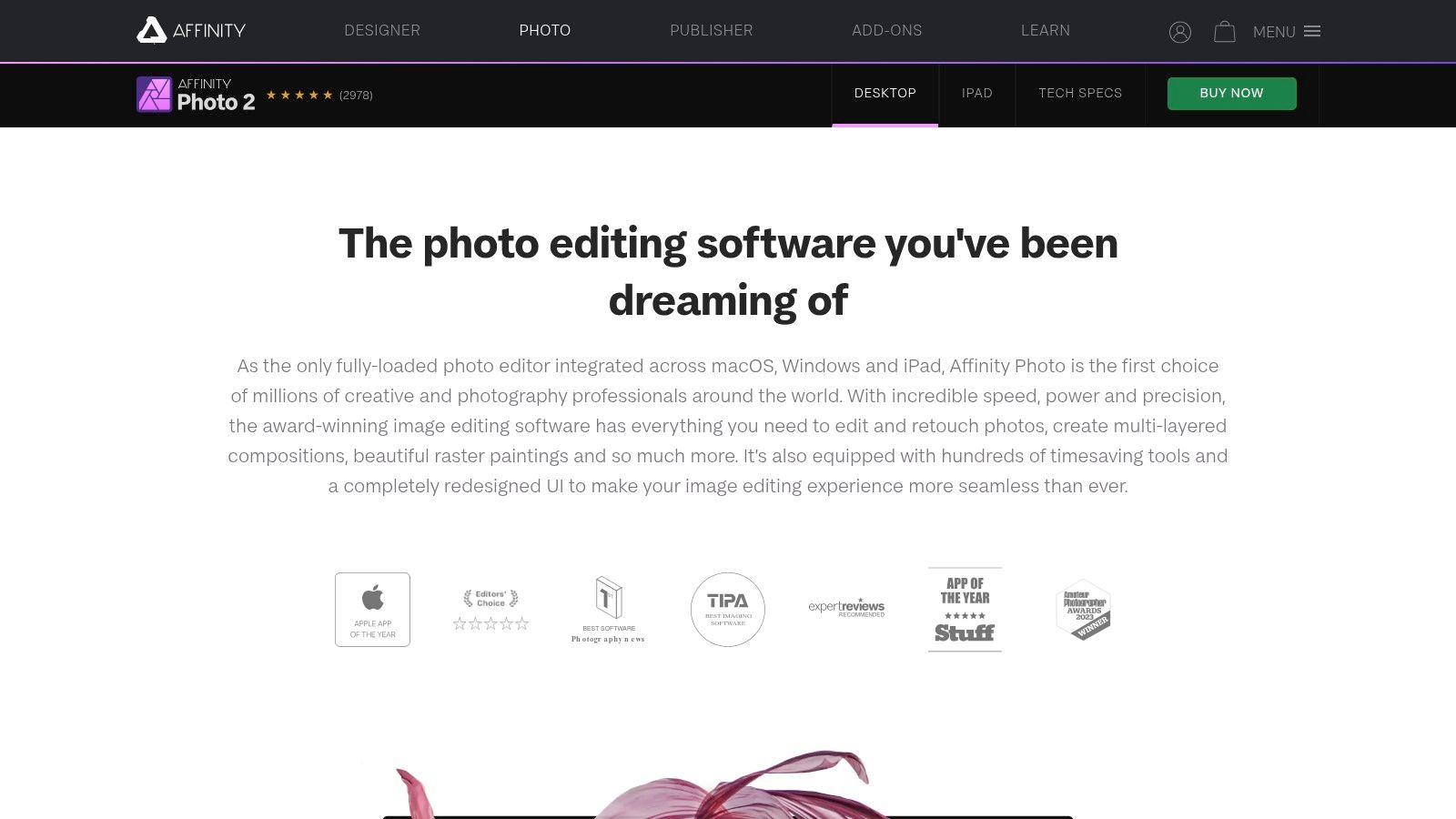
Affinity Photo stands out as a powerful and affordable alternative to industry-standard photo editing and digital painting software like Adobe Photoshop. It caters to a wide range of users, from photographers needing robust RAW processing and retouching tools to digital artists seeking a comprehensive platform for painting and illustration. Its one-time purchase model makes it particularly attractive for budget-conscious creatives who prefer not to be locked into subscriptions. Affinity Photo boasts a rich feature set covering the entire spectrum of image manipulation, making it a versatile choice for both professionals and hobbyists.
Practical Applications and Use Cases:
- Photo Editing & Retouching: Leverage Affinity Photo's advanced RAW development, HDR merging, and panorama stitching capabilities for professional-grade photo editing. The software excels at detailed retouching tasks thanks to its sophisticated selection and masking tools.
- Digital Painting & Illustration: Explore a wide array of customizable brushes, layer functionalities (including unlimited layers and live filter layers), and non-destructive adjustments, empowering you to create stunning digital artwork from scratch or enhance existing images.
- Graphic Design: While primarily focused on photo manipulation and painting, Affinity Photo can also be used for certain graphic design tasks such as creating web graphics, social media visuals, and marketing materials.
- Education & Learning: Its affordable one-time purchase and comprehensive features make it a valuable tool for students learning photo editing and digital painting techniques.
Features and Benefits:
- Full RAW Development: Process RAW files directly from your camera with precise control over exposure, white balance, and other crucial parameters.
- Comprehensive Digital Painting Tools: Enjoy a wide variety of brushes, textures, and painting effects, coupled with adjustable brush settings and pressure sensitivity support.
- Non-Destructive Editing: Experiment freely with adjustments and filters without permanently altering your original image.
- Advanced Layer Functionality: Work with unlimited layers and live filter layers, providing immense flexibility and control over your compositions.
- PSD File Compatibility: Seamlessly open and edit Photoshop files without compatibility issues.
Pros:
- One-Time Purchase: $69.99 for desktop (Windows & macOS) and $21.99 for iPad. No recurring subscription fees.
- Regular Updates: Benefit from ongoing improvements and new features without additional costs.
- Cross-Platform Support: Work seamlessly across Windows, macOS, and iPad, thanks to cross-platform file compatibility.
Cons:
- Learning Curve: Users accustomed to Adobe Photoshop's interface may require some time to adjust to Affinity Photo's layout and workflow.
- Fewer Plugins & Extensions: Compared to Photoshop, Affinity Photo has a smaller library of third-party plugins and extensions.
- Performance: Some advanced features or operations with very large files might perform slightly slower than in Photoshop, depending on your hardware.
Implementation/Setup Tips:
- Explore the extensive library of tutorials and documentation available on the Affinity website to quickly get up to speed.
- Customize your workspace and keyboard shortcuts to optimize your workflow.
- Experiment with different brush settings and painting techniques to discover the full potential of the digital painting tools.
Comparison with Similar Tools:
Affinity Photo positions itself as a direct competitor to Adobe Photoshop, offering a comparable feature set at a significantly lower price point. While Photoshop might have a slight edge in terms of advanced features, third-party plugin support, and overall performance in some areas, Affinity Photo's one-time purchase model and continuous updates make it an extremely attractive alternative.
Website: https://affinity.serif.com/en-us/photo/
Affinity Photo deserves its place on this list because it provides a powerful and affordable alternative to subscription-based photo editing and digital painting software. Its comprehensive feature set, combined with its one-time purchase model, makes it a valuable tool for a broad range of users, from students and hobbyists to seasoned professionals.
10. GIMP (GNU Image Manipulation Program)
GIMP (GNU Image Manipulation Program) is a powerful, free, and open-source raster graphics editor perfect for aspiring and seasoned digital artists, graphic designers, and anyone looking for a robust image editing solution without the price tag. Whether you're retouching photos, creating original artwork, designing website graphics, or prepping images for print, GIMP offers a comprehensive suite of tools comparable to industry-standard software like Adobe Photoshop. Its versatility makes it equally suitable for quick edits and complex projects, providing a valuable resource for everyone from hobbyists to professionals.
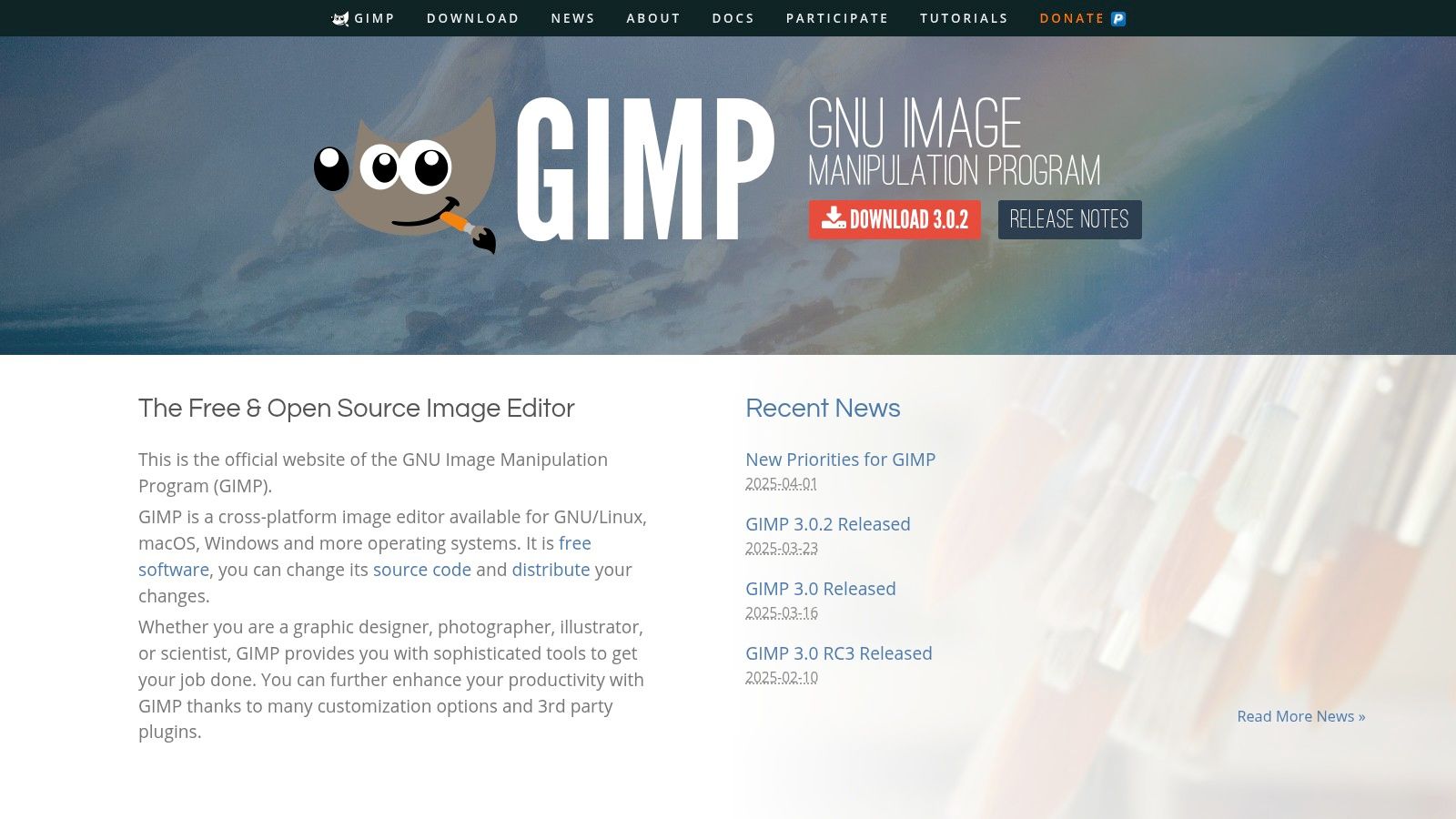
GIMP boasts a comprehensive set of features, including a wide array of painting tools like brushes, pencils, airbrushes, and clone tools, allowing for detailed digital painting and photo manipulation. Its layer-based editing system, complete with masks and blend modes, offers the flexibility to create complex compositions and non-destructive edits. Selection tools allow for precise editing of specific areas, and a multitude of filters and color adjustment tools offer endless creative possibilities. Furthermore, its customizable interface with dockable dialogues allows users to tailor the workspace to their specific needs and workflows.
Practical Applications and Use Cases:
- Photo Retouching: Restore old photos, remove blemishes, adjust color and lighting, and enhance images.
- Digital Painting & Drawing: Create original artwork, illustrations, and graphic designs from scratch.
- Web Design: Design website layouts, create buttons, icons, and other web graphics.
- Image Composition & Manipulation: Combine multiple images, create photomontages, and manipulate images for creative effects.
- Logo Design: Design simple logos and graphics for businesses and personal projects.
Pricing and Technical Requirements:
- Price: Free and open-source.
- Operating Systems: Windows, macOS, Linux.
- Hardware Requirements: While GIMP can run on relatively modest hardware, a faster processor, ample RAM (at least 4GB recommended), and a graphics card with good driver support are beneficial, especially when working with large files or complex operations.
Comparison with Similar Tools:
GIMP is often compared to Adobe Photoshop. While Photoshop offers a more polished interface and certain advanced features, GIMP provides a remarkable alternative for users seeking a free and powerful solution. For those on a budget or those simply wanting to explore open-source software, GIMP delivers exceptional value. Other free alternatives include Krita (focused on digital painting) and Photopea (a browser-based editor), each with its own strengths and weaknesses.
Implementation/Setup Tips:
- Download: Download the latest version of GIMP from the official website (https://www.gimp.org/).
- Customization: Explore the extensive customization options in the Preferences menu to tailor the interface to your liking.
- Plugins: Consider installing plugins to extend GIMP's functionality. Many free plugins are available online.
- Tutorials: Take advantage of the numerous online tutorials and resources available to learn GIMP's features and workflows.
Pros:
- Completely free and open-source.
- Cross-platform compatibility (Windows, macOS, Linux).
- Actively maintained with regular updates.
- Highly customizable through plugins and scripts.
- Powerful features comparable to commercial alternatives.
Cons:
- Steeper learning curve compared to more intuitive commercial software.
- Interface can be less user-friendly for beginners.
- Can be less stable with very large files or resource-intensive operations.
- Documentation can be technical at times.
GIMP’s free availability, extensive feature set, and active community make it a valuable addition to this list, offering a robust alternative to paid software for a broad audience of digital artists and image editors. While the initial learning curve might seem daunting, the potential and power of GIMP are well worth the effort.
Digital Art Software: Head-to-Head Comparison
| Product | Core Features ★ | Quality/UX 🏆 | Value/Price 💰 | Target Audience 👥 | USP ✨ |
|---|---|---|---|---|---|
| Adobe Photoshop | Layer editing, advanced brushes & masking | ★★★★★ Powerful but steep learning curve | Subscription (~$20.99/month) | Professionals & creatives | Integration with Adobe CC, industry leader |
| Procreate | 200+ brushes, intuitive layers, time-lapse recording | ★★★★★ Smooth, Apple Pencil optimized | One-time ($9.99) | iPad artists & illustrators | Touch-optimized interface for natural drawing |
| Clip Studio Paint | Comic/manga tools, natural media brushes, animation | ★★★★☆ Rich toolkit with dense interface | One-time (PRO ~$49.99, EX ~$219) or subscription | Comic/manga creators | Specialized comic creation features |
| Corel Painter | 900+ realistic brushes, natural media emulation | ★★★★☆ Authentic but resource intensive | One-time (around $429) | Fine artists & illustrators | True-to-life traditional media simulation |
| Affinity Designer | Precision vector tools, dual raster/vector workflow | ★★★★☆ Fast, modern interface | One-time ($69.99 desktop, $21.99 iPad) | Graphic designers | No-subscription alternative to Illustrator |
| Krita | Extensive painting tools, HDR & animation support | ★★★★☆ Community-driven, improving | Free & open-source | Digital painters on a budget | Professional-grade painting without cost |
| Adobe Illustrator | Precision vector drawing, typography & path tools | ★★★★★ Industry-standard design tool | Subscription (~$20.99/month) | Professional designers | Seamless integration within Adobe ecosystem |
| Autodesk Sketchbook | Minimalist UI, predictive brushes, symmetry tools | ★★★★☆ Intuitive and distraction-free | Free basic; Pro at $19.99/year | Beginners & casual artists | Clean, focused workspace for creative drawing |
| Affinity Photo | RAW editing, non-destructive layers, comprehensive painting | ★★★★☆ Professional photo & art editing | One-time ($69.99 desktop, $21.99 iPad) | Photographers & digital artists | PSD compatibility with no recurring fee |
| GIMP | Layer editing, versatile tools, plugin extensions | ★★★☆☆ Powerful but less intuitive | Free & open-source | Budget-conscious & open-source users | Extensible, free alternative to paid solutions |
Your Digital Canvas Awaits!
From the robust capabilities of industry standards like Adobe Photoshop and Illustrator to the accessible and versatile freeware options like GIMP and Krita, the world of digital art software offers a diverse palette for every creative mind. We’ve explored ten powerful tools, each with its own strengths and ideal use cases. Key takeaways include the importance of considering your budget – with options ranging from free to subscription-based models – and the specific features you need. For example, Procreate shines on the iPad for its intuitive touch interface, while Clip Studio Paint is a favorite amongst comic and manga artists. Corel Painter excels in mimicking traditional media, whereas Affinity Designer and Photo provide powerful alternatives to Adobe products.
Choosing the right digital art software is a personal journey. Beginners might find Autodesk Sketchbook or Krita’s user-friendly interfaces a perfect starting point, while experienced artists might gravitate towards the advanced features of Photoshop or Corel Painter. Consider factors like platform compatibility (Windows, macOS, iPadOS, etc.), your preferred art style (painting, drawing, graphic design), and the level of control you desire. For those interested in coding and generative art, remember that many of these tools can be integrated into your workflows, opening up exciting possibilities at the intersection of art and technology.
As your digital art collection grows, you might find yourself needing a system to organize and manage it all. A Digital Asset Management (DAM) system can help streamline this process. Explore some top options for managing a growing collection of digital assets.
Now, armed with this knowledge, it's time to select your digital canvas and embark on your creative journey. Experiment, explore, and most importantly, enjoy the process of bringing your digital visions to life!