Level Up Your Designs: Choosing The Right Interactive Design Software
In the world of digital design, interactive design software is key for creating compelling and dynamic user experiences. These tools empower designers to go beyond static visuals and build engaging interactions, from mobile app prototypes to immersive web experiences. Whether you're a seasoned developer, a digital artist, an entrepreneur, or a hobbyist venturing into UX/UI, the right software is essential to bringing your vision to life.
With a wide array of design tools available, choosing the right one can feel overwhelming. The key is understanding the core problems these tools solve. They simplify design by offering intuitive interfaces for interactive prototypes, animations, and even functional user interfaces, minimizing the need for complex coding early on. Effective interactive design software facilitates seamless collaboration, iterative design, and user testing, resulting in more polished, user-centered products.
Factors like platform compatibility (Mac, Windows, web-based), pricing (subscription vs. one-time purchase), learning curve, and features such as animation capabilities and code export options all contribute to finding the ideal fit. This top 10 list will cover leading interactive design software options in 2025, from industry-standard vector graphics editors like Adobe Illustrator to cutting-edge prototyping platforms like Figma.
Key Features To Consider
- Prototyping: How easily can you create interactive prototypes?
- Animation: Does the software offer robust animation tools?
- Collaboration: Can multiple users work on the same project simultaneously?
- User Testing: Are there integrated features for user testing and feedback?
- Code Export: Can you export your designs as code for developers?
By understanding these features, you can better evaluate the software's suitability for your project.
Top 10 Interactive Design Software Options of 2025 (Example List)
| Software | Platform | Pricing | Key Features |
|---|---|---|---|
| Adobe XD | Mac, Windows | Subscription | Prototyping, animation, collaboration |
| Figma | Web, Mac, Windows | Subscription | Collaboration, prototyping, vector editing |
| Sketch | Mac | One-time | Vector editing, prototyping |
| InVision Studio | Mac, Windows | Subscription | Prototyping, animation |
| Framer | Mac, Windows | Subscription | Interactive design, code components |
| ProtoPie | Mac, Windows | Subscription | Interaction design, animation |
| Axure RP | Mac, Windows | Subscription | Prototyping, documentation |
| Principle | Mac | One-time | Interaction design, animation |
| Marvel | Web | Subscription | Prototyping, user testing |
| Adobe After Effects | Mac, Windows | Subscription | Motion graphics, animation, visual effects |
This list provides a starting point for exploring the diverse options available. Each tool has strengths and weaknesses; the “best” choice depends on your specific needs.
By the end of this article, you'll understand the strengths and weaknesses of each tool, enabling you to choose the perfect software to elevate your designs and craft unforgettable user experiences. Don't hesitate to watch this helpful video overview of interactive design software options: Interactive Design Software Overview. And for a visual guide, see the infographic below:
1. Figma
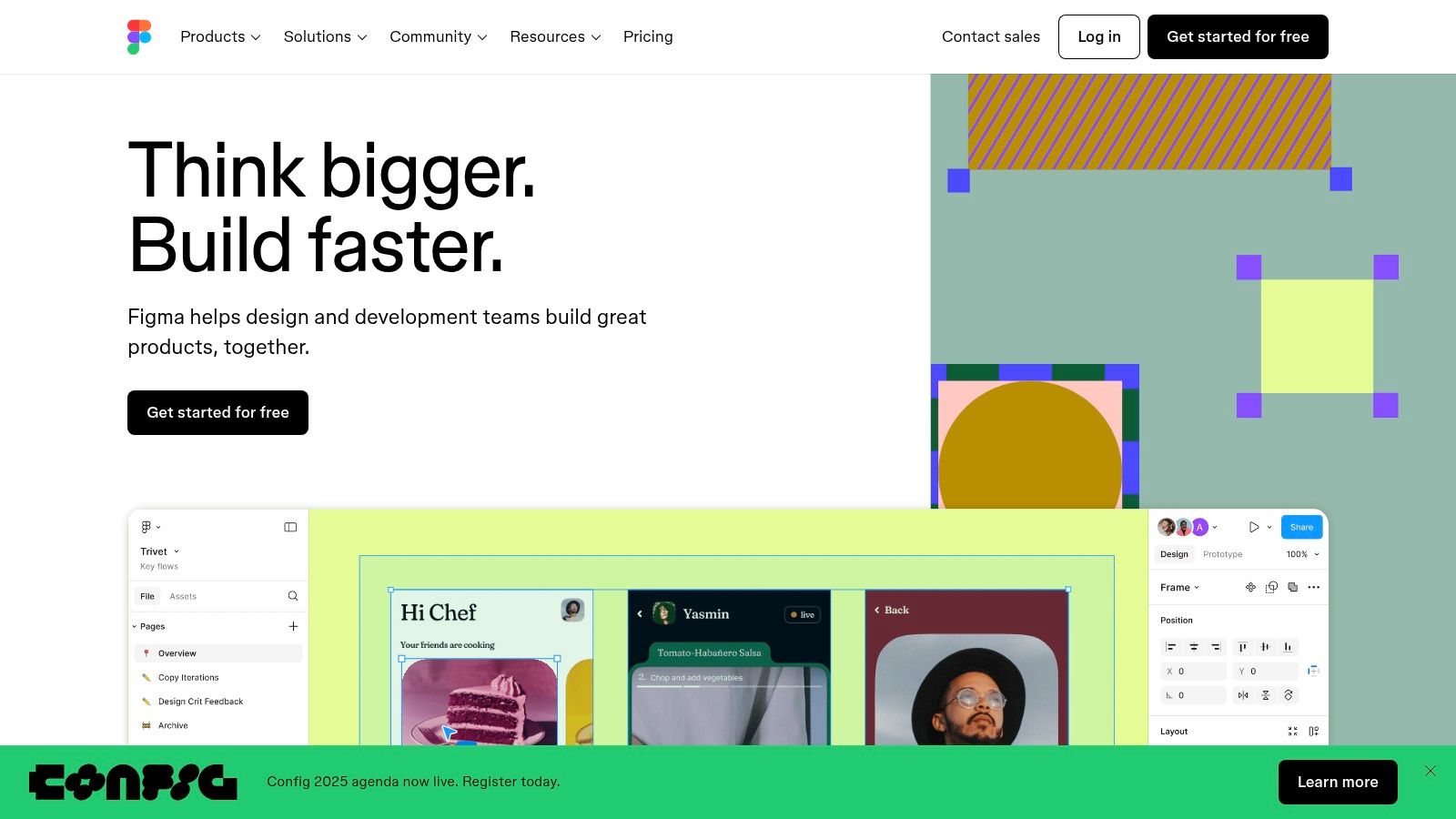
Figma has rapidly become essential for designers. This cloud-based design tool offers a collaborative space for UI/UX design, prototyping, and creating interactive experiences. Its accessibility, comprehensive features, and active community make it ideal for experienced developers, aspiring designers, and digital artists alike.
Its browser-based platform eliminates platform limitations and installation complexities. Combined with real-time collaboration, Figma drastically simplifies workflows, proving particularly useful for remote teams and educational environments. The free tier also provides an accessible starting point for individuals and small teams exploring interactive design.
Practical Applications and Use Cases
- UI/UX Design: Design user interfaces and experiences for websites, mobile apps, and other digital products.
- Prototyping: Develop interactive prototypes to test user flows and gather early feedback.
- Interactive Design: Craft interactive components for websites, applications, and presentations.
- Visual Collaboration: Work together with designers, developers, and stakeholders in real-time.
- Design Systems: Create and manage consistent design systems using reusable components.
Key Features and Benefits
- Real-time Collaboration: Multiple users can edit designs simultaneously, improving teamwork and reducing feedback cycles.
- Comprehensive Prototyping: Build intricate prototypes with interactive elements, animations, and transitions.
- Auto-layout and Constraints: Design adaptive interfaces for different screen sizes and devices.
- Component-Based Design: Develop and manage design systems with reusable elements for consistency and efficiency.
- Vector Networking: Use precision vector editing tools for detailed illustrations and icons.
Pros and Cons of Using Figma
Pros:
- Cross-Platform Compatibility: Works seamlessly across various operating systems through any web browser.
- Powerful Collaboration: Facilitates teamwork and speeds up the design process.
- Free Tier Availability: Offers a cost-effective entry point for individuals and small groups.
- Extensive Plugin Ecosystem: Expand Figma's functionality with community-developed plugins.
Cons:
- Internet Dependency: Requires a consistent internet connection for optimal performance.
- Resource Intensive: Large projects can consume significant system resources, particularly on less powerful machines.
- Learning Curve: Mastering advanced features may require time and dedicated practice.
- Subscription Model Cost: Costs can escalate for large organizations with many users.
Pricing, Technical Requirements, and Comparisons
Pricing: Figma offers a free starter plan, professional plans for individuals and teams, and enterprise-level options. See the Figma website for detailed pricing information.
Technical Requirements: A modern web browser and a stable internet connection.
Comparison with Similar Tools: While Sketch and Adobe XD provide comparable features, Figma's browser-based approach and real-time collaboration set it apart. Sketch requires macOS, while Adobe XD's collaborative features aren't as seamless.
Implementation and Setup Tips
- Begin with the free tier to explore the platform and its core features.
- Use Figma's tutorials and documentation to learn advanced techniques.
- Explore the Figma Community for plugins, templates, and inspiration.
- Organize files effectively for collaborative projects.
Website: https://www.figma.com/
2. Adobe XD
Adobe XD is a powerful vector-based UX/UI design tool, ideal for creating interactive experiences for web and mobile applications. Developed by Adobe, it offers a streamlined workflow for everything from wireframes and interactive prototypes to polished screen designs. Speed and efficiency are prioritized throughout the entire design process, making XD a compelling choice for users ranging from aspiring developers to seasoned professionals.
Practical Applications and Use Cases:
-
Rapid Prototyping: Quickly create interactive prototypes to test user flows and gather early feedback. XD's drag-and-drop interface and pre-built UI elements simplify visualizing and iterating on design ideas.
-
Web and Mobile App Design: Design high-fidelity mockups and interactive prototypes for both web and mobile platforms. The Responsive Resize feature allows for easy adaptation to different screen sizes.
-
Voice Interface Design: Explore voice interactions with XD's voice prototyping feature, enabling you to design and test voice-controlled experiences.
-
Collaboration and Design Systems: Use coediting capabilities for real-time collaboration with other designers and create and maintain design systems with reusable components for consistent branding and efficient workflows.
Key Features and Benefits
-
Coediting: Work simultaneously with team members on the same project, fostering collaboration and streamlining the design process.
-
Voice Prototyping: Design and test voice interactions for innovative voice-controlled applications and interfaces.
-
Responsive Resize: Easily adapt designs for various screen sizes and devices, ensuring a consistent user experience across different platforms.
-
Integration with Adobe Creative Cloud: Seamless integration with other Adobe applications like Photoshop and Illustrator simplifies asset management and design workflows.
-
Component States: Create interactive elements with different visual states (e.g., hover, pressed, disabled) to simulate real-world interactions.
Pros and Cons of Using Adobe XD
Pros:
-
Seamless Integration with Adobe Ecosystem: Easily import and export assets between XD and other Adobe Creative Cloud applications. This is a major advantage for users already working within the Adobe ecosystem.
-
Intuitive Interface: XD has a user-friendly interface, familiar to existing Adobe users, minimizing the learning curve.
-
Excellent Performance: XD handles large files and complex projects with impressive speed and stability.
-
Strong Animation and Transition Capabilities: Create engaging and polished prototypes with smooth animations and transitions.
Cons:
-
Collaboration Features Not as Robust as Competitors: While coediting is available, some collaborative features might not be as comprehensive as those offered by Figma or other collaborative design tools.
-
Limited Free Version: The free version of XD has limitations compared to some alternatives, potentially restricting its use for larger projects or teams.
-
Fewer Third-Party Plugins: XD has a smaller plugin ecosystem than Figma or Sketch, potentially limiting extensibility and customization.
-
Future Development Uncertain (Post-Figma Acquisition): Adobe's acquisition of Figma has raised questions about the long-term future and development roadmap of Adobe XD.
Pricing, Technical Requirements, and Comparison
XD is available as part of the Adobe Creative Cloud subscription. Standalone plans and a free starter plan are also available. System requirements vary depending on the operating system (macOS or Windows). Check the Adobe website for the latest pricing and system requirements. While XD offers a strong feature set, it faces competition from tools like Figma and Sketch. Figma is known for its robust real-time collaboration features and web-based accessibility, while Sketch is popular among Mac users for its powerful vector editing capabilities. XD shines through its tight integration with the Adobe Creative Cloud suite, making it a natural choice for designers already working within the Adobe ecosystem.
Implementation/Setup Tips
-
Start with UI Kits: Leverage pre-built UI kits available within XD to jumpstart your design process and maintain consistency.
-
Master Repeat Grid: Use the Repeat Grid feature to quickly create and populate repetitive design elements, saving significant time and effort.
-
Explore Plugins: While the plugin ecosystem is smaller than some competitors, explore available plugins to extend XD's functionality and tailor it to your specific needs.
Adobe XD earns its place on this list due to its speed, intuitive interface, and strong integration with the Adobe Creative Cloud suite. While the future of XD might be uncertain, it remains a viable and capable tool for designers seeking a powerful and efficient UX/UI design solution, particularly those already working within the Adobe ecosystem.
3. Sketch
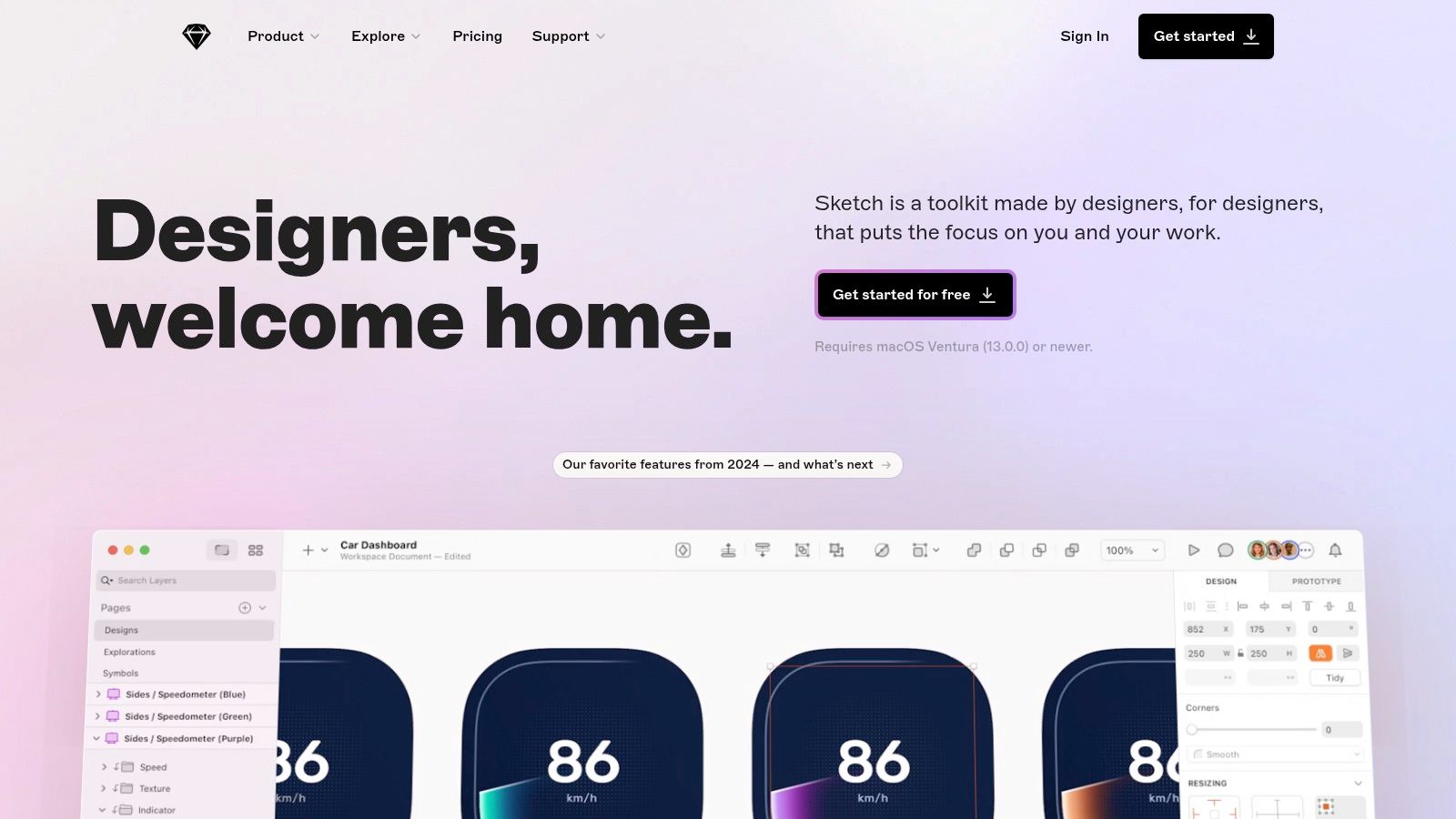
Sketch is a vector-based design tool built for macOS. It’s a popular choice for UI/UX designers working on web and mobile apps. Its influence on modern design tools, particularly with features like symbols (components), plus its intuitive interface and performance make it a noteworthy option. While being exclusive to macOS might limit its accessibility, its dedicated users and extensive plugin ecosystem speak volumes about its capabilities.
Sketch excels at creating and refining user interfaces. Because it's vector-based, designs can be scaled infinitely without any loss in quality. This is crucial for adapting to various screen sizes. Imagine resizing buttons, icons, or entire layouts without worrying about pixelation – Sketch handles this with ease. A comprehensive symbol library and nested symbols feature simplifies design system management. Changes to a master button component, for example, automatically update across all instances. This drastically boosts workflows and maintains design consistency.
Smart layout features further enhance the design process. They automatically adjust layouts to fit different screen sizes, simplifying responsive design. This means less manual tweaking and more time focusing on the creative aspects of your work. Sketch also facilitates teamwork through Sketch Cloud, offering cloud-based collaboration. Teams can share designs, provide feedback, and manage version control.
However, these collaborative features might not be as integrated as those found in some browser-based alternatives like Figma. For more complex prototyping, Sketch often requires integration with other tools like InVision, which adds another step to the workflow. This might require additional learning and coordination, especially for larger teams.
Features
- Powerful vector editing capabilities
- Extensive symbol library and nested symbols
- Smart layout features for responsive design
- Cloud-based collaboration via Sketch Cloud
- Rich plugin ecosystem
Pros
- Clean, minimalist interface optimized for UI design
- Excellent performance, even with complex designs
- One-time purchase option available (not subscription-only)
- Strong integration with developer handoff tools
Cons
- macOS only
- Requires separate tools like InVision for advanced prototyping
- Collaboration features not as integrated as some browser-based alternatives
- Team subscriptions required (while individuals can make a one-time purchase)
Pricing
Sketch offers a free trial. A one-time purchase is available for individuals. Teams utilize a subscription model. The most current pricing is available on their website.
Technical Requirements
macOS (specific version requirements are listed on the Sketch website).
Implementation/Setup Tips
- Learn the symbol library and nested symbols to maximize Sketch's potential for design system management.
- Explore the vast plugin ecosystem to expand the tool's capabilities. Plugins are available for various tasks, from generating design specs to managing assets.
- Integrate Sketch with developer handoff tools like Zeplin or Avocode for a smoother workflow between designers and developers.
Comparison
While tools like Figma and Adobe XD offer cross-platform compatibility and integrated collaboration, Sketch remains a strong option. Its performance, focus on UI/UX design, and established ecosystem are significant advantages. The best tool for you will depend on your individual needs and platform preferences.
Website
4. InVision Studio
InVision Studio is a powerful design tool specifically created for building interactive and polished user interface prototypes. Unlike other tools that offer basic animation, Studio allows for complex animations and transitions, making it perfect for visualizing micro-interactions and bringing UI designs to life. This focus on motion makes it a strong choice for designers, digital artists, and anyone wanting to create engaging digital experiences.
Studio combines design, prototyping, and collaboration features into one platform. You can design interfaces using vector-based drawing tools, complete with boolean operations, and then seamlessly transition to building interactive prototypes. This integrated workflow improves efficiency for both individuals and teams.
Key Features and Benefits
-
Advanced Animation and Transition Design: Studio's timeline-based animation system lets you carefully create complex transitions and micro-interactions. This is invaluable for demonstrating subtle UI behaviors and refining the overall feel of an application.
-
Responsive Design with Adaptive Layouts: Design and preview your creations across different screen sizes and resolutions to ensure a consistent user experience, essential for modern web and mobile development.
-
Real-Time Collaboration: Work together with team members, share designs and prototypes, and receive feedback in real time. This collaborative approach speeds up the design process and improves communication.
-
Seamless Integration with InVision's Prototyping Platform: Studio integrates with the broader InVision ecosystem, making handoffs to developers and stakeholders smooth. This integration helps ensure that your prototypes accurately reflect the final product.
-
Vector-Based Drawing Tools with Boolean Operations: Create and manipulate vector graphics with precision using Studio's drawing tools. Boolean operations allow advanced control over shape combinations and modifications, increasing design flexibility.
Pros
- Excellent animation capabilities for intricate interactions
- Strong integration with the InVision platform
- Intuitive timeline for micro-interaction creation
- Effective collaboration tools
Cons
- Steeper learning curve compared to competitors like Figma and Sketch
- Potential performance issues with complex projects
- Less robust component system than Figma or Sketch
- Slower pace of new feature releases
Comparison with Similar Tools
While Figma and Sketch are known for component-based design and collaborative workflows, InVision Studio focuses on advanced animation and prototyping. If your project requires intricate animations and micro-interactions, Studio is a good fit. However, if design systems and component reuse are priorities, Figma or Sketch may be more suitable.
Implementation/Setup Tips
-
Review the tutorials and documentation on the InVision website to learn the interface and features.
-
Practice using the animation timeline and explore the easing options to refine your micro-interactions.
-
Take advantage of the collaboration tools to improve your workflow and get feedback from your team.
Pricing and Technical Requirements
InVision offers various pricing plans, including a free plan for individuals with limited projects. Paid plans offer more features and collaboration capabilities. See the InVision website (https://www.invisionapp.com/studio) for current pricing and technical specifications.
InVision Studio is a valuable tool for anyone looking to create highly interactive designs. Its advanced animation capabilities allow you to build engaging and dynamic user experiences. While it does have a steeper learning curve compared to other tools, its strength lies in bringing UI designs to life through motion design.
5. Axure RP
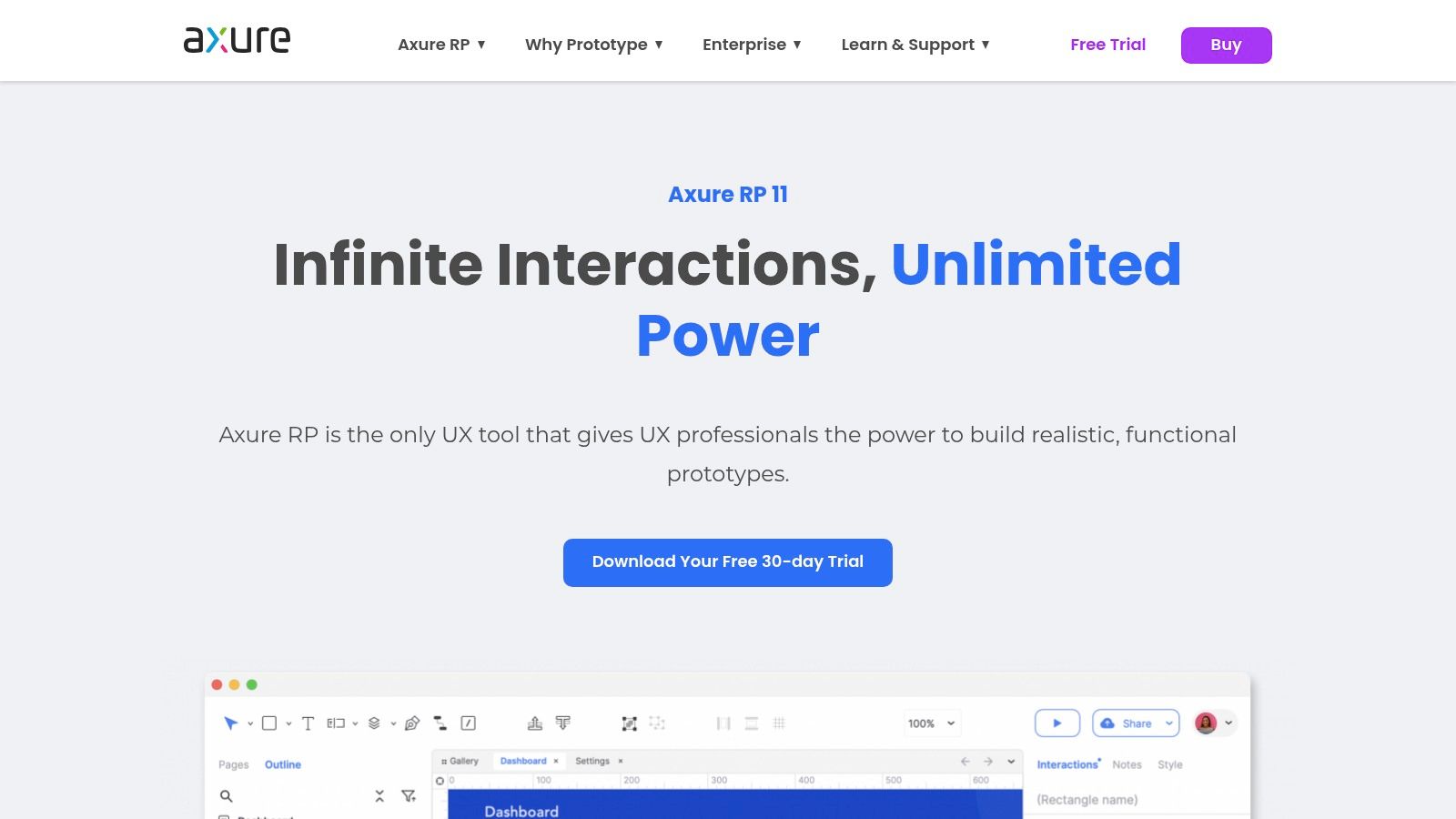
Axure RP stands out as a leading tool for crafting interactive and complex prototypes without any coding. While some tools offer basic interactive features, Axure RP provides a more comprehensive approach. Designers can simulate intricate user flows, data-driven interactions, and even mathematical calculations within their prototypes. This makes it especially suitable for enterprise-level applications, complex web apps, and software with intricate logic.
Imagine designing a financial planning tool with dynamic charts responding to user input, or a complex e-commerce checkout process adapting to inventory and user choices. These scenarios are where Axure RP truly excels. It helps create prototypes that closely resemble the final product, allowing for thorough user testing and stakeholder feedback early in the design process.
Key Features and Benefits
Axure RP offers a range of features designed to streamline complex prototyping:
-
Advanced Interactive Prototyping with Conditional Logic: Move beyond simple click-throughs. Create prototypes that handle "if-then" scenarios, dynamic content updates, and interactive elements that respond realistically to user actions.
-
Dynamic Content and Data-Driven Prototypes: Integrate real-world data by connecting your prototypes to external sources or using built-in datasets. This allows for the creation of realistic and personalized user experiences.
-
Math Functions and Variables: For applications requiring calculations or data manipulation, Axure RP lets you define variables and use mathematical functions within your prototypes, enhancing realism and functionality.
-
Adaptive Views for Responsive Design: Design prototypes that adapt to different screen sizes and devices, ensuring a consistent user experience across all platforms.
-
Team Collaboration via Axure Cloud: Collaborate with team members in real time, share prototypes, and manage feedback efficiently using Axure's cloud-based platform.
Pros and Cons of Using Axure RP
Like any tool, Axure RP has its strengths and weaknesses. Understanding these can help you decide if it's the right fit for your project.
Pros:
- Complex Interactions Without Coding: Create sophisticated, functional prototypes without needing coding skills.
- Excellent Documentation Generation: Automatically create specifications and documentation from your prototype, saving time and ensuring consistency.
- Precise Control over Interactions: Fine-tune every detail of the user experience, from animations and transitions to interactive elements.
- Strong Support for Accessibility Testing: Ensure inclusive designs by testing for accessibility guideline compliance.
Cons:
- Steeper Learning Curve: The extensive features may be challenging for beginners. Be prepared to invest time in learning the software.
- Dated Interface: While functional, the interface is not as modern or intuitive as some newer design tools.
- Performance Issues with Complex Prototypes: Very complex projects might experience performance slowdowns.
- Higher Price Point: Axure RP is a premium tool. Carefully consider your project needs and budget.
Pricing and Technical Requirements
Axure RP offers different subscription plans starting at approximately $29/user/month. Check the Axure website for the latest pricing and plan details. The software is available for both Windows and macOS. System requirements are also available on their website.
Implementation Tip
Begin with the tutorials and sample projects provided by Axure to learn the core concepts. Explore the Axure community forums and resources for additional support and inspiration.
While Axure RP might not be ideal for simple prototyping needs, its power and flexibility make it a valuable tool for complex projects that demand advanced interactions, data integration, and conditional logic. For such projects, Axure RP remains the industry standard, effectively bringing complex designs to life.
6. Framer
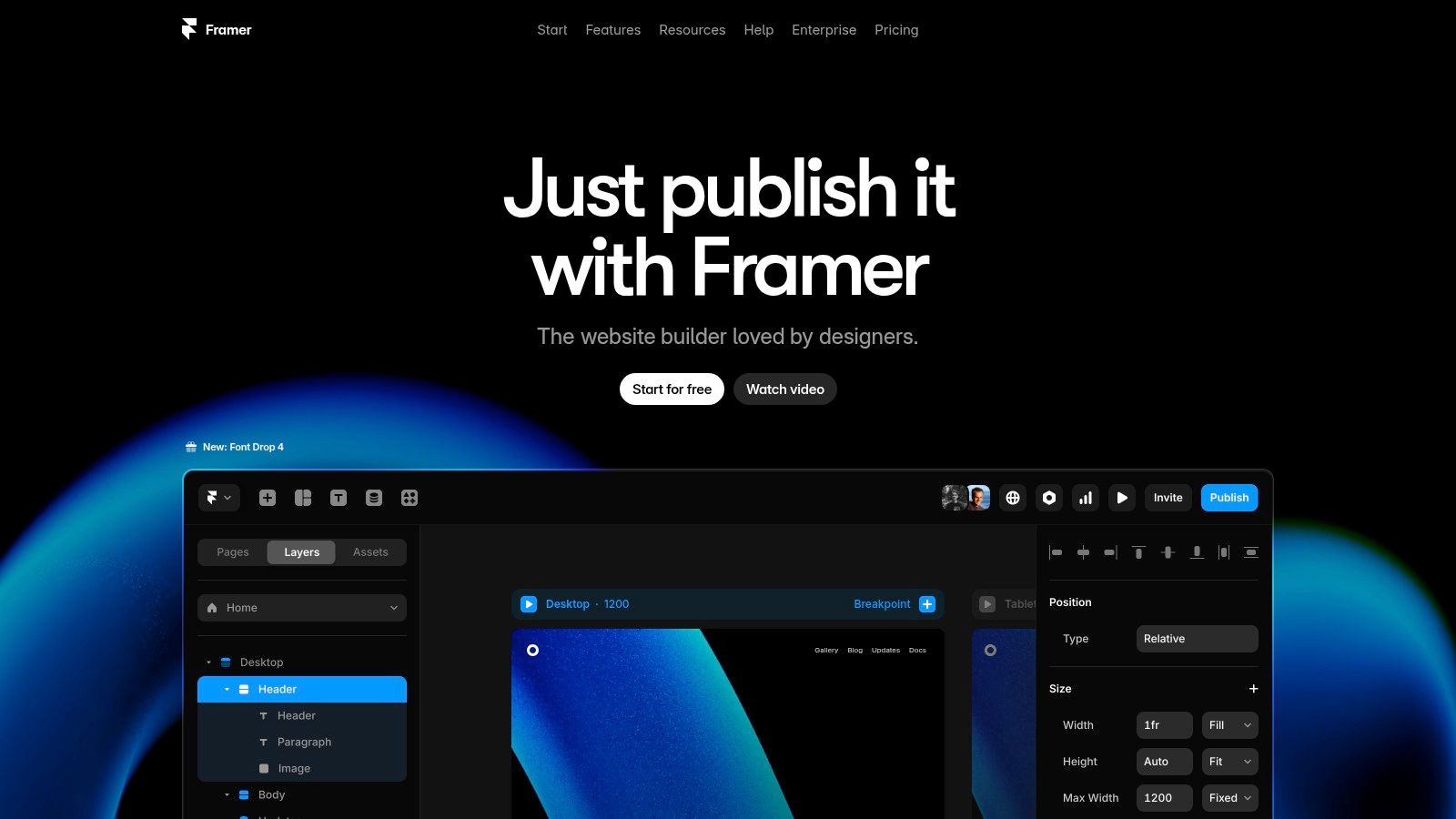
Framer is a powerful prototyping tool that closes the gap between static designs and fully functional web applications. Unlike tools focused solely on visual mockups, Framer empowers designers and developers to create high-fidelity, interactive prototypes. These prototypes accurately reflect the final product's behavior and feel.
This makes Framer invaluable for testing user flows, refining interactions, and demonstrating complex functionality before writing any code. Its unique blend of visual design tools and code-based customization earns it a spot on this list, offering a level of detail and realism unmatched by many competitors.
Leveraging React and Smart Components
Framer truly excels in its ability to integrate React components directly into prototypes. This allows experienced developers to use their existing skills and build prototypes with industry-standard technologies. For those less comfortable with coding, Framer’s Smart Components offer a visual approach. They allow for the creation of reusable design elements with variable properties, enabling dynamic and adaptable designs.
Its advanced animation and transition controls allow for the creation of intricate and polished micro-interactions. These are crucial for crafting engaging user experiences. The ability to define interactive states and variants simplifies visualizing and testing different scenarios within the prototype. Furthermore, Framer's integration with design systems ensures consistency and streamlines the workflow from design to development.
Beyond Prototyping: A Tool for Education and Innovation
For aspiring "vibe coders," Framer provides a great environment to explore the intersection of design and code. Digital artists and creative technologists can use it to push the boundaries of interactive experiences.
Educators can leverage Framer in the classroom to teach modern design principles and development workflows. Students gain hands-on experience with a professional-grade tool. Even for seasoned software developers, Framer’s rapid prototyping capabilities can accelerate the design iteration process.
Features, Pros, and Cons: A Quick Overview
Features:
- Code-based customization with JavaScript/React
- Smart Components with variable properties
- Advanced animation and transition controls
- Interactive design with states and variants
- Integration with design systems
Pros:
- Unique blend of visual and code-based design
- Superior animation and interaction capabilities
- Powerful prototyping that closely matches production apps
- Growing component marketplace
Cons:
- Steeper learning curve for non-technical designers
- Limited collaboration features compared to Figma
- Higher pricing than some alternatives (starts at $19/month for individuals)
- Can be intimidating for beginners
Getting Started with Framer: A Practical Tip
While Framer's code-focused approach might be challenging for designers unfamiliar with JavaScript, the power and flexibility it offers are significant. Check out our article about How to Master Framer Motion for a deeper dive into creating advanced animations and interactions.
Implementation Tip: Begin with Framer's free tutorials and explore pre-built components in the marketplace to get acquainted with the platform. Leverage the Smart Components feature to build reusable design elements and streamline your workflow. This will help you get a feel for the tool before tackling complex projects.
Empowering Digital Experiences
Framer empowers you to craft prototypes that are indistinguishable from fully functional applications. This makes it a crucial tool for anyone involved in creating digital experiences, from designers and developers to entrepreneurs and educators. Visit the Framer website to learn more and explore its capabilities.
7. ProtoPie
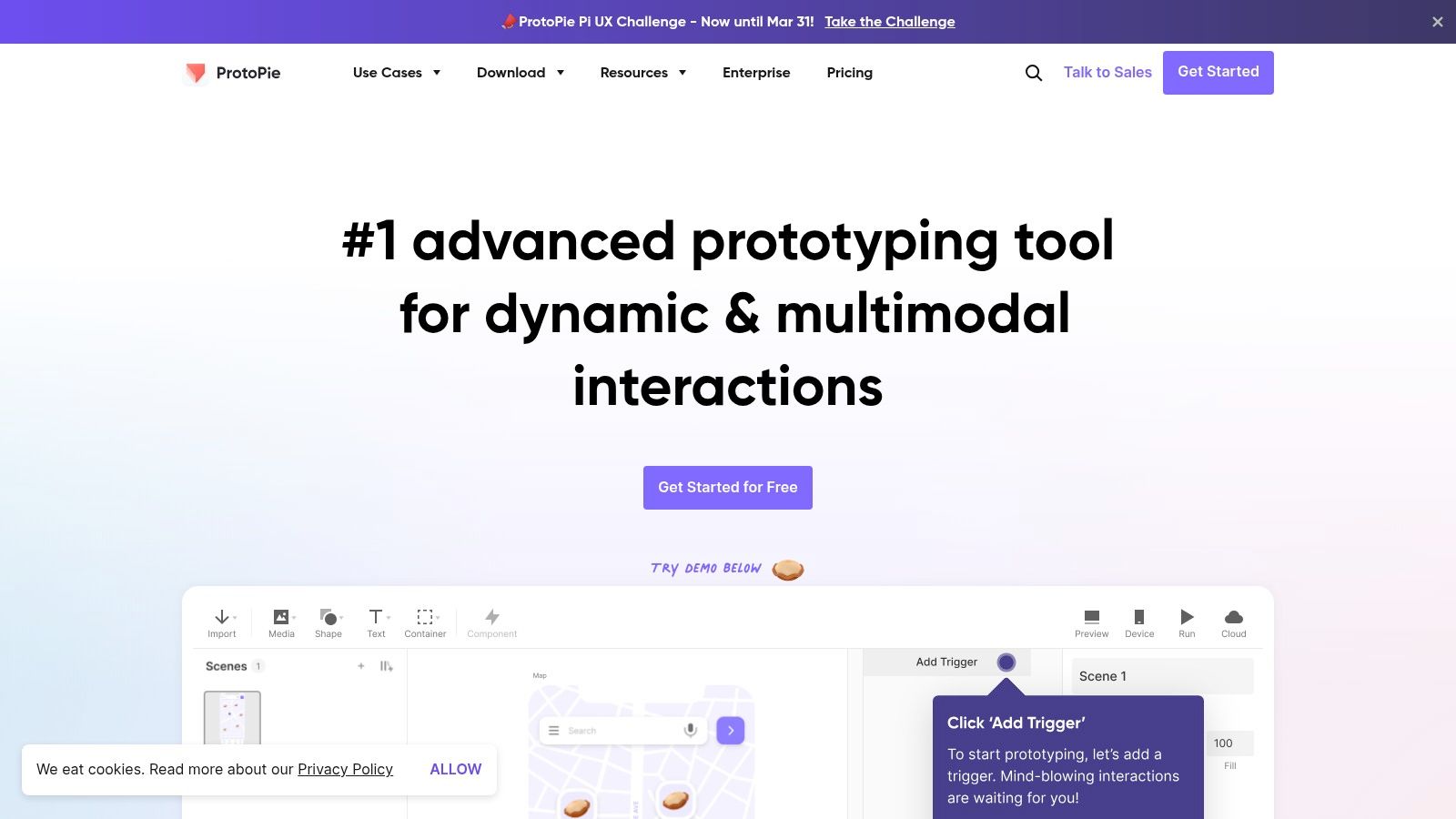
ProtoPie stands out as a leading tool for creating high-fidelity prototypes. These prototypes go beyond basic click-throughs, closely mimicking real-world interactions with hardware. While other tools can create simpler interactive mockups, ProtoPie excels at simulating the complex responses of sensors, multi-touch gestures, and device-specific features.
This capability proves invaluable for designers and developers. They can thoroughly test and demonstrate complex user flows and intricate interactions long before any code is written.
Imagine designing a smart home app. You want the user to control a virtual lightbulb's brightness by tilting their phone. Or perhaps you're developing a mobile game with unique gameplay mechanics using the phone's accelerometer. ProtoPie empowers you to build these sophisticated prototypes without coding.
ProtoPie's power comes from its formula-based interaction system. This system allows you to define relationships between inputs (like sensor data or touch events) and outputs (like animations, transitions, or UI changes) using intuitive formulas. This gives you granular control and flexibility over how your prototype behaves.
Key Features and Benefits
- Sensor Integration: Use device sensors like accelerometer, gyroscope, compass, proximity sensor, and even 3D Touch for realistic interactions.
- Complex Interactions Without Coding: Create prototypes with intricate logic and dynamic responses, even without programming knowledge.
- Formula-Based Interaction Design: Define complex relationships between inputs and outputs using an intuitive formula system.
- Multi-Device and Cross-Platform Prototyping: Build prototypes that work consistently across different devices and platforms.
- Integration with Design Tools: Import designs from Sketch and Figma to maintain design fidelity and improve workflow.
- On-Device Testing: Test your prototypes directly on physical devices for realistic feedback and accurate testing.
Pros
- Ideal for creating highly realistic, hardware-integrated prototypes.
- Intuitive formula-based interaction design system.
- Excellent for demonstrating and testing complex user flows.
- Supports on-device testing.
Cons
- Higher cost compared to general-purpose design tools. Pricing starts at $11/month for a Solo plan, up to $42/month for a Pro plan, with team plans also available. A free trial is offered.
- Limited vector design capabilities; works best with imported designs.
- Can have a steeper learning curve for very complex interactions.
- Not a complete design solution; ideally used as part of a larger design workflow.
Implementation/Setup Tips
- Begin with the tutorials and example projects to understand the formula-based interactions.
- Import designs from Sketch or Figma for visual consistency.
- Use the documentation and community forums for help with advanced features.
- Test prototypes on actual devices early and frequently for the best feedback.
Comparison with Similar Tools
Tools like Adobe XD and Figma offer some interactivity. However, ProtoPie excels in handling sensor-driven interactions and complex animations. Framer is a closer competitor, offering code-based interactions. While this provides greater flexibility for developers, ProtoPie’s no-code approach is more accessible to a wider audience.
Website: https://www.protopie.io/
ProtoPie bridges the gap between static designs and fully functional applications. It requires a dedicated investment of time and effort, but its ability to create realistic and interactive prototypes makes it valuable for anyone serious about designing top-tier user experiences. ProtoPie opens up possibilities for exploring innovative interactions and bringing compelling user experiences to life.
8. Adobe Illustrator
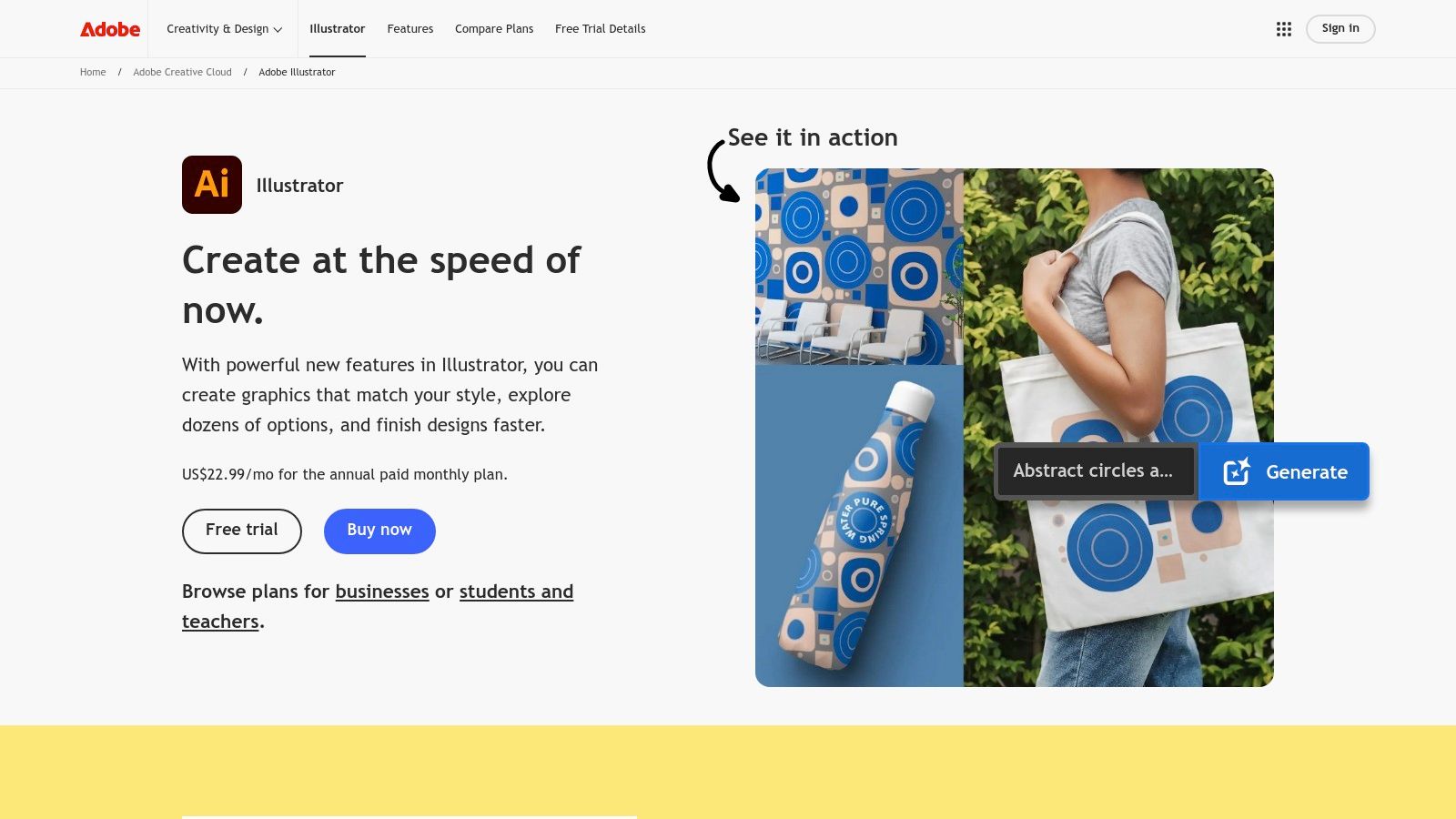
Adobe Illustrator is the industry-standard vector graphics editor. This makes it a vital tool, even for interactive design. While Illustrator itself isn't an interactive design tool, it plays a crucial supporting role. It's where you create the high-quality, scalable assets that bring interactive prototypes to life. Think crisp logos, detailed illustrations, intricate icons, and even custom typography. These are all essential for a polished user interface (UI) or user experience (UX).
This powerful software gives designers the ability to create artwork with remarkable precision. Because it's vector-based, your designs can be scaled infinitely without losing quality. This ensures your assets look perfect on any screen, from mobile devices to large displays.
Key Features of Adobe Illustrator
- Precision Vector Editing Tools: The Pen Tool, Pathfinder panel, and Shape Builder tool give you exceptional control over vector shapes and paths.
- Advanced Typography Controls: Create and manipulate text with extensive typographic controls, including OpenType support.
- Powerful Drawing and Illustration Capabilities: Brushes, gradients, and blending modes empower artists to create complex and visually rich artwork.
- 3D Effects and Perspective Drawing: Add depth and dimension to your designs with intuitive 3D tools.
- Adobe Creative Cloud Integration: Seamlessly transfer assets and collaborate within the Adobe ecosystem, including Photoshop and After Effects.
Pros of Using Illustrator
- Unmatched Precision: Illustrator sets the standard for vector editing, offering unparalleled control and accuracy.
- Industry Standard: Its widespread adoption makes finding tutorials, resources, and collaborators easy.
- Extensive Learning Resources: Numerous online tutorials, courses, and communities are dedicated to mastering Illustrator.
- Regular Updates: Adobe continually updates Illustrator with new features and performance enhancements.
Cons of Using Illustrator
- Steep Learning Curve: Mastering Illustrator's tools takes time and effort.
- Subscription Cost: Adobe's Creative Cloud subscription can be a financial barrier.
- Limited Interactivity: Illustrator isn't designed for interactive prototyping, requiring asset export to other tools.
- Resource Intensive: Working with highly detailed illustrations can strain system resources.
Comparing Illustrator to Other Tools
While tools like Affinity Designer and Inkscape provide alternative vector editing capabilities, Illustrator remains the industry standard. This is due to its extensive features, integration with other Adobe products, and widespread use within the design industry.
Tips for Getting Started With Illustrator
- Begin With Tutorials: Numerous excellent tutorials are available to help you get started.
- Practice With Simple Projects: Gradually build your skills by working on progressively complex designs.
- Learn Keyboard Shortcuts: Keyboard shortcuts can drastically speed up your workflow.
- Use Creative Cloud Libraries: Efficiently manage and share assets across your projects.
Pricing and Website
Adobe Illustrator is available through the Adobe Creative Cloud subscription. Various plans are available to suit different needs. You can find more information on the Adobe Illustrator product page.
Illustrator bridges the gap between static designs and interactive experiences. For anyone serious about visually appealing interactive design, learning Adobe Illustrator is a valuable investment. While it’s not an interactive prototyping tool itself, it provides the essential foundation for the high-quality assets needed in any interactive project. It's indispensable for digital artists, creative technologists, and UI/UX designers involved in interactive design.
9. Principle
Principle is a macOS application for creating animated and interactive user interfaces. It focuses on a streamlined approach to motion design, allowing designers to quickly build and refine animations for their digital products. This tool is especially useful for creating micro-interactions, those small but impactful animations that enhance the user experience, and smooth transitions between screens.
This makes Principle a valuable tool for anyone involved in UI/UX design, from beginners to seasoned software developers looking to add polish to their applications.
Key Features and Benefits
Principle's timeline-based animation editor provides a familiar and intuitive workflow. Its driver-based animations enable dynamic interactions, allowing elements to react realistically to user input. For those already using the Apple ecosystem, seamless Sketch integration streamlines the design-to-animation process.
Finished animations can be recorded and exported as videos or GIFs for presentations, portfolios, or use in other tools. A companion iOS app allows for real-time device previews, ensuring your animations look perfect on the target device. You might also be interested in our guide on GSAP for exploring more advanced animation techniques.
- Timeline-based animation editor: Offers a familiar workflow for easy animation creation.
- Driver-based animations: Create dynamic and realistic interactions.
- Seamless Sketch integration: Streamlines the workflow for Apple users.
- Export options: Record and export animations as videos or GIFs.
- Device preview: Preview animations on iOS devices in real-time.
Pros and Cons of Using Principle
Principle offers several advantages for designers looking to add animation to their projects. The intuitive interface makes it easy to learn, even for beginners. It excels at creating refined animations quickly, making it ideal for micro-interactions and transitions. It also performs well, even with complex animations.
However, there are some limitations. Principle is only available for macOS, excluding Windows users. It has limited collaboration features and isn't ideal as a primary design tool. It's best used in conjunction with design software like Sketch or Figma. Finally, it may be less suitable for complex, multi-screen applications.
- Pros: Intuitive interface, fast animation creation, ideal for micro-interactions, good performance.
- Cons: macOS only, limited collaboration, not a primary design tool, less suited for complex apps.
Pricing and Technical Requirements
Principle offers a free trial, followed by a one-time purchase for continued use. Visit their website for current pricing details. The only technical requirement is macOS.
Why Principle Is a Valuable Tool
While not a full-fledged design tool like Figma or Adobe XD, Principle fills a specific need by providing a dedicated and user-friendly platform for crafting polished micro-interactions and transitions. This focus makes it a valuable tool for designers seeking to improve their UI/UX work and create truly engaging user experiences. For those needing a simple yet powerful tool to bring their static designs to life, Principle is an excellent choice.
Website: https://principleformac.com/
10. Webflow
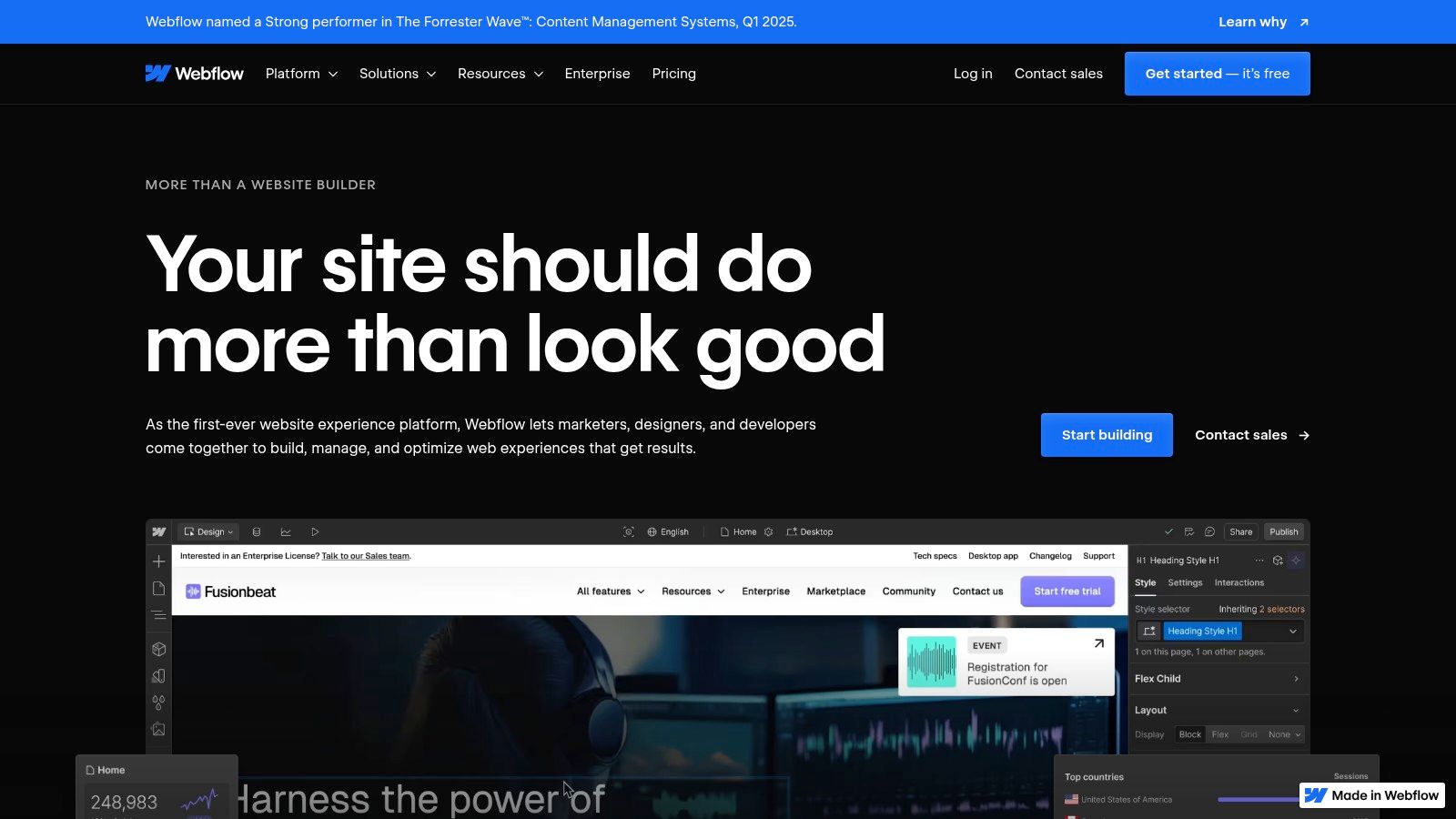
Webflow offers a compelling blend of visual design, a robust content management system (CMS), and seamless hosting – all without requiring traditional coding. This no-code approach empowers designers, especially those with limited coding experience, to craft complex, interactive websites and manage their content efficiently. Webflow bridges the gap between design and development, simplifying the workflow and accelerating the process of building interactive experiences.
Webflow's visual editor allows direct manipulation of CSS styles on the canvas, using responsive breakpoints to ensure designs adapt seamlessly across various devices. The built-in CMS facilitates dynamic content creation, enabling easy website updates without altering code.
Webflow excels at creating advanced interactions and animations, adding polish and engagement. While primarily a no-code platform, it allows for custom code integration when needed, providing experienced developers the flexibility to extend functionality. Direct publishing and hosting capabilities further streamline the process from design to deployment.
Features and Benefits
- Visual CSS Design with Responsive Breakpoints: Design directly on the canvas and ensure your website looks great on any device.
- Built-in CMS for Dynamic Content: Easily manage and update website content without touching code.
- Advanced Interactions and Animations: Create engaging and polished user experiences.
- Custom Code Integration: Extend functionality beyond the core platform features when needed.
- Direct Publishing and Hosting: Streamline the process of launching and managing your website.
Pros and Cons of Using Webflow
Here's a breakdown of the advantages and disadvantages of using Webflow:
| Pros | Cons |
|---|---|
| Creates production-ready sites without coding | Steeper learning curve than simpler builders |
| Eliminates design-development handoff | Higher pricing than basic website platforms |
| Powerful CMS for dynamic content | Can be limiting for highly custom functionality |
| Professional hosting with excellent performance | Performance can suffer with complex interactions |
Pricing and Technical Requirements
Webflow offers a variety of plans, from free options for basic sites to enterprise-level solutions with dedicated hosting and advanced features. Visit the Webflow website for detailed pricing information. As a cloud-based platform, Webflow only requires a web browser and an internet connection.
Comparing Webflow to Other Tools
While platforms like Wix and Squarespace offer website building capabilities, Webflow stands out with its focus on responsive design, a powerful CMS, and advanced interactions, making it a more robust solution for complex projects. For 3D web experiences, explore resources like this guide on Three.js.
Tips for Getting Started With Webflow
- Start with a Template: Use Webflow's templates to get familiar with the platform and speed up your workflow.
- Utilize Webflow University: Take advantage of the extensive tutorials and documentation available.
- Experiment with Interactions and Animations: Add engaging elements to your designs.
Webflow is a valuable tool for aspiring vibe coders, experienced developers prototyping front-end experiences, digital artists showcasing their work, and educators seeking a comprehensive web design tool. Its ability to empower users to create professional, interactive websites without deep coding knowledge makes it a powerful asset.
Top 10 Interactive Design Tools Comparison
| Tool | Core Features ✨ | User Experience ★ | Value Prop 💰 | Audience 👥 | USP 🏆 |
|---|---|---|---|---|---|
| Figma | Real-time collaboration, auto-layout, components | Clean, browser-based flow ★ | Free tier & cross-OS 💰 | Design teams & beginners 👥 | Rich plugin ecosystem 🏆 |
| Adobe XD | Coediting, voice prototyping, responsive resize | Intuitive for Adobe users ★ | Integrated Creative Cloud 💰 | Creative pros & teams 👥 | Seamless ecosystem integration 🏆 |
| Sketch | Vector editing, symbols, smart layout, plugins | Minimalist & efficient ★ | One-time purchase option 💰 | macOS professionals 👥 | Optimized for UI design 🏆 |
| InVision Studio | Advanced animations, responsive design, timeline editing | Dynamic and interactive ★ | InVision ecosystem integration 💰 | Motion design teams 👥 | Exceptional animation controls 🏆 |
| Axure RP | Conditional logic, adaptive views, dynamic content | Robust but complex ★ | Enterprise-grade solution 💰 | Advanced prototyping pros 👥 | Detail-rich interactions 🏆 |
| Framer | React integration, smart components, variable properties | Hybrid visual-code interface ★ | High-fidelity prototypes 💰 | Tech-savvy designers 👥 | Code-based customization 🏆 |
| ProtoPie | Sensor integration, formula-based interactions | Realistic prototyping ★ | Premium interactive tool 💰 | Interactive designers & developers 👥 | Hardware-integrated demos 🏆 |
| Adobe Illustrator | Precision vector editing, advanced typography | Industry-standard performance ★ | Subscription-based model 💰 | Illustrators & design pros 👥 | Unmatched vector precision 🏆 |
| Principle | Timeline-based animations, Sketch integration | User-friendly for motion ★ | Affordable for Mac users 💰 | Motion design specialists 👥 | Quick micro-interactions 🏆 |
| Webflow | Visual CSS design, built-in CMS, hosting | Direct design-to-code conversion ★ | No-code, production-ready 💰 | Web designers & developers 👥 | End-to-end website building 🏆 |
Designing the Future: Empowering Creativity With Interactive Design Software
The world of interactive design is constantly changing, with new software and tools appearing regularly. Exploring these top 10 interactive design software options will give you the resources to stay ahead and unlock your creative potential. Whether designing a sleek mobile app, a captivating website, or an immersive user experience, the right software empowers you to design the future of digital interaction.
Selecting the right tool from this list depends on your individual needs. For web-based collaborative design, Figma and Adobe XD excel. Sketch is a powerful vector-based option, while InVision Studio and Axure RP cater to complex prototyping. Framer and ProtoPie are great for intricate animations and micro-interactions. Don't forget the versatility of Adobe Illustrator, or the code-friendly approach of Principle and Webflow.
Implementation and Getting Started
Most of these design tools offer free trials or free tiers for experimentation before purchase. Comprehensive online tutorials, documentation, and active user communities make it easier to learn the software and troubleshoot problems.
Budget and Resource Considerations
Pricing varies from free plans to substantial subscriptions. Consider factors like the number of users, project scope, and features when evaluating cost-effectiveness. Some software may require powerful hardware, so keep your system capabilities in mind.
Integration and Compatibility
Seamless integration with other design tools in your workflow is essential. Look for compatibility with design systems, version control software like Git, and collaboration platforms for a smooth design process.
Key Takeaways
- User-Friendliness: Figma, Adobe XD, and Sketch are generally beginner-friendly.
- Advanced Prototyping: Axure RP, Framer, and ProtoPie offer robust prototyping features.
- Collaboration: Figma and Adobe XD provide excellent real-time collaboration.
- Cost-Effectiveness: Consider free options like Figma's starter plan or open-source alternatives.
The landscape of interactive design software offers something for every skill level and project. Carefully consider your needs, budget, and desired features to select the ideal tool to bring your creative vision to life and shape the future of digital interaction.